Sender email
To personalize the emails sent to your customers, you can configure the sender details and verify your own domain. This ensures emails come from a familiar address, making them look more professional and trustworthy.
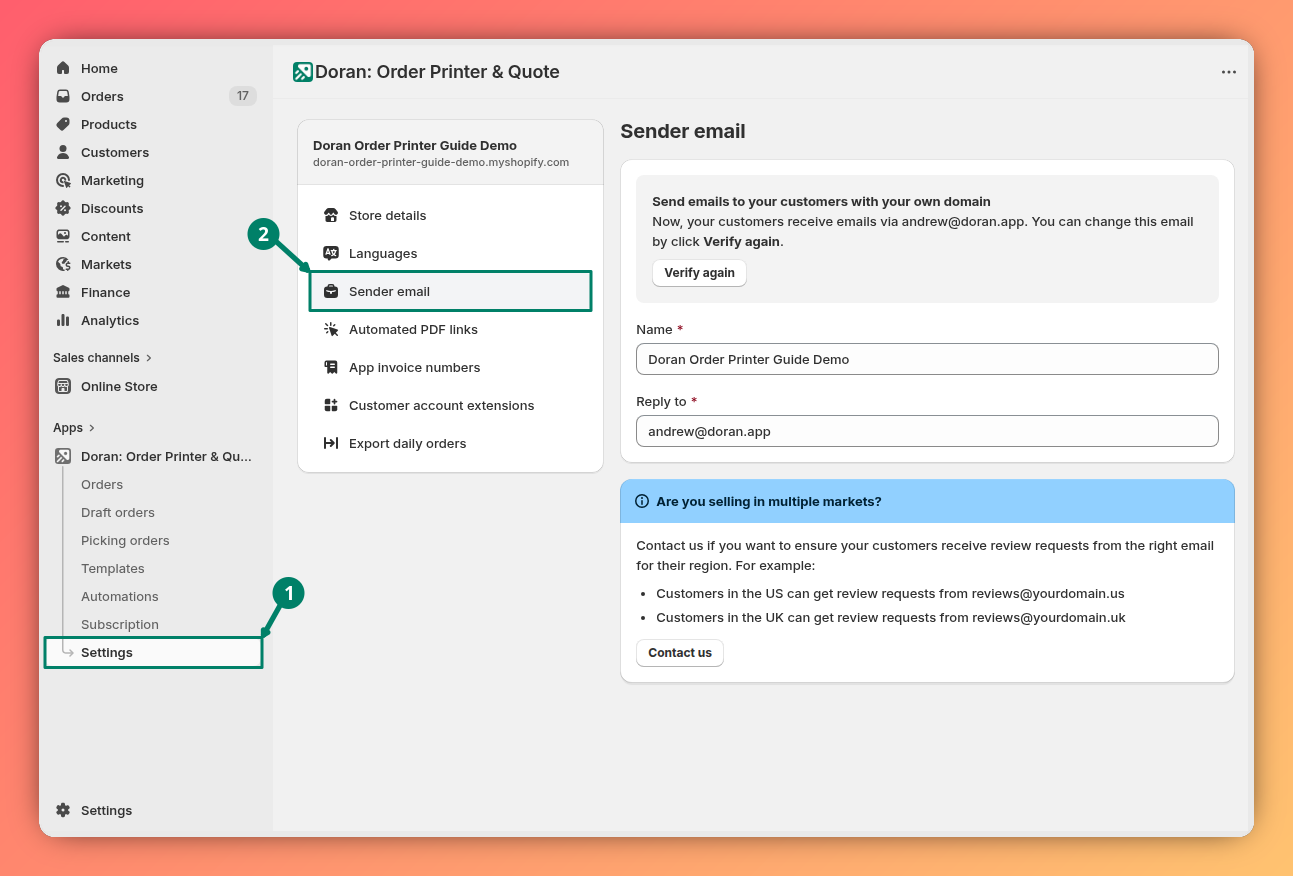
Access the menu
Navigate to Settings > Email sender in the app admin.
Change basic sender information
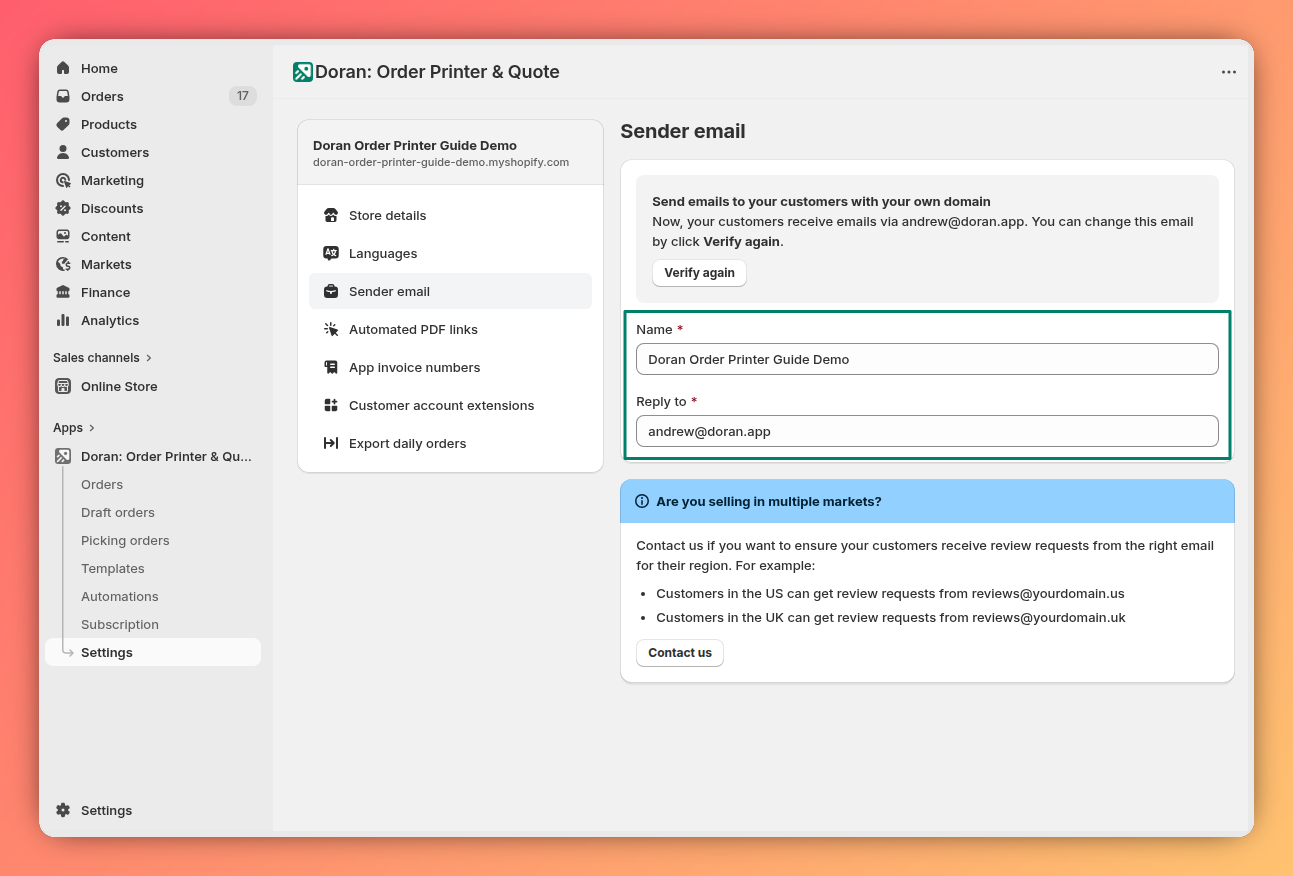
On the Email Sender page, you can update the following fields:
- Name: This is the sender name your customers will see in their inbox (e.g., "Your Store Name").
- Reply to: When a customer replies to an email, their response will be sent to this address.
Verify your branded email
By default, emails are sent from noreply@doranmail.app. Verifying your own domain allows you to send emails from an address like reviews@yourdomain.com, which strengthens your brand identity.
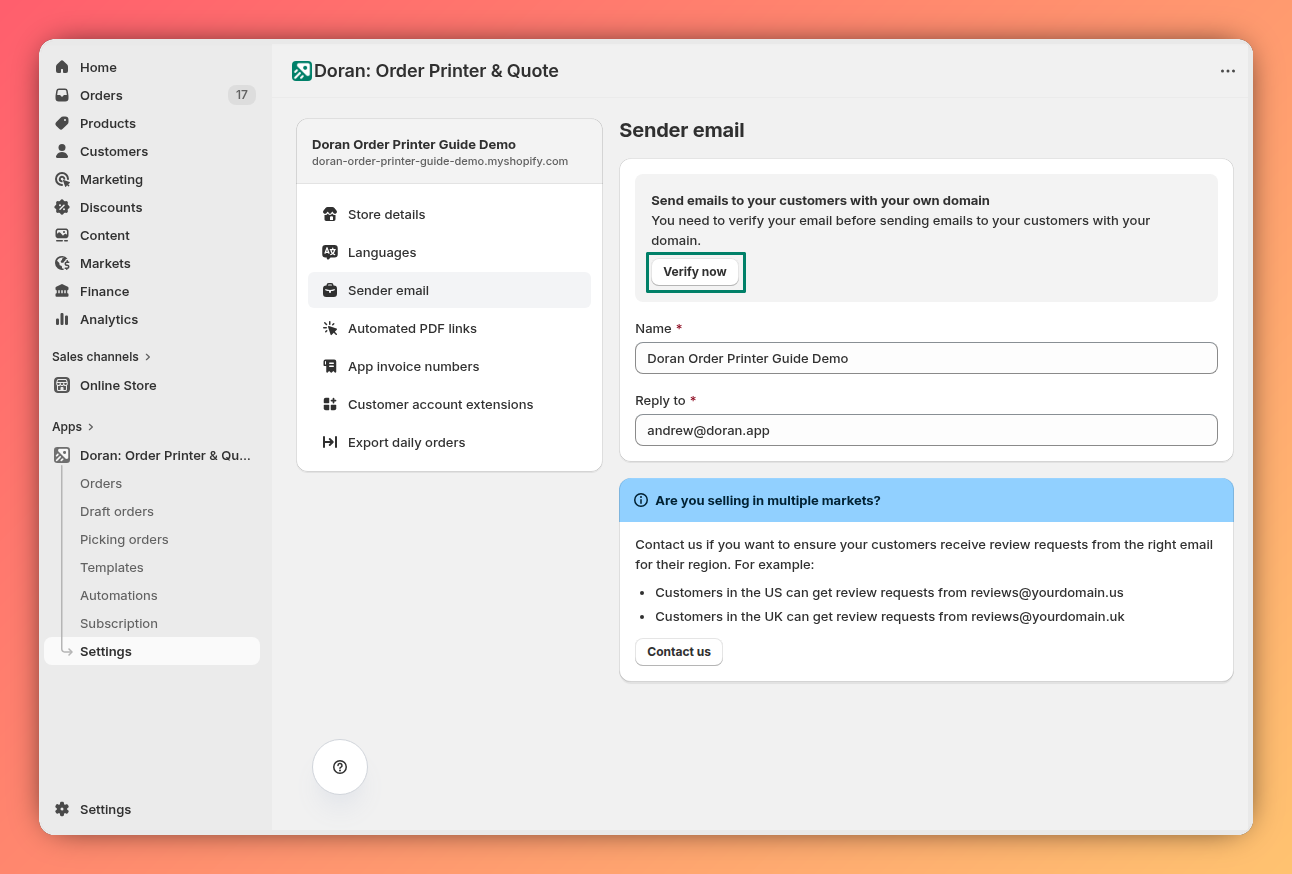
Click the verify button
On the Email Sender page, click the Verify now button. If you have previously verified an email and wish to change it, this button will be labeled Verify again.
Enter your branded email
Input the email address you want to send from (e.g., if your store is yourdomain.com, you might use reviews@yourdomain.com).
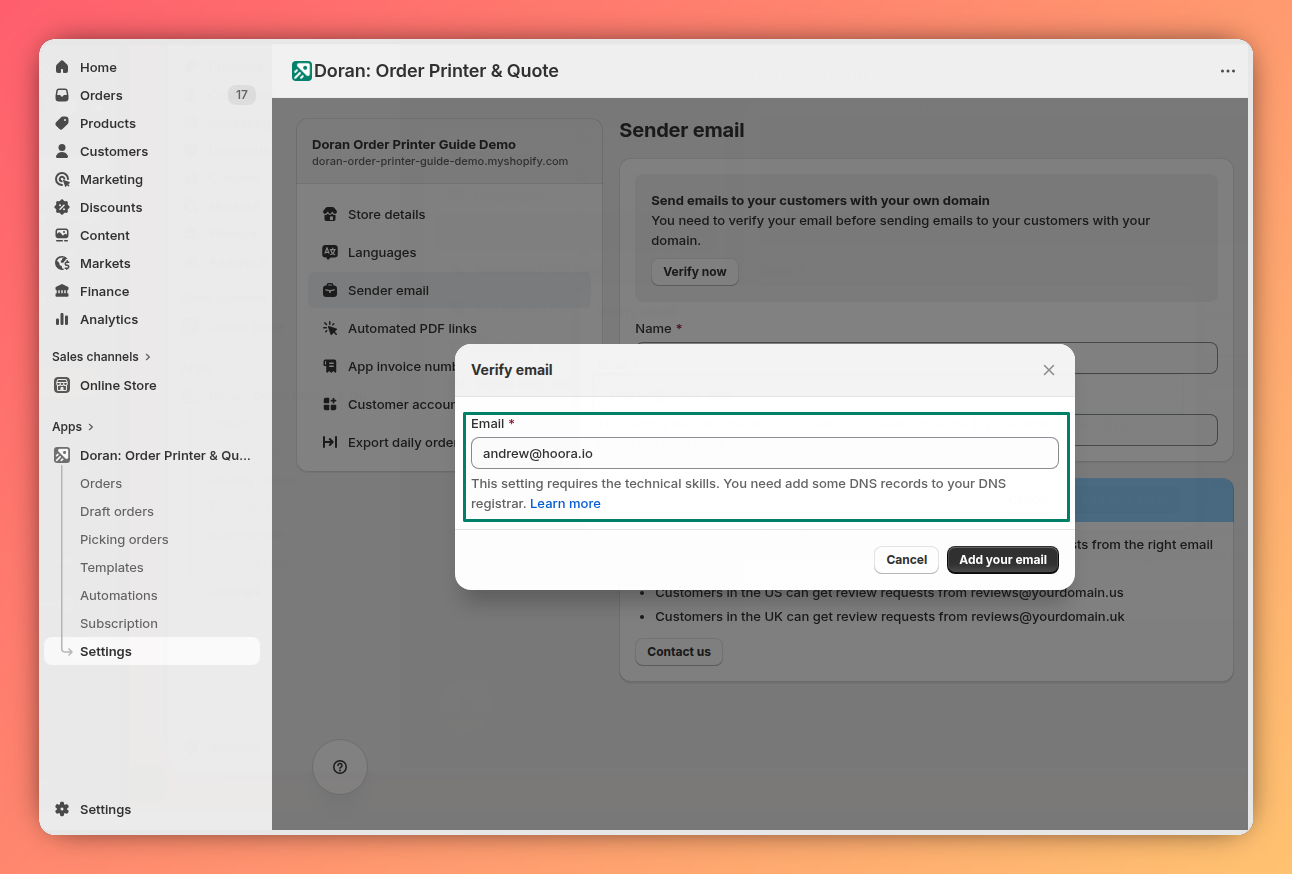
After you enter the email, a table containing your unique DKIM record and a Return-Path record will appear. Keep this page open.
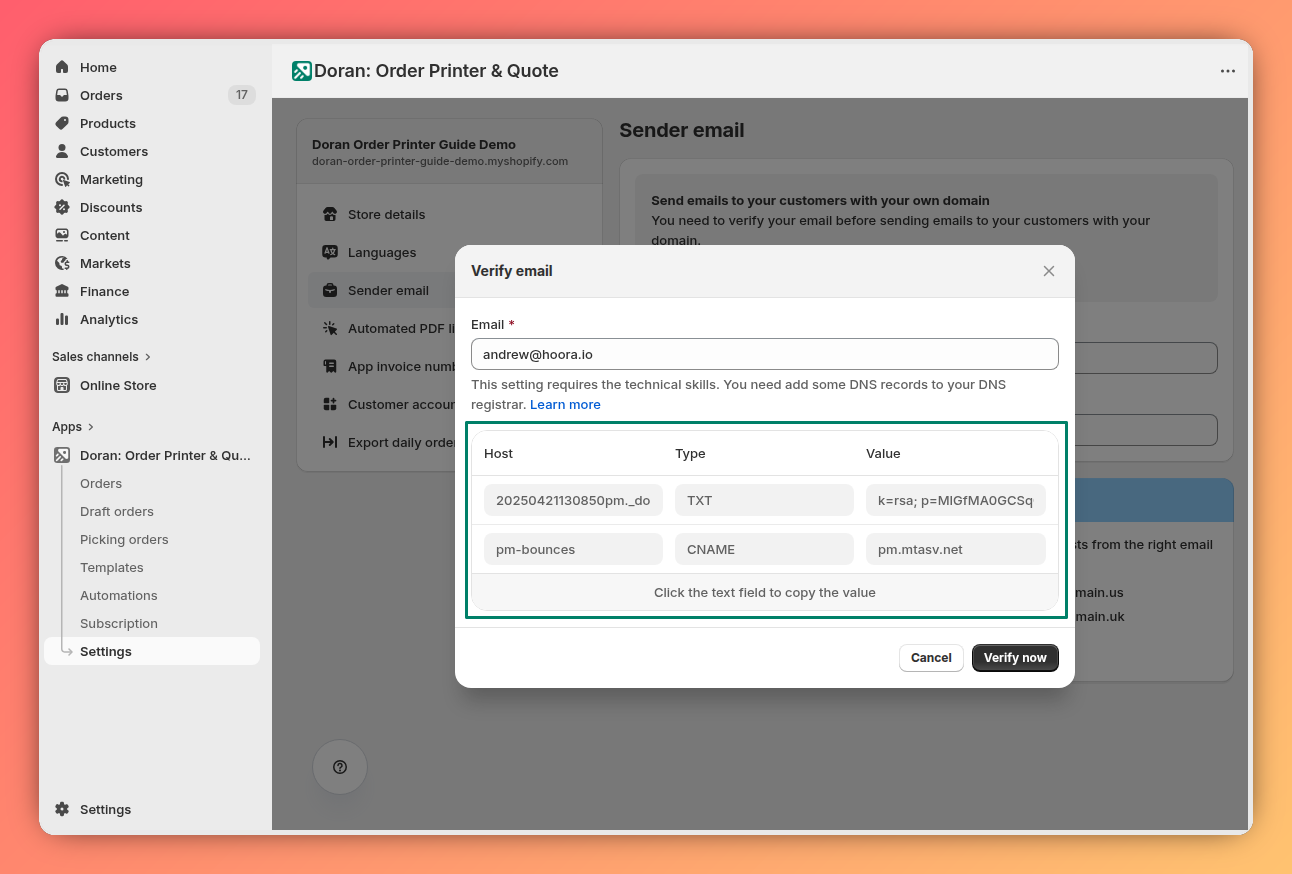
Add the DKIM record to your domain
Log in to your domain registrar (e.g., GoDaddy, Namecheap, Cloudflare) and add a new TXT record with the following details:
- Record type:
TXT - Record name: Copy this value from the information table in the app.
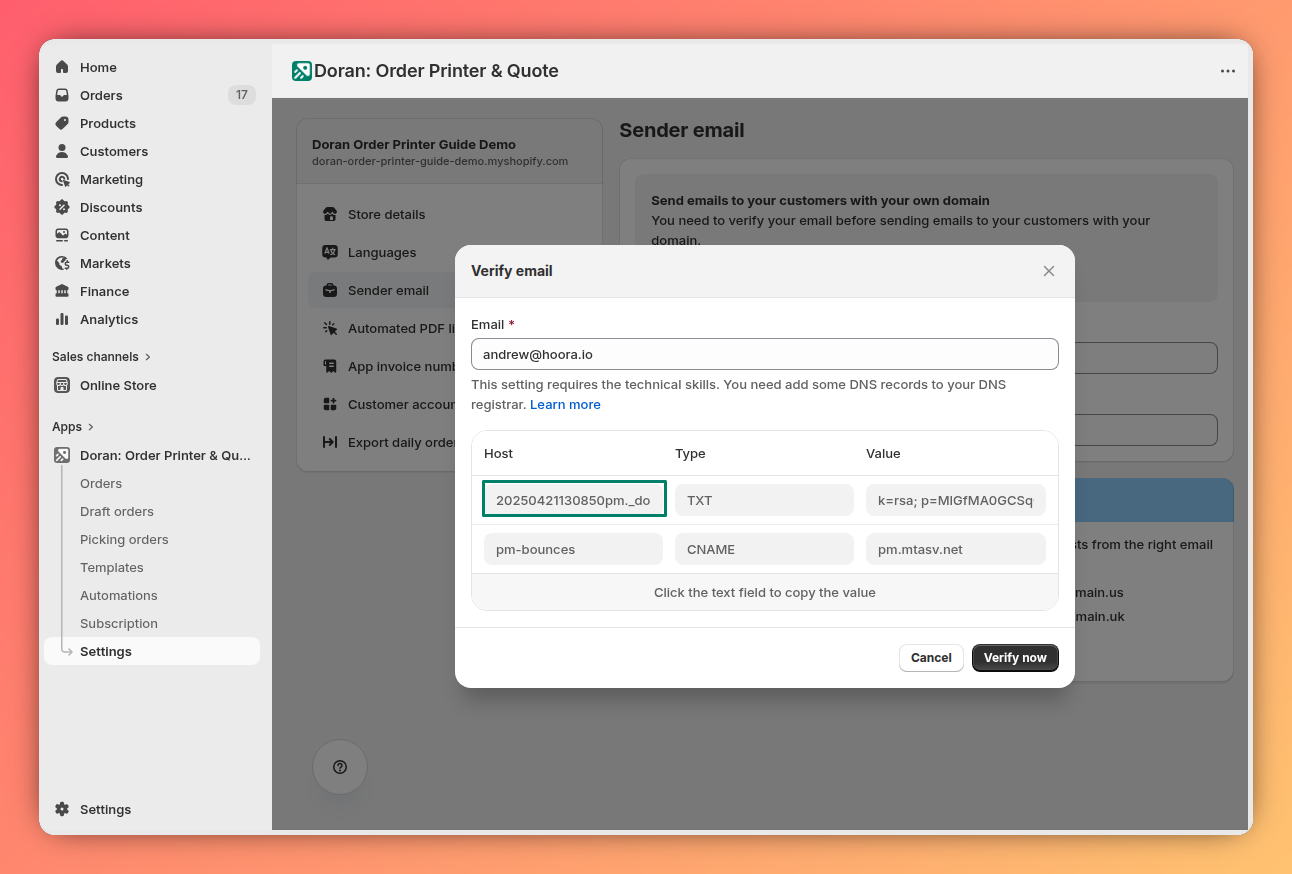
- Record value: Copy this value from the information table in the app.
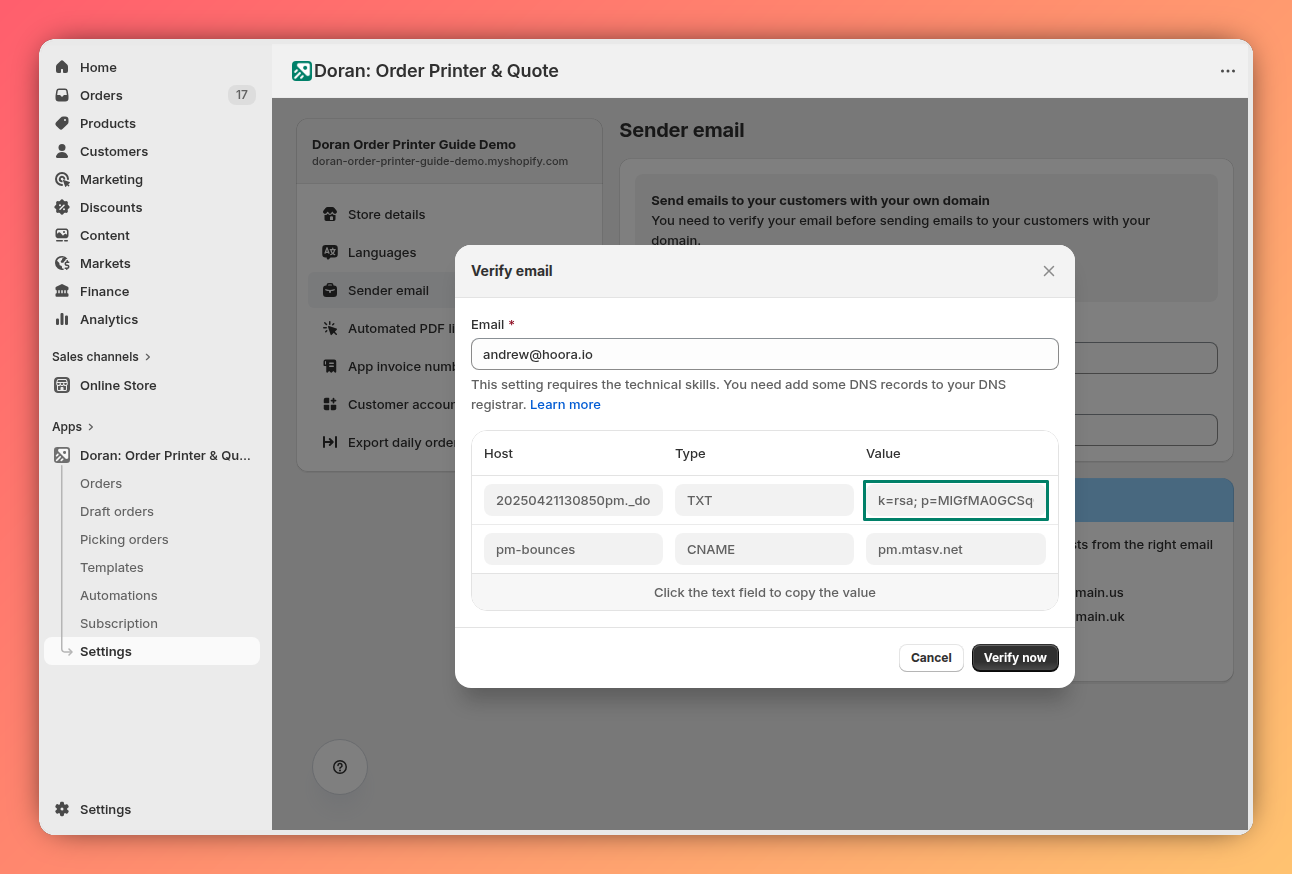
Add the Return-Path record to your domain
While still in your domain registrar, add a new CNAME record with the following details:
- Record type:
CNAME - Record name:
pm-bounces - Record value:
pm.mtasv.net
Verify your email in the app
After adding both DNS records, return to the app and click the Verify now button. If successful, you will see a confirmation message.
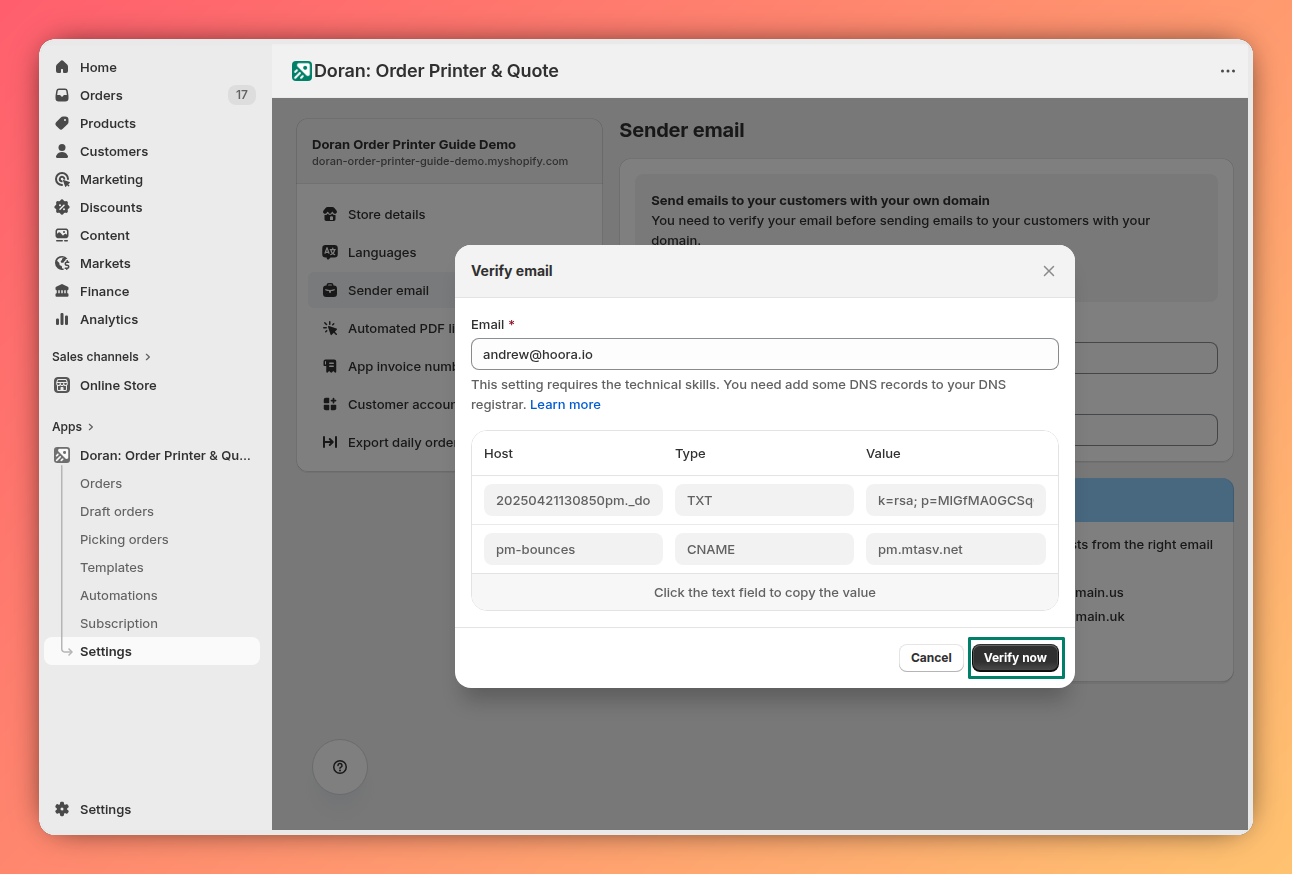
It can take anywhere from a few minutes to 4-8 hours for your domain registrar to update your new DNS records globally. If verification fails at first, please wait and try again later.
Branded emails for different markets
If you sell in multiple markets and want to use a different sender email for each one (e.g., reviews@awesomecompany.us for the United States and reviews@awesomecompany.fr for France), please contact our support team for assistance.