Pick orders
Access the menu
To view all pick orders inside Doran app, go to Pick orders.
Filtering your picking orders
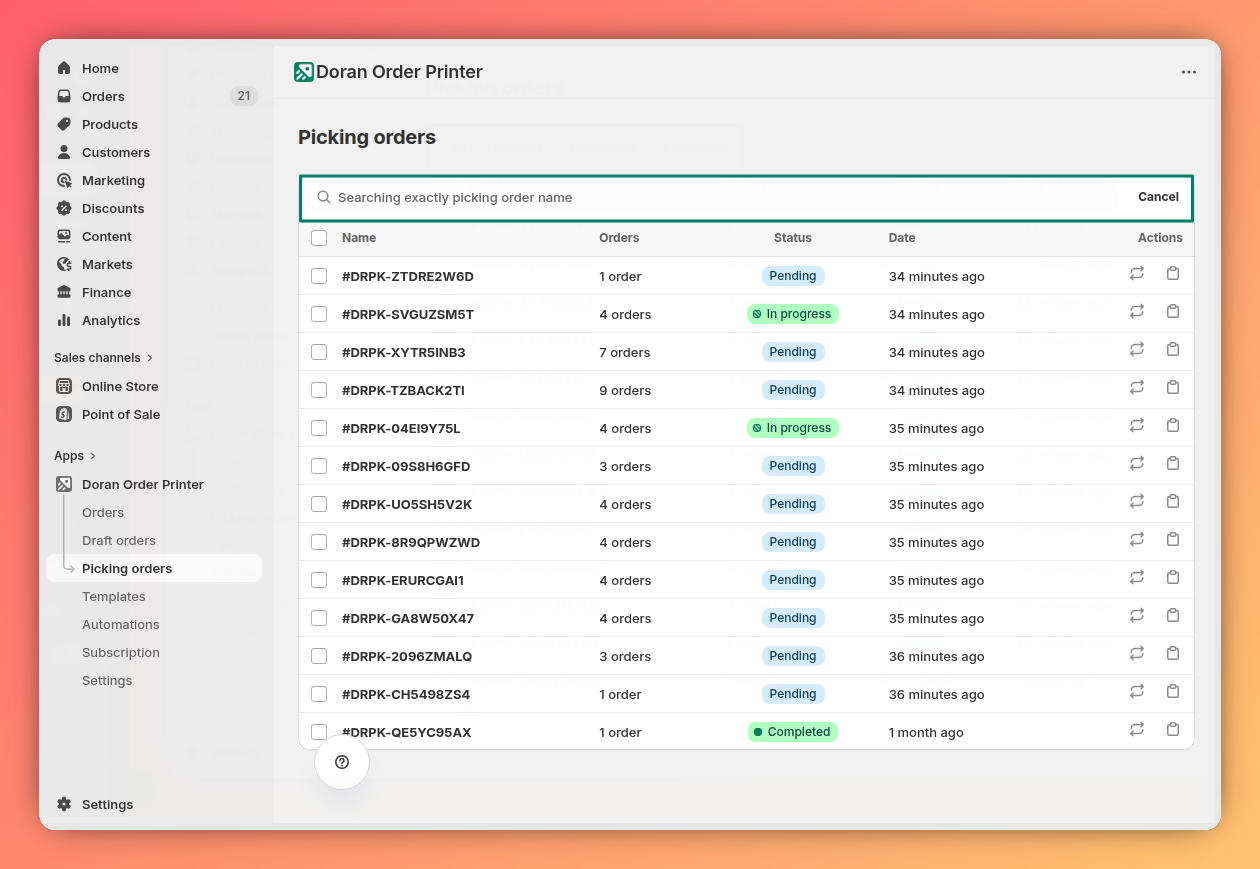
To quickly find a specific pick list, use the available filters:
- Name: Search for a pick list by its name.
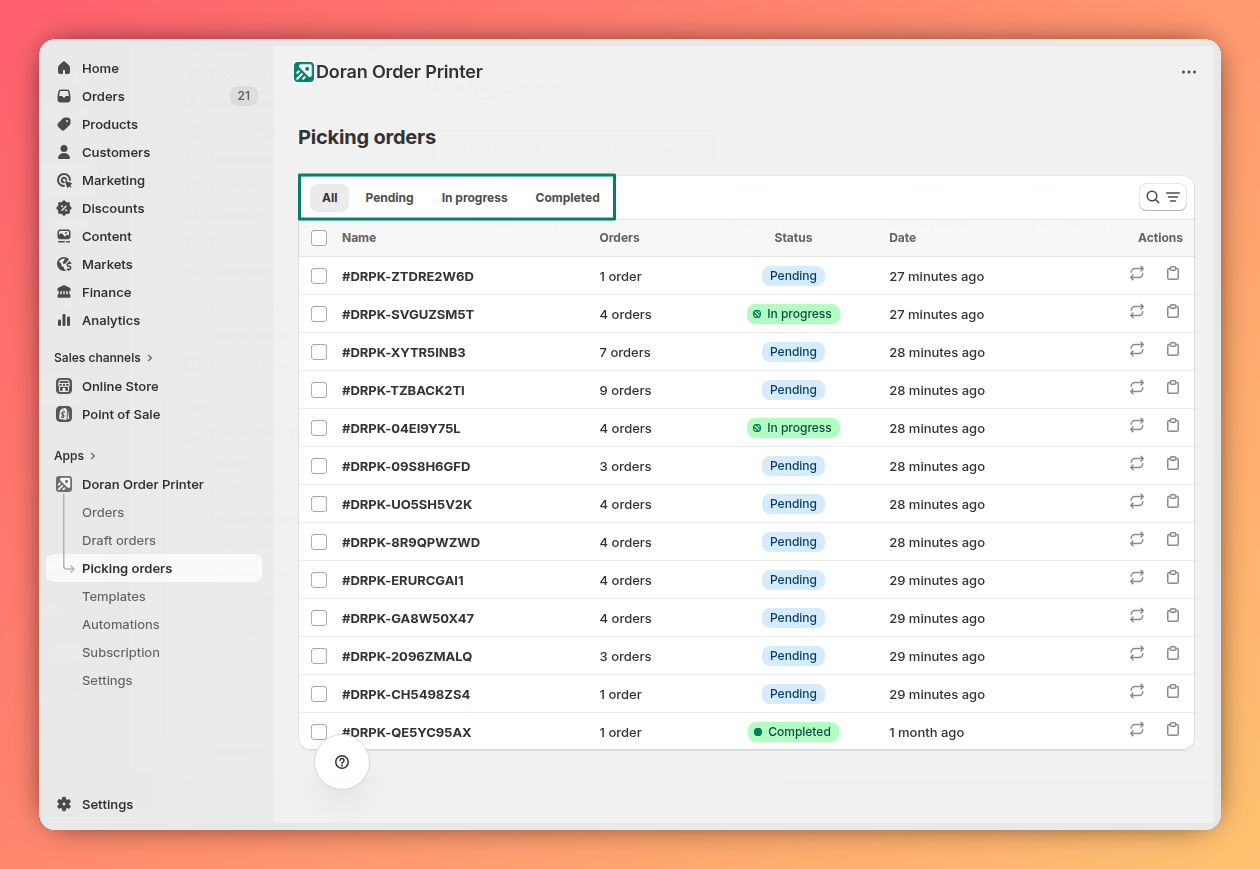
- Status: Filter lists based on their current status (e.g., Pending, In progress, Completed).
Actions
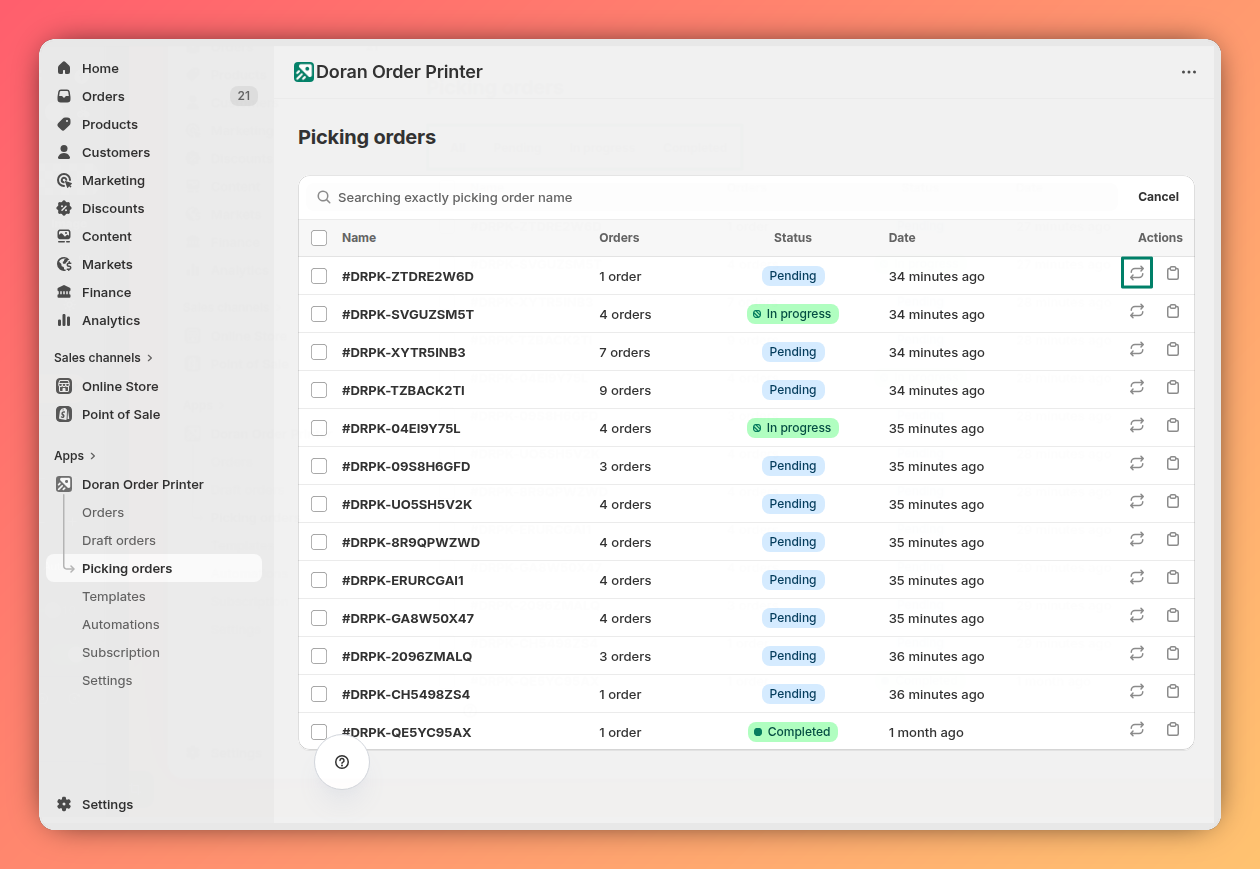
- Get latest information: Use this action if you have recently updated product details in your Shopify store (such as SKU, name, or barcode). Clicking this button will sync the latest product information to ensure your pick list is up-to-date.
- Copy the share link: This action generates a unique, shareable link for the pick list. You can send this link to your warehouse staff, allowing them to view the list and start the picking process without needing access to your Shopify admin.

Create a pick order
Navigate to your Shopify Admin and go to the Orders page.
Select the checkboxes next to all the orders you want to include in a single picking batch.

From the action menu, click Pick orders to generate the list. The new pick order will now appear in your Pick Order Table.

Fulfill orders
Once a pick list is created and the shareable link is sent, your warehouse staff can begin picking and packing the items.
Requirements
Before your team can start scanning, please ensure the following requirements are met:
- Camera-enabled device: The scanning function requires a smartphone, tablet, or another device equipped with a camera.
- Product Barcode/SKU Labels: All products must have physical labels with a scannable barcode or SKU. For more information on creating these, please refer to Shopify's guide on printing retail barcode labels.
Fulfilling the order
Your warehouse staff should follow these steps to process the pick list.
Open the shared link on a device with a camera. The link will open a web page displaying all items needed for the selected orders.
Tap the Start scanning button to activate the device's camera.

Scan the barcode or SKU label on each product as you pick it. The on-screen list will update in real-time, marking items as they are successfully scanned, which helps prevent errors and ensures all items are accounted for.
Print draft orders
Learn how to print your draft orders in various formats. This guide covers different printing modes, selecting orders and templates, and customizing your PDF output before you print or save.
Templates
Learn how to manage your print documents effectively. This guide covers how to filter, duplicate, delete, and set default templates for invoices, packing slips, and more.