Manage templates
The Templates section is where you manage all your custom document designs. Here, you can organize, modify, and set defaults to streamline your printing workflow.
Access the menu
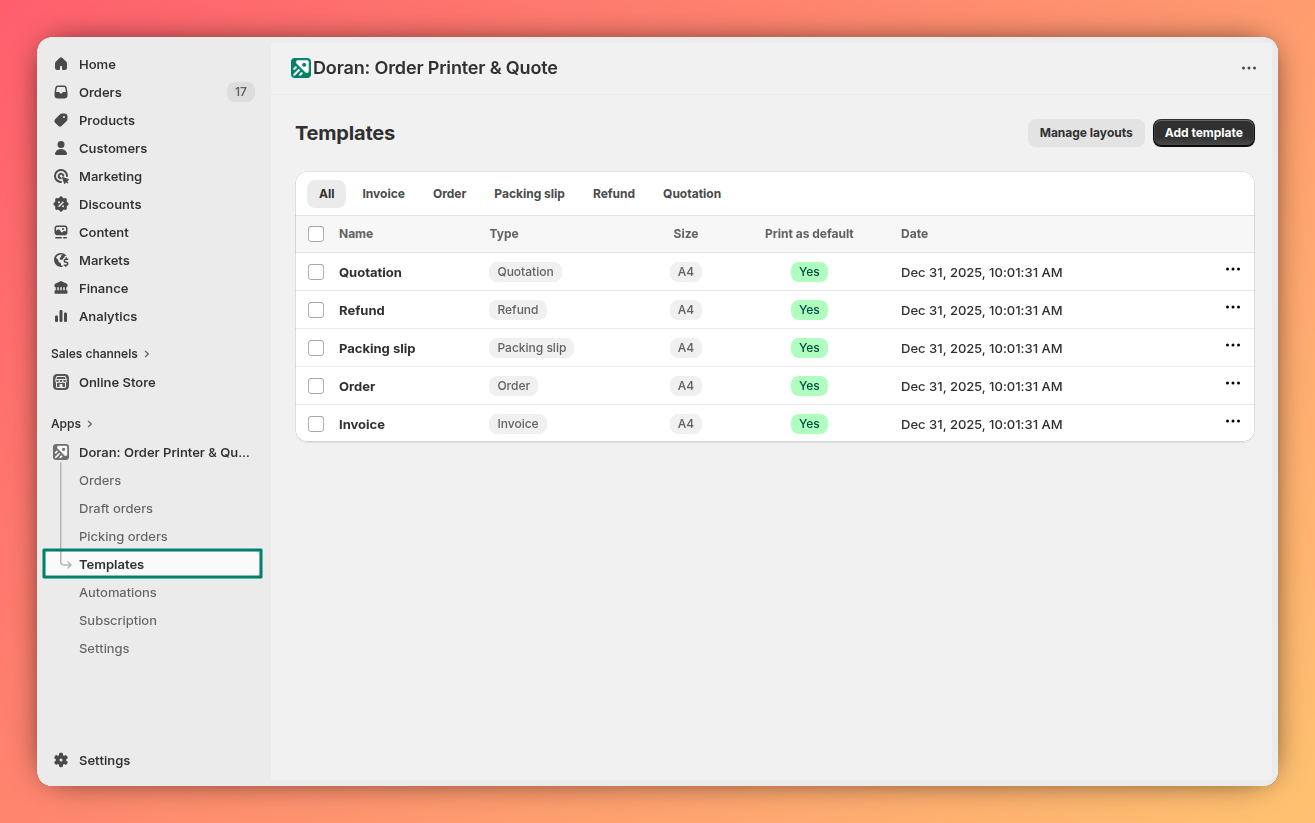
To manage your templates, please go Templates page.
Filters
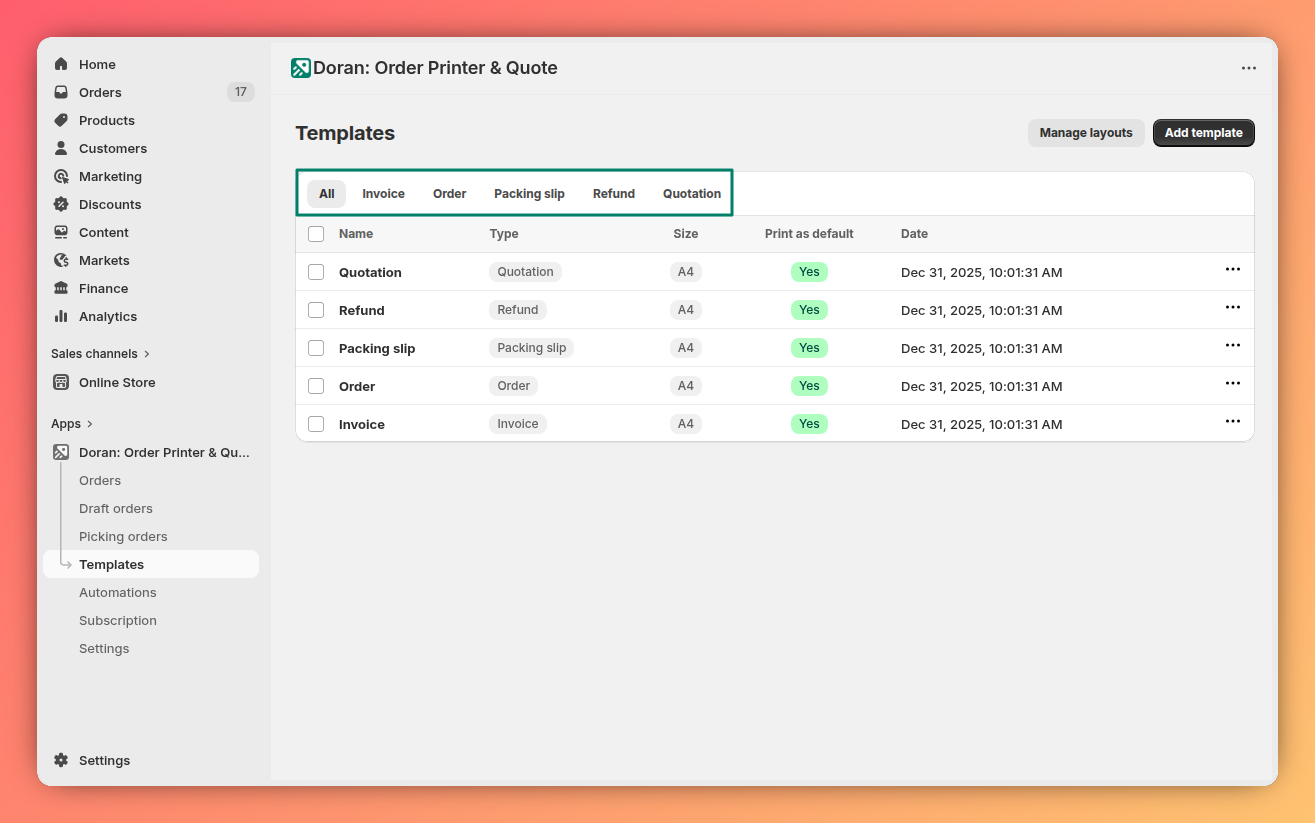
Filters help you find specific templates quickly, especially if you have a large number of designs.
You can filter your list by Template type:
- All
- Invoice
- Order
- Packing slip
- Refund
- Quotation
Bulk actions
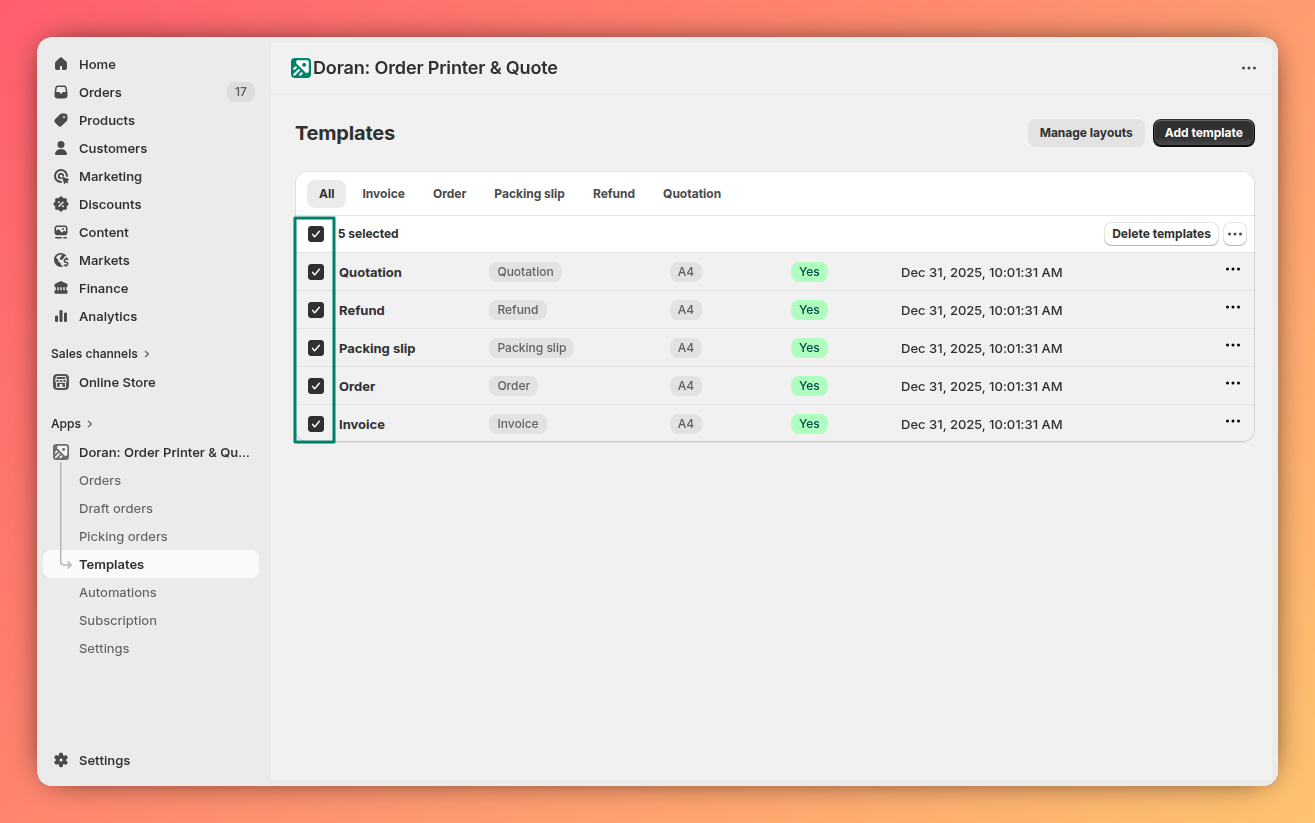
You can perform actions on multiple templates at once by selecting the checkboxes next to them in the template list.
Delete templates
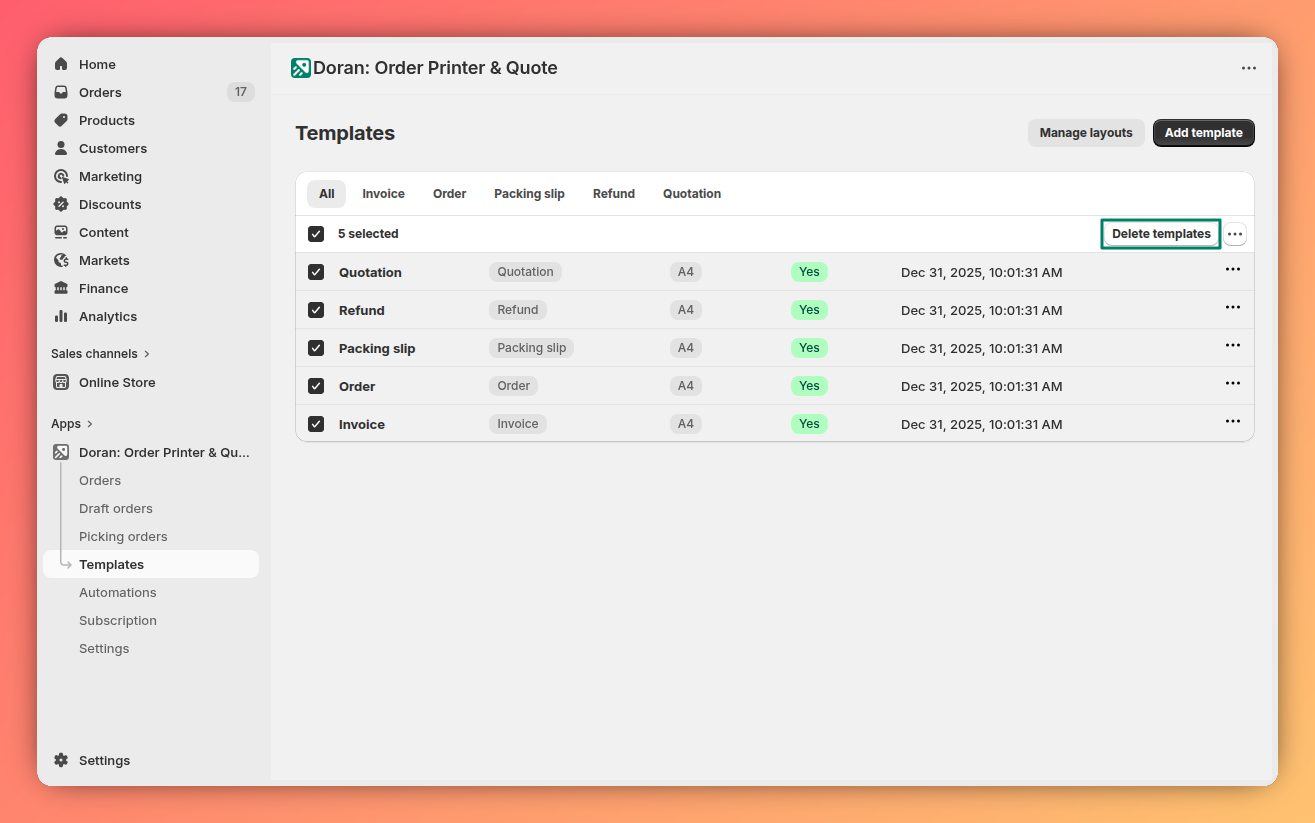
This action permanently removes all selected templates from your store.
Be careful when deleting templates. This action is irreversible, and the deleted templates cannot be recovered.
Set as default
Assigns the selected templates as the default for their respective document types.
For example, if you select an invoice and a packing slip template and set them as default, they will become the primary templates used for printing future invoices and packing slips.
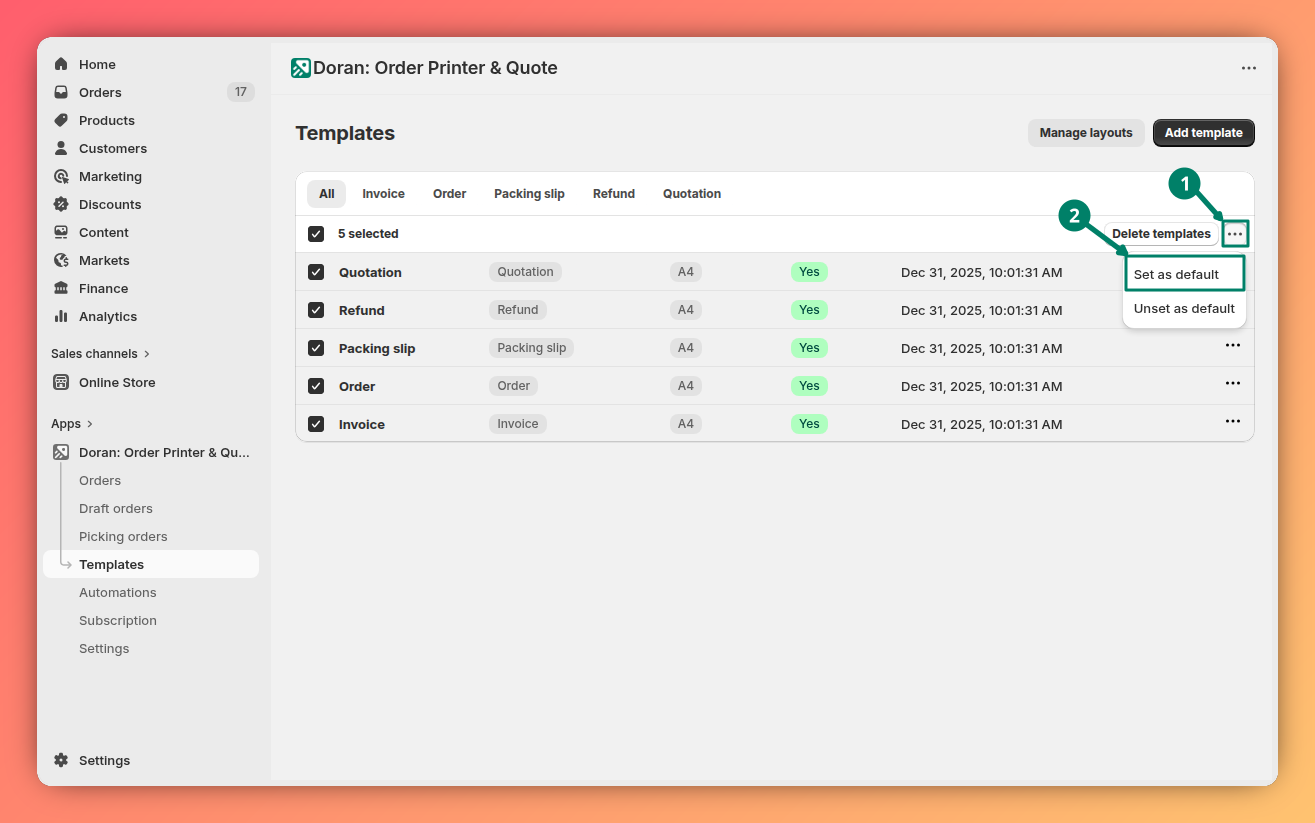
Unset as default
Removes the default status from any selected templates. The app will revert to using the previously assigned default template for that document type.
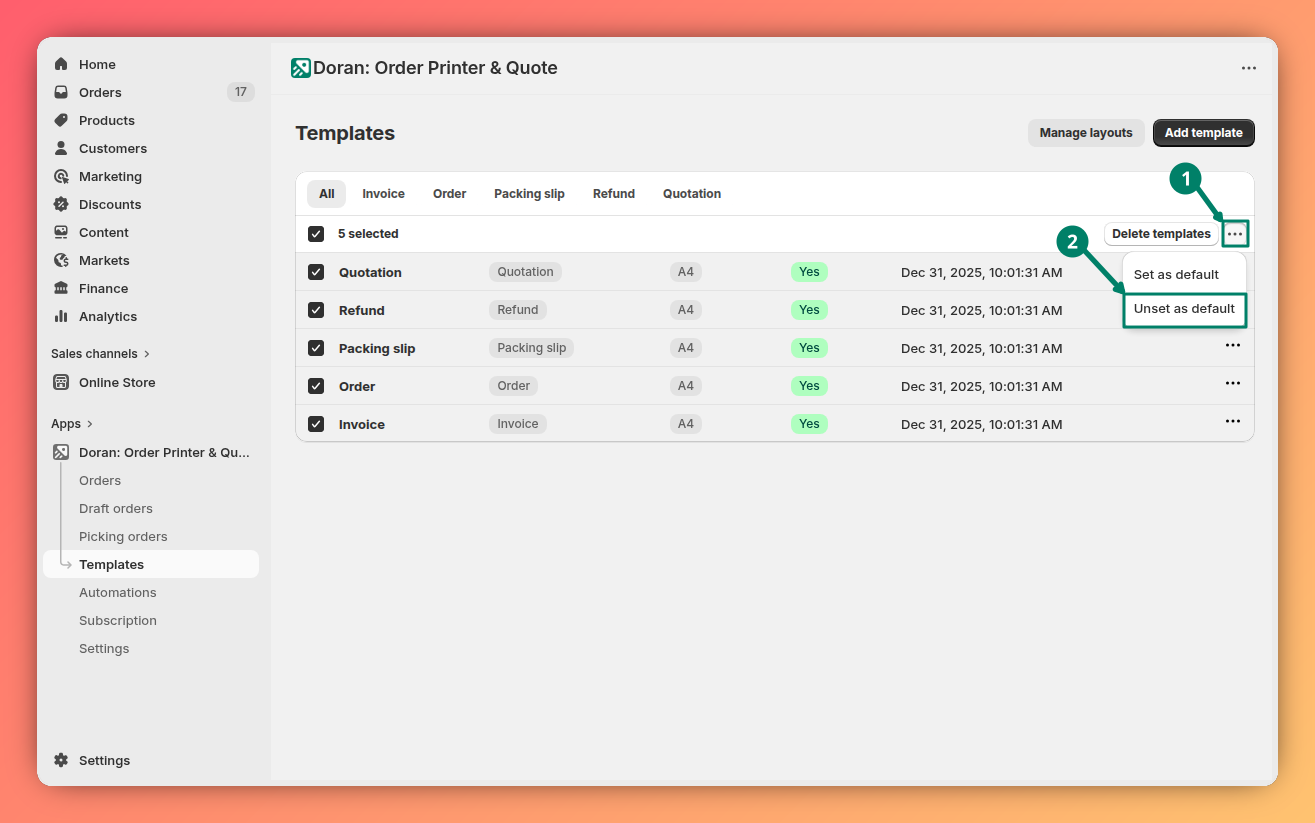
Individual template actions
You can also perform actions on a single template directly from the list. These options are typically found under a "more actions" menu (often represented by a ... icon) for each template.
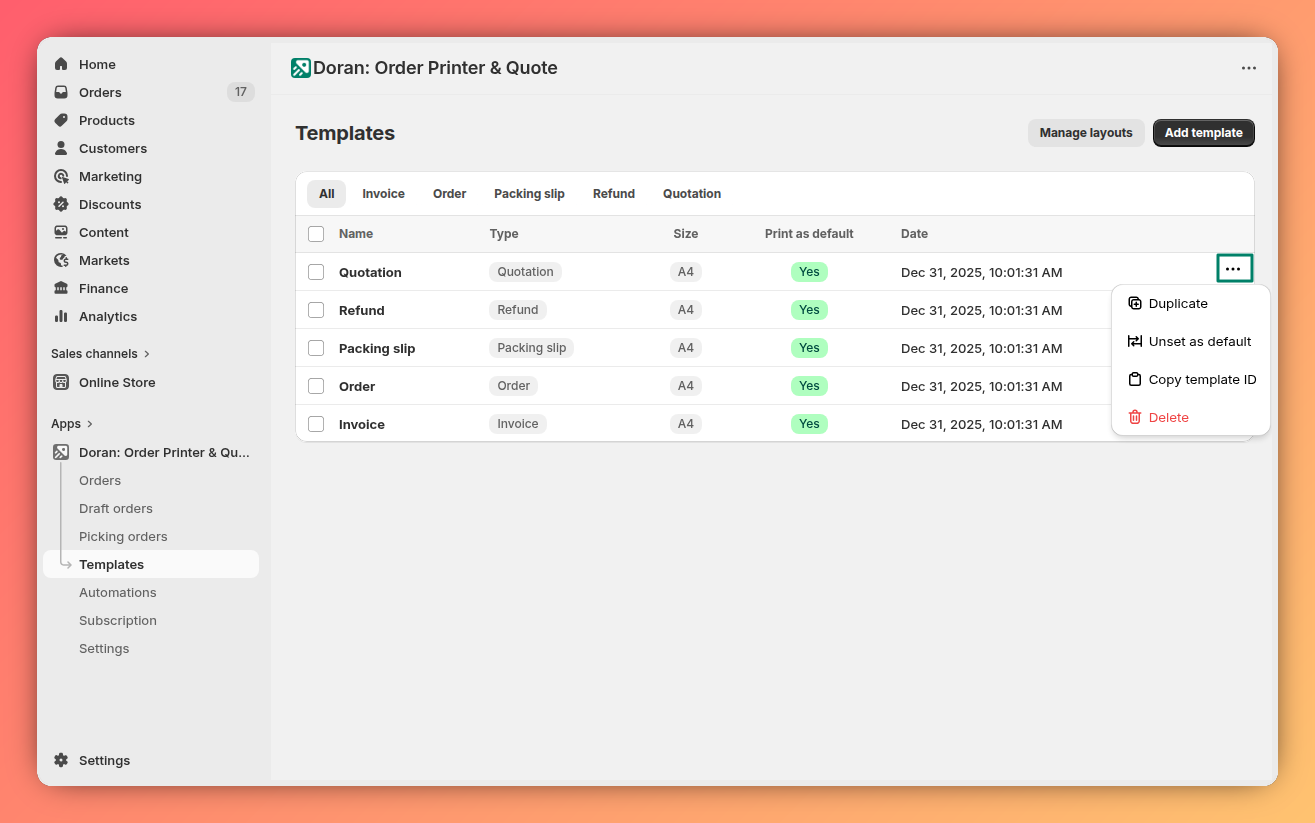
Delete template
Permanently removes the selected template from your store.
This action cannot be undone. Once a template is deleted, it cannot be recovered.

Duplicate template
Creates an exact copy of the selected template. This is a great way to experiment with a new design or create a slightly different version without starting from scratch.

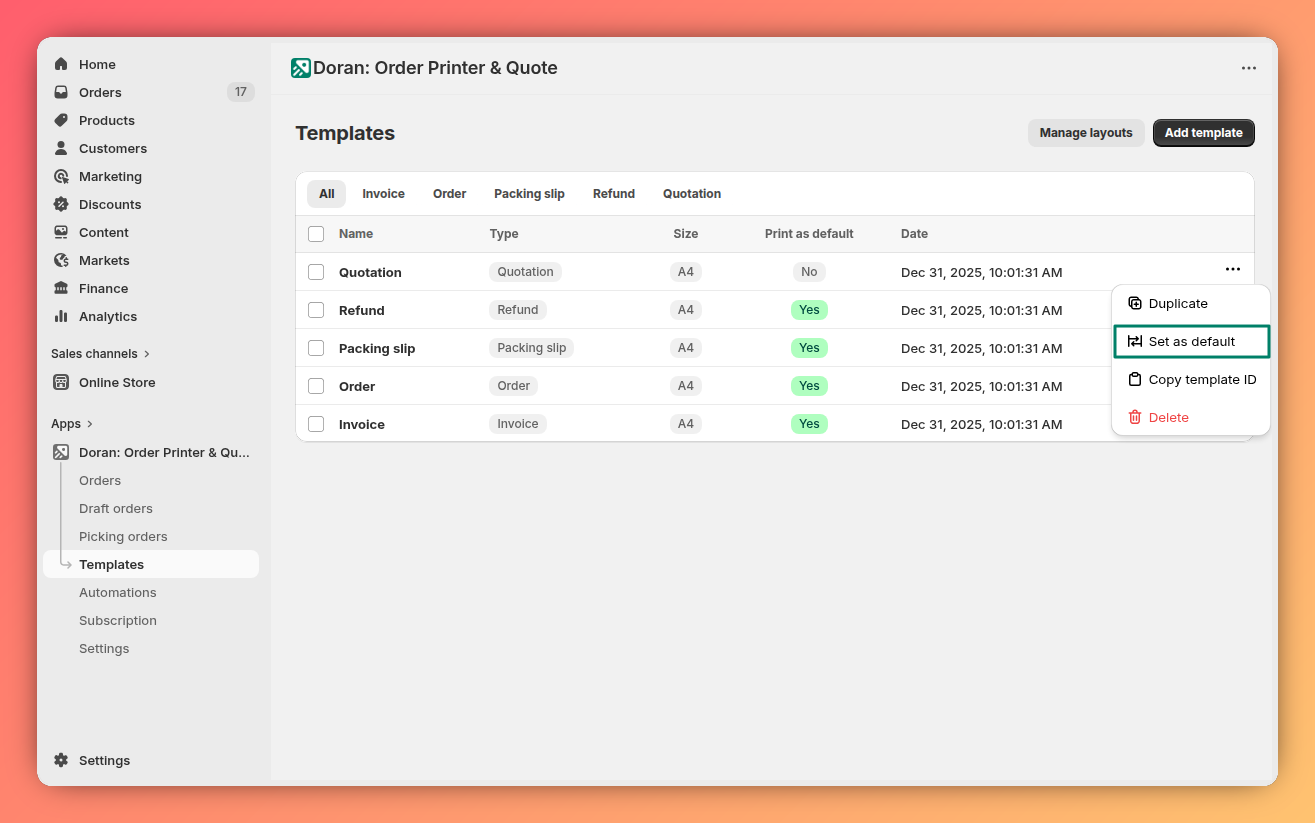
Set as default
Sets this specific template as the default for its document type. Any other template of the same type that was previously the default will be replaced.
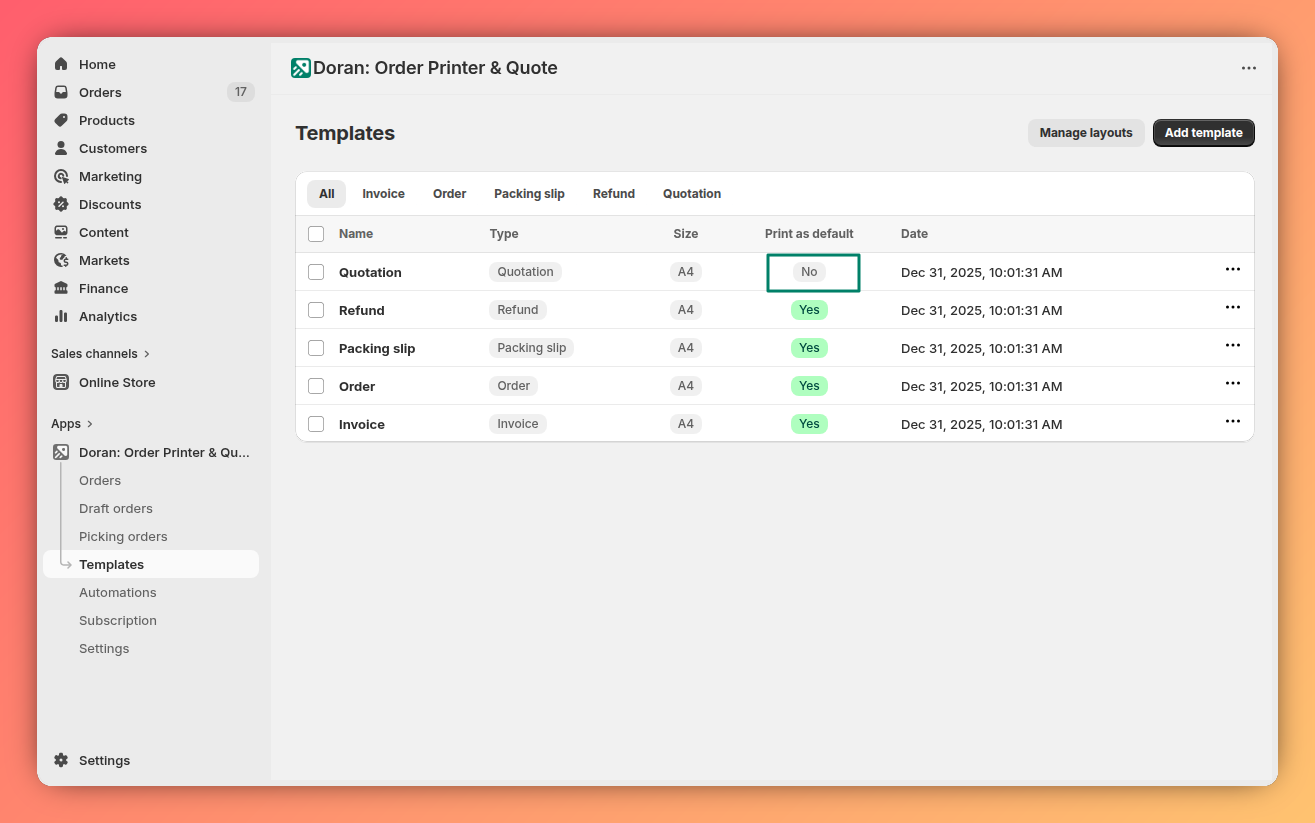
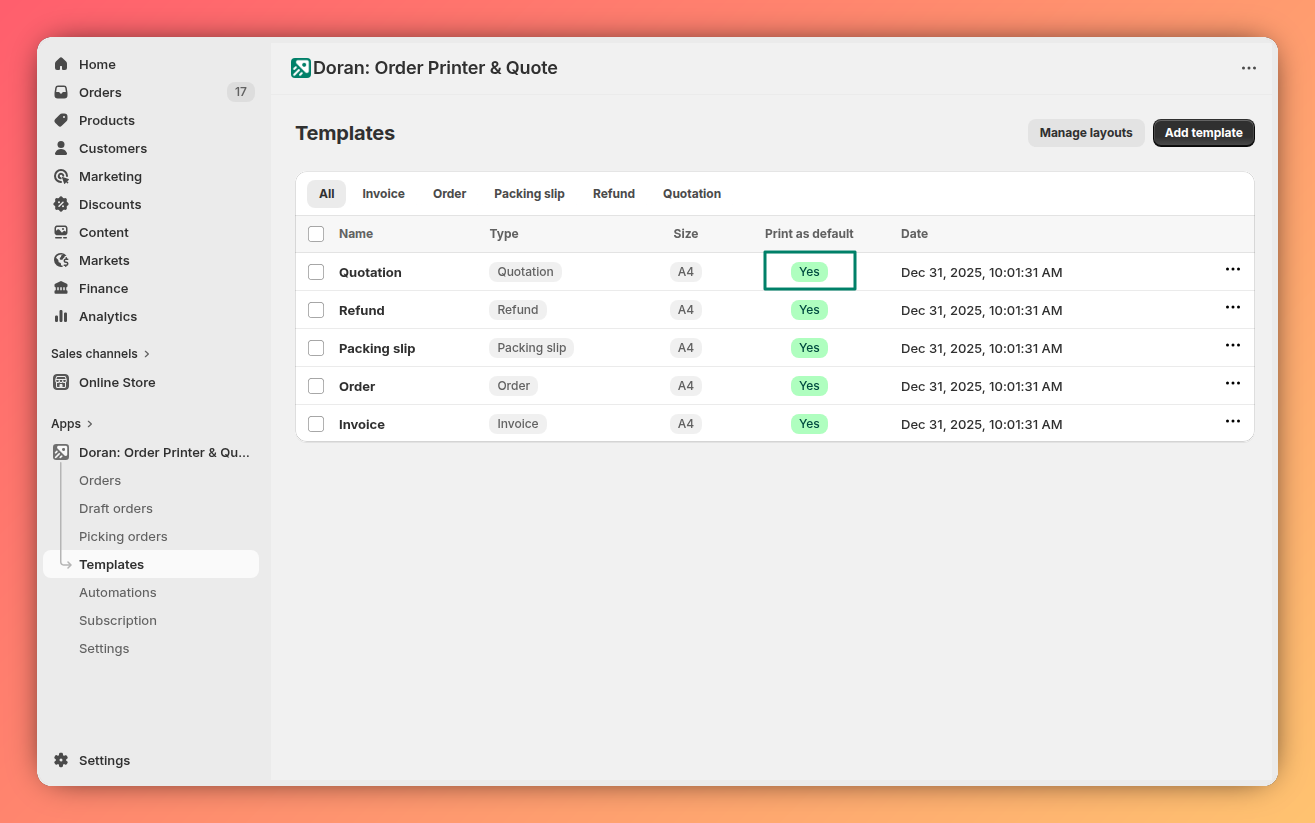
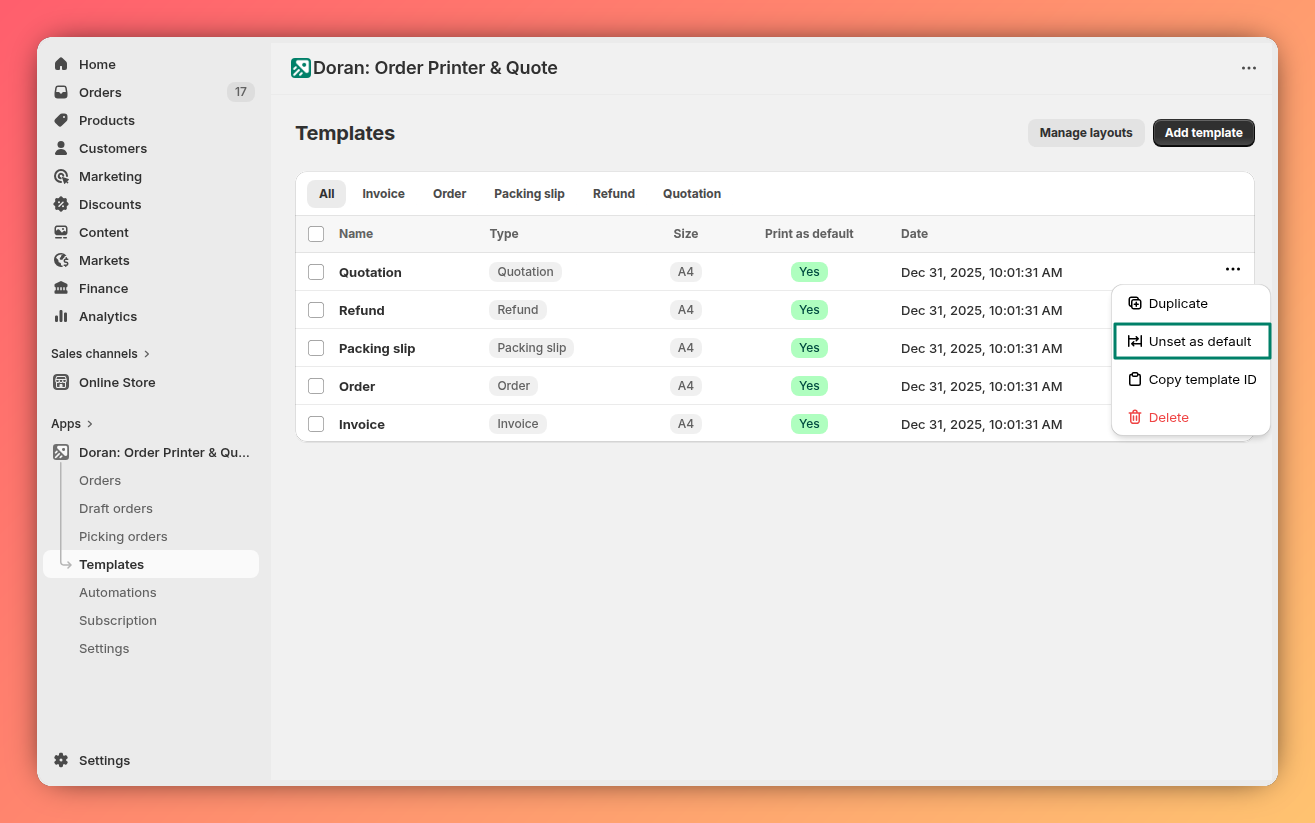
Unset as default
Removes the default status from this template. This button will appear only if your template is print as default currently.
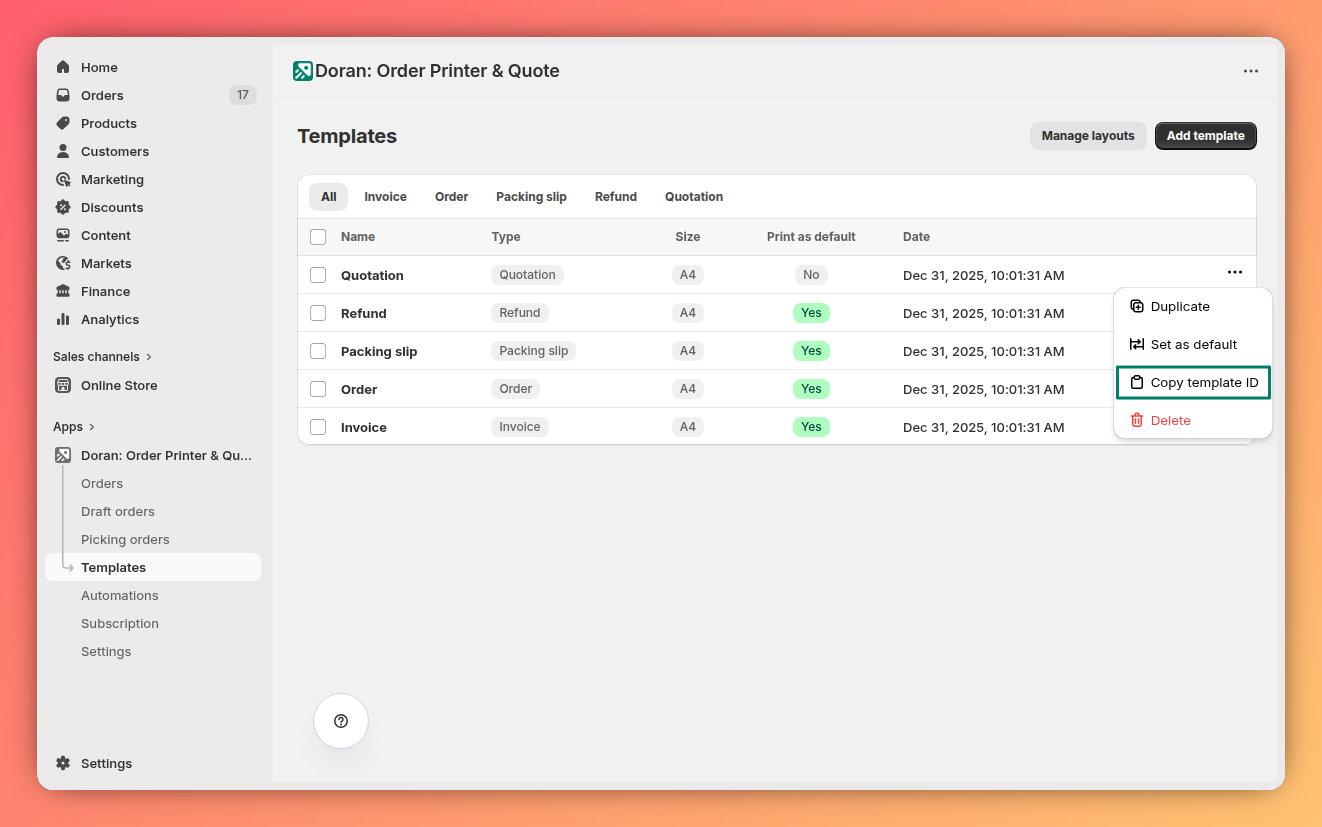
Copy template ID
This action helps to copy template ID. This action is helpful for this article.
Set up templates
Appearance
Configure your automation's recipients, trigger events, PDF attachments, and visual branding.
Settings
Access and modify the settings for your automation templates.
Translations
Add new languages, customize existing text, and remove translations.
Customize layout liquid
Pick orders
Learn how to create a pick list by selecting multiple orders. This guide will walk you through generating a shareable link for your warehouse team and how they can scan product barcodes to accurately fulfill orders.
Appearance
Learn how to customize the visual elements of your template, including your logo, brand colors, and fonts, to perfectly match your store's identity.