Automations
The Automations feature allows you to automatically send emails containing PDF files to your customers or your internal team. This section provides an overview of how to manage and monitor these automated workflows.
Automations
The Automations table gives you a complete overview of all the automated workflows you have created.
It lists essential information for each automation, helping you quickly assess their performance and status.
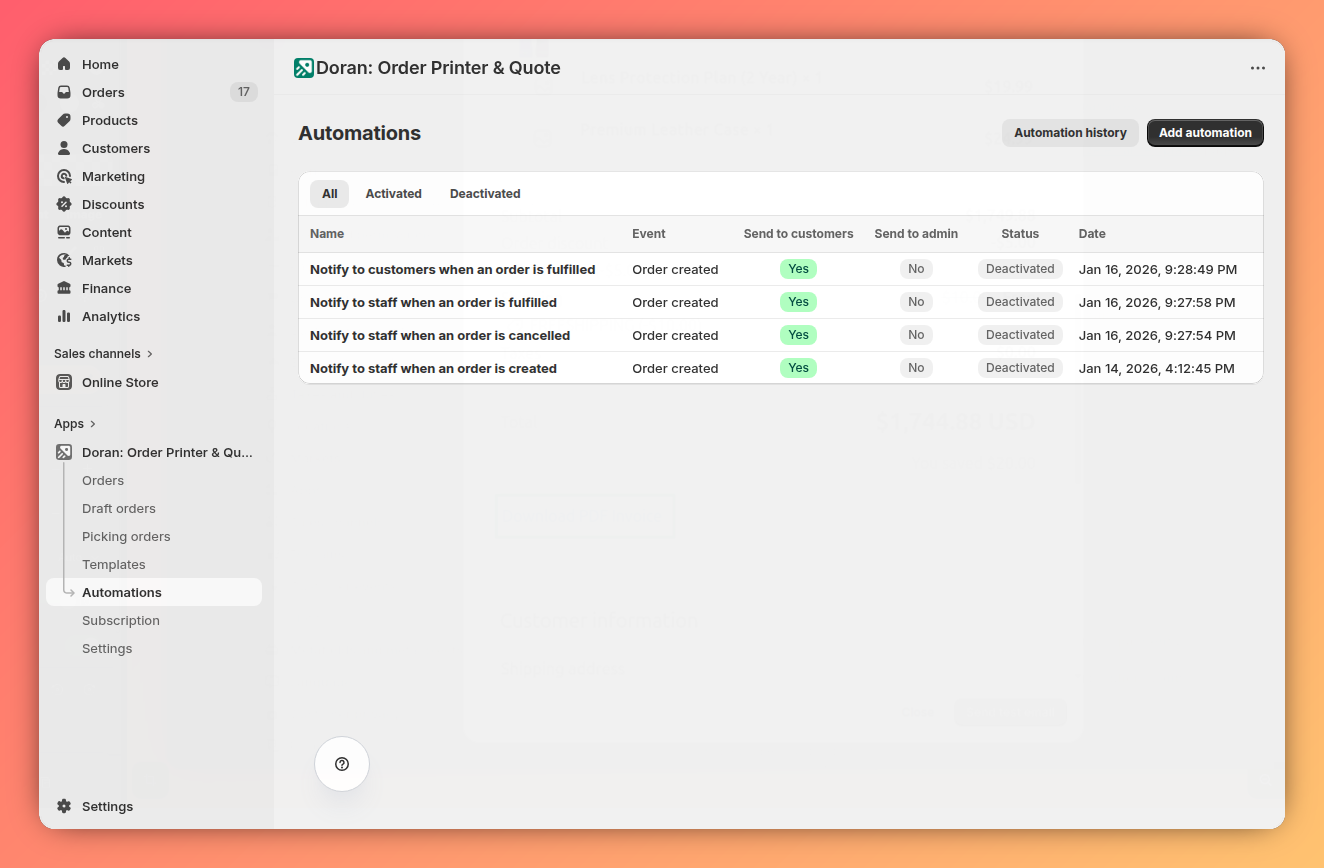
You can also filter your automations based on their status (e.g., Activated, Deactivated) to easily find the ones you need to manage.

Automation history
The Automation history table provides a detailed log of every automated action performed by the app. This is where you can review the history of emails processed and sent to your customers.
Each entry in the history log typically includes information such as:
- The recipient's email address
- The date and time the email was sent
- The status of the delivery (e.g., sent, failed, opened)
This log is useful for troubleshooting any delivery issues and for keeping a record of all communications sent through your automations.