Automated PDF link
This feature enables your customers to download their own Invoices, packing slips, or other PDF documents you want to share. By embedding a unique link in Shopify's email notifications, you can automate document delivery and improve the customer experience.
Access the settings
You can find this feature by navigating to Settings > Automated PDF link in the app menu.
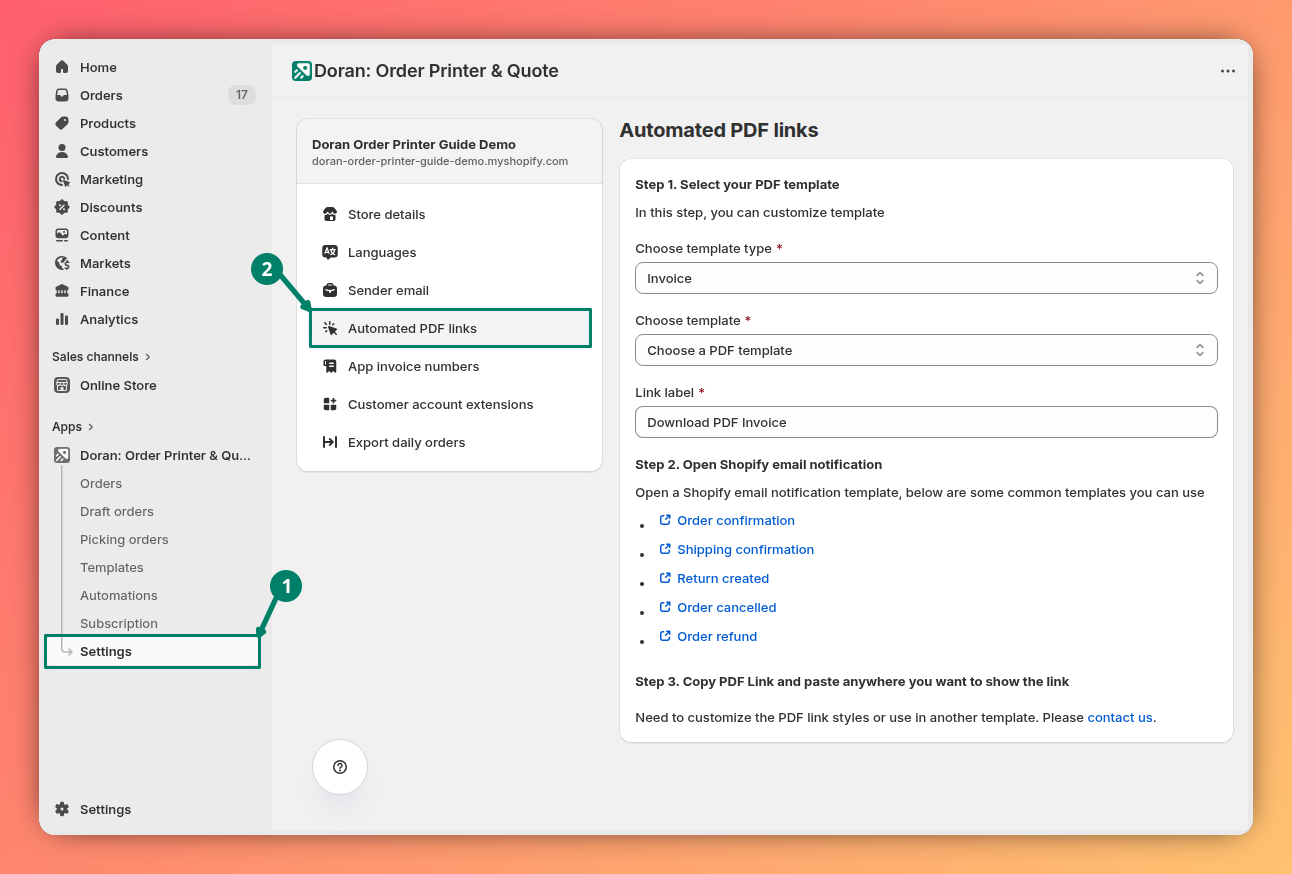
Step 1: Configure your PDF link
Template type
Select the type of document you want to make available for download.

- Invoice: Choose this option if you want customers to download their order invoice.
- Order: Choose this option to let customers download the order confirmation details as a PDF.
- Packing slip: Use this to allow customers to download shipping and packing information.
- Refund: Select this option for orders that include refunded items.
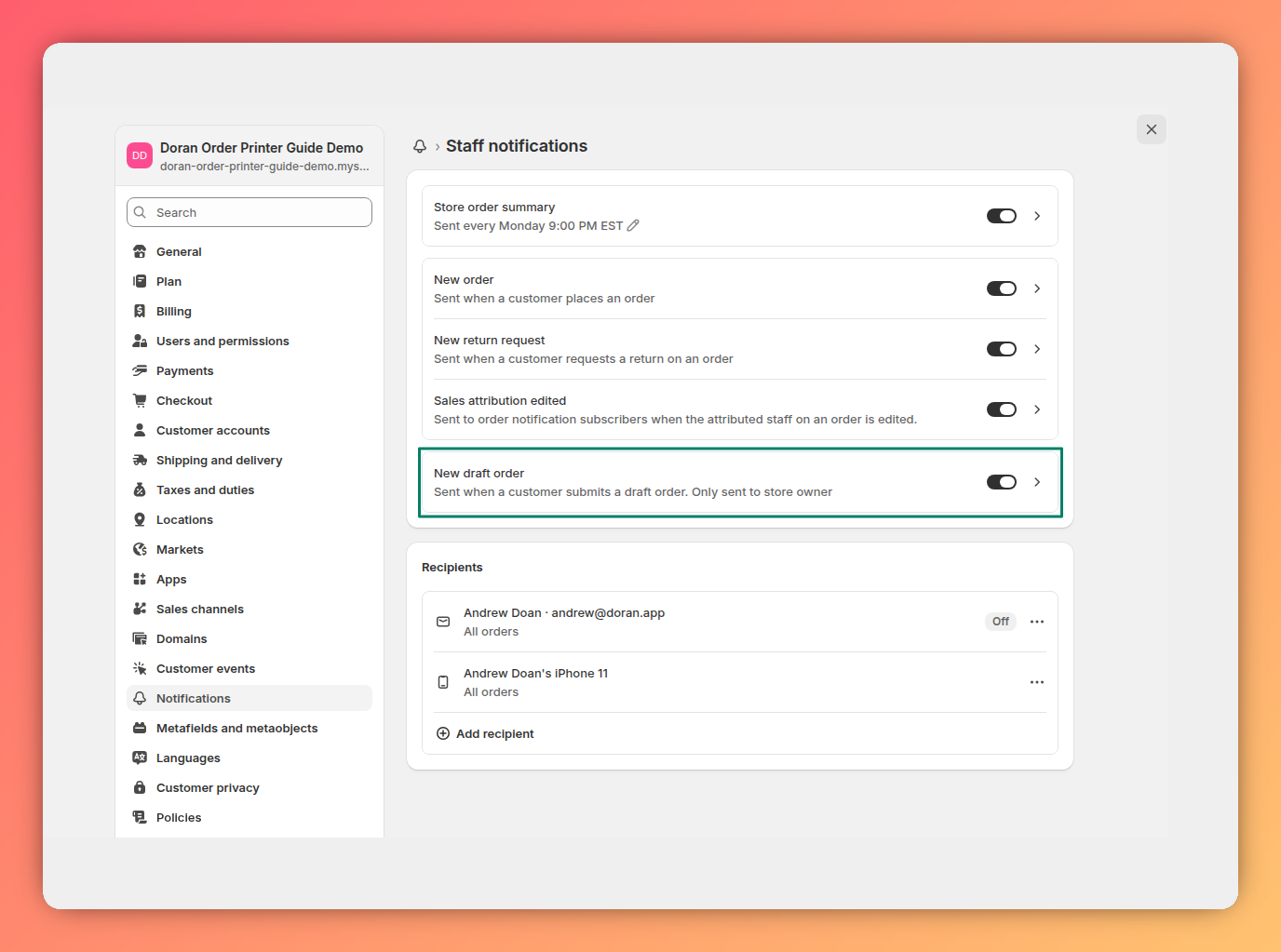
- Quotation: This template type is used for draft order invoices.
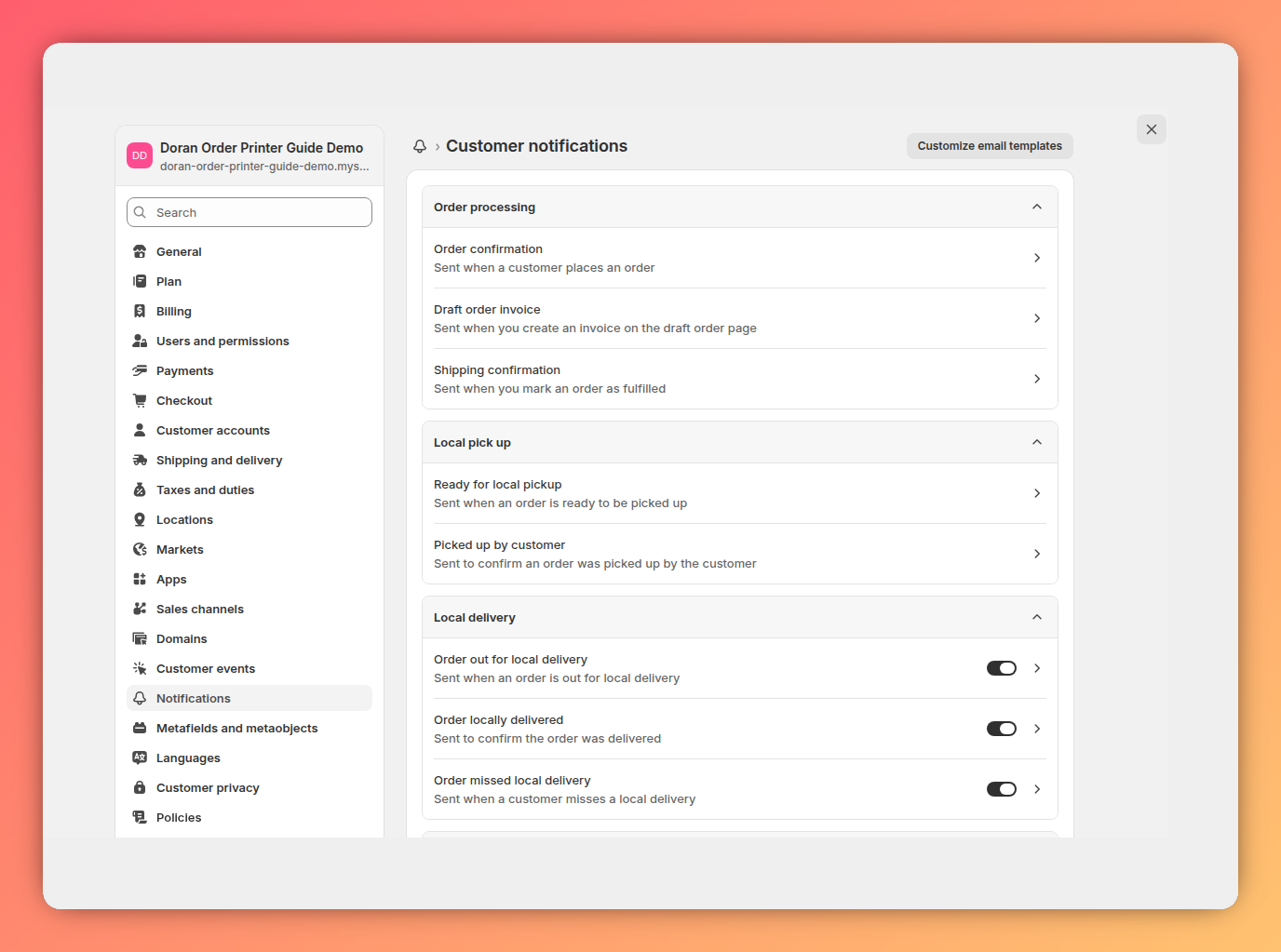
If you choose Quotation, our app will work with only draft orders. For example:
Template
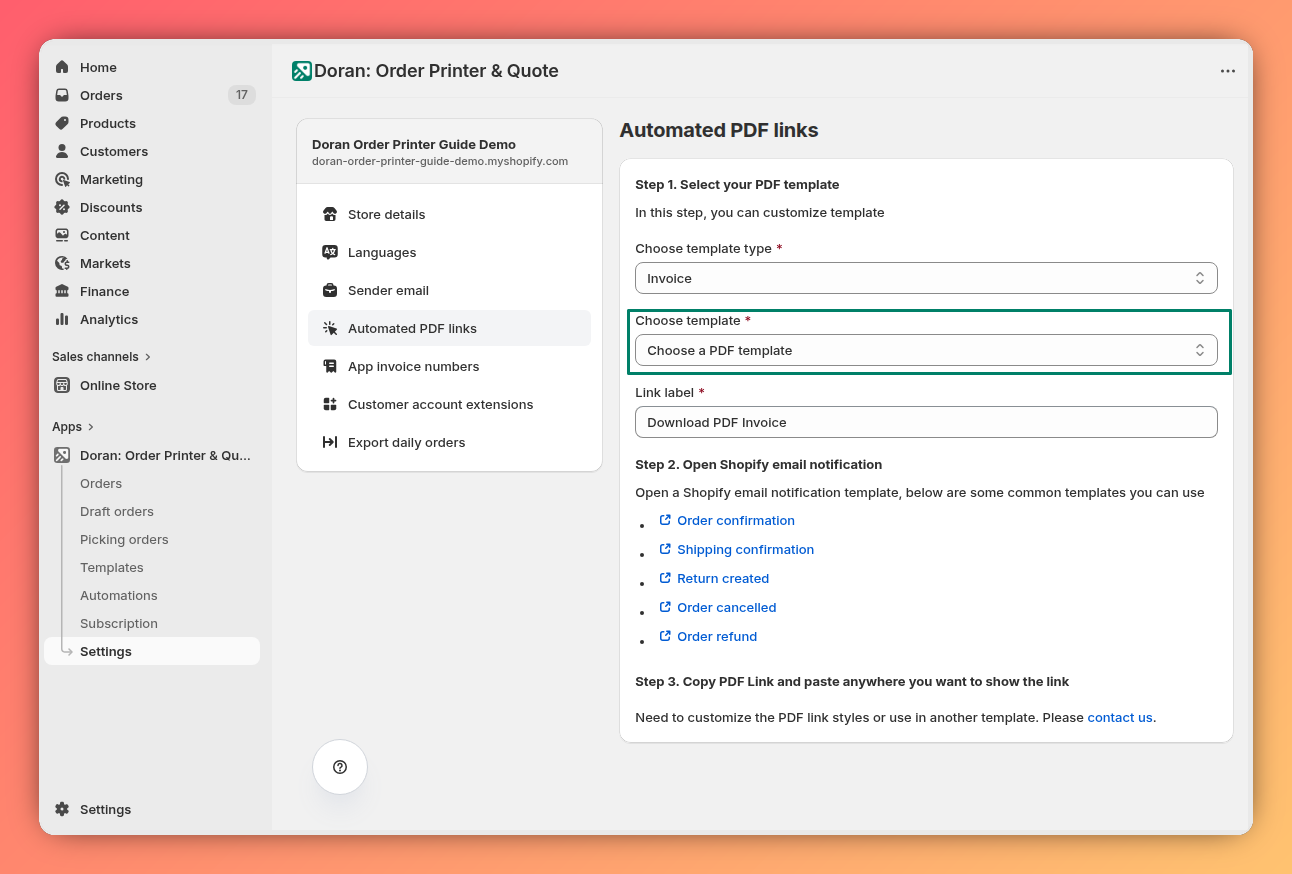
After choosing a template type, select the specific template design you want to use. You can create and manage your designs in the template editor. Learn more about customizing templates.
Link label
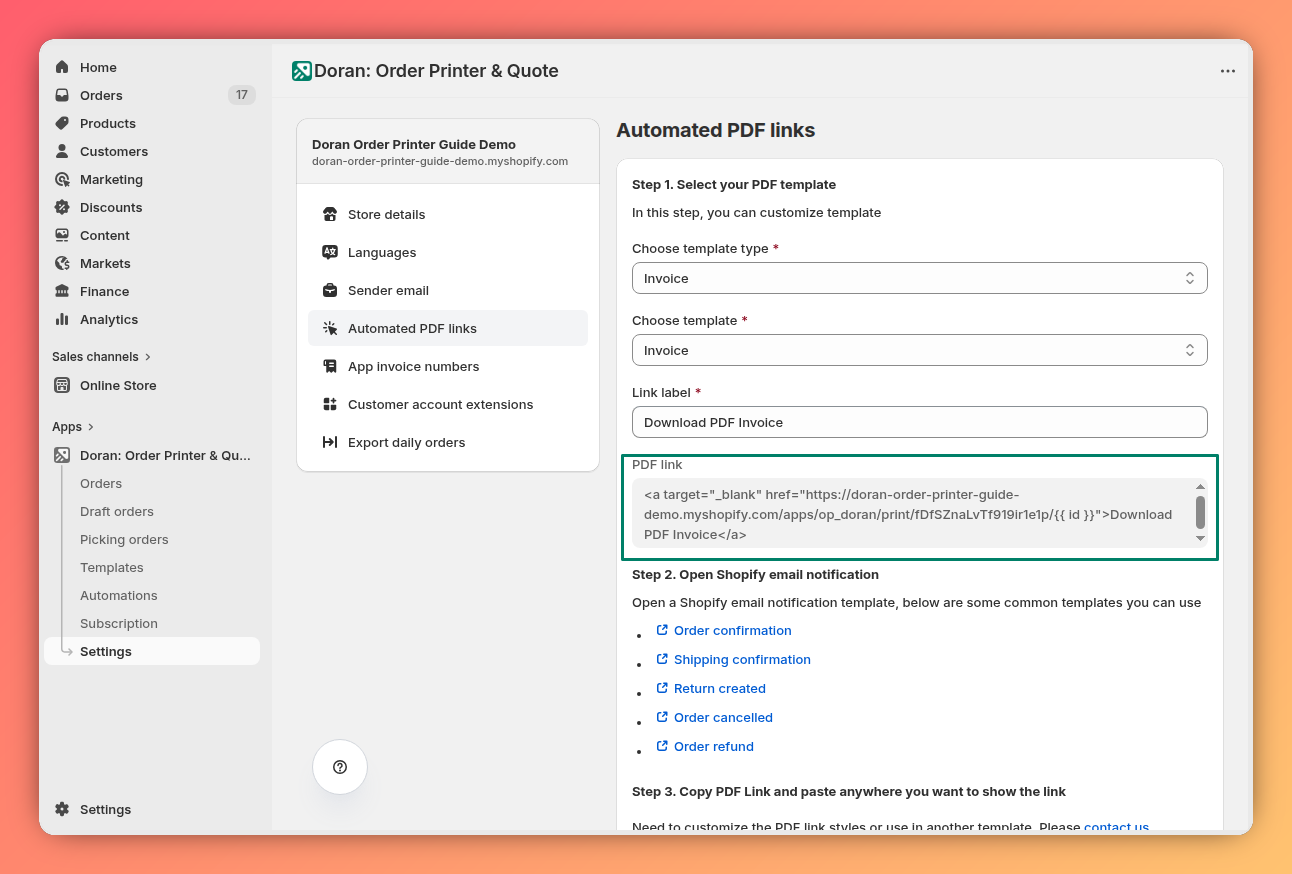
Enter the text you want customers to see for the download link (e.g., "Download PDF Invoice"). A descriptive label is more user-friendly than a raw URL.
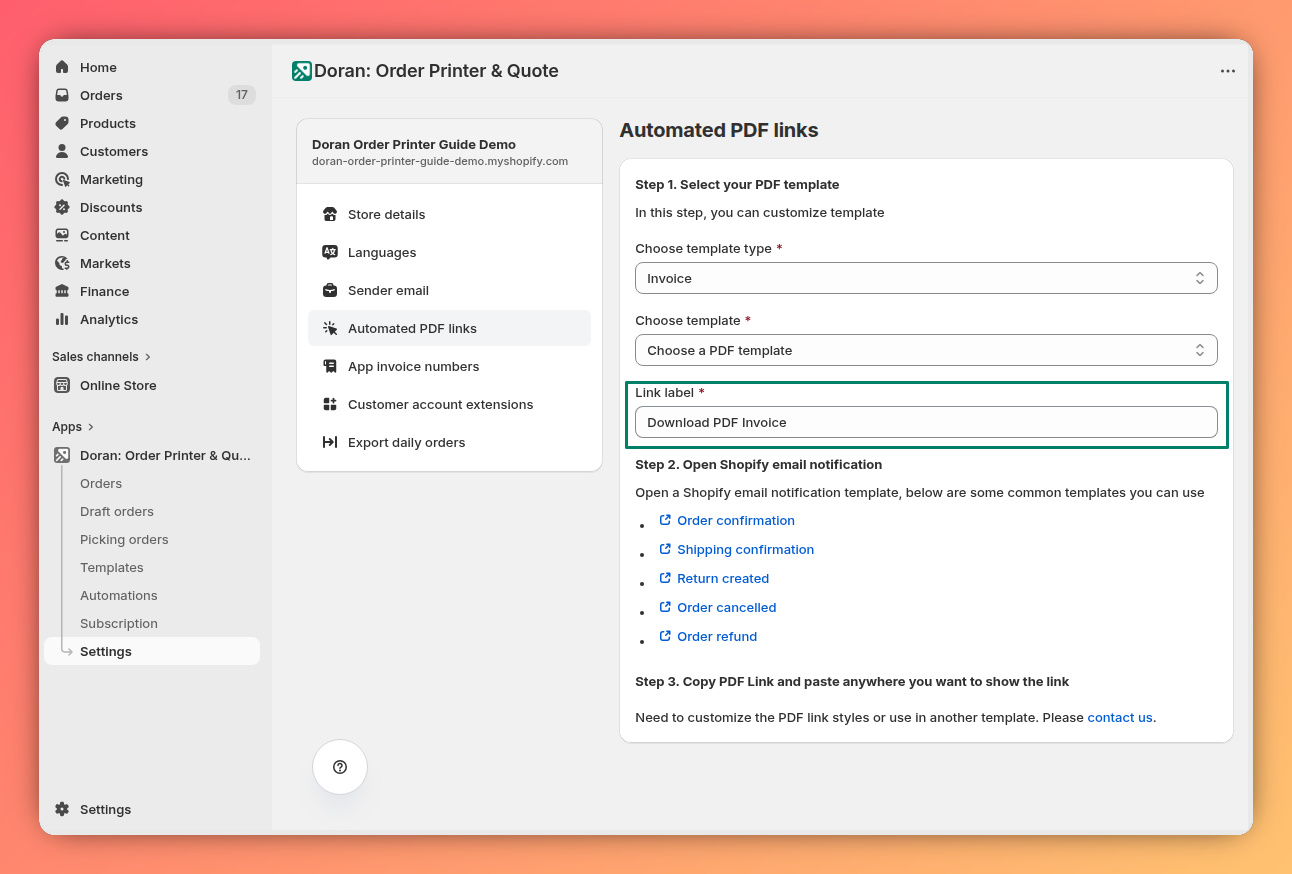
Once you enter a label, the app will generate a PDF link code snippet. Copy this snippet to your clipboard.
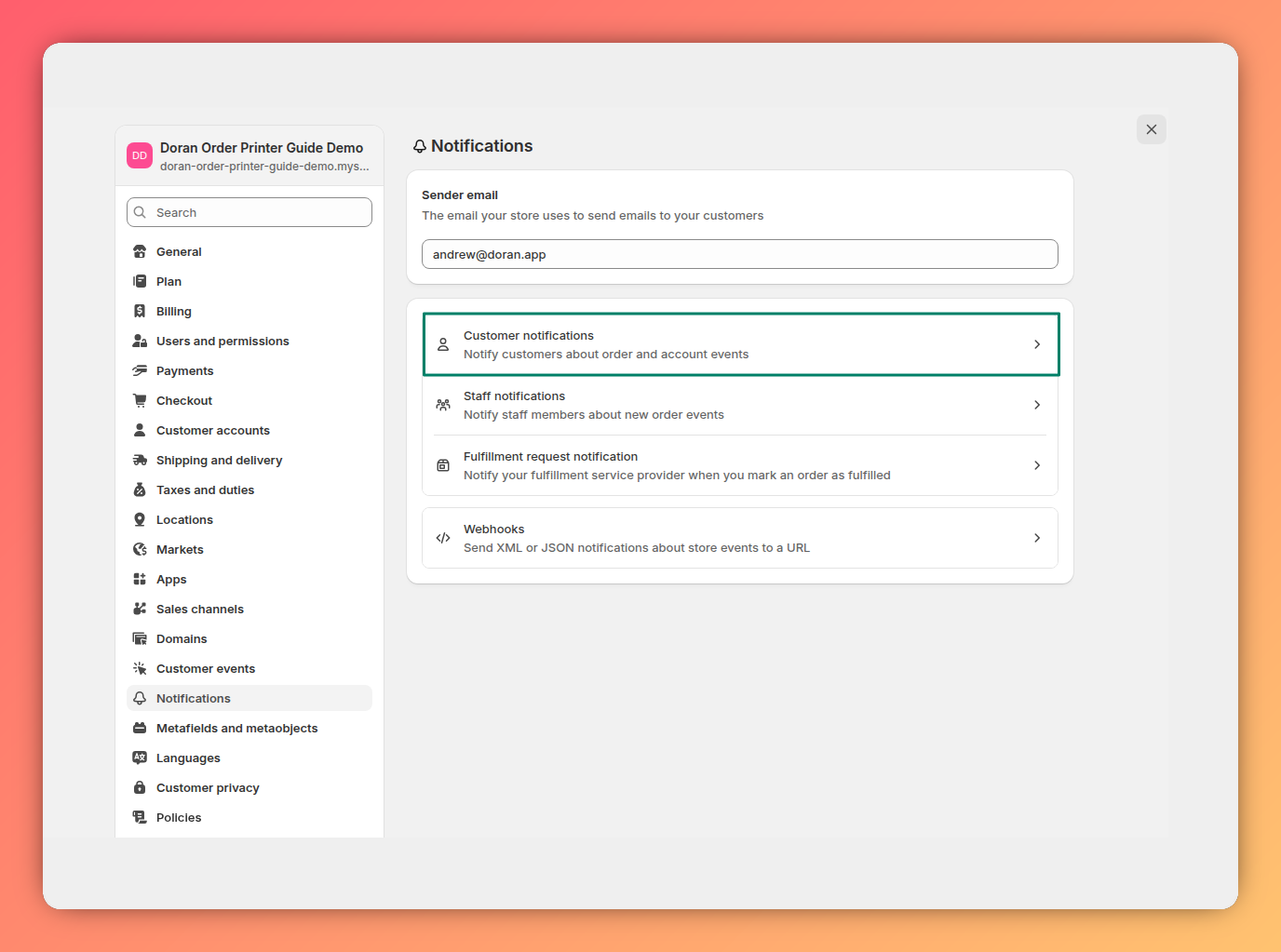
Step 2: Open your Shopify notification
Next, you need to navigate to your Shopify notifications.
In this article, we use Order confirmation as an example. You may do the same thing with other templates.
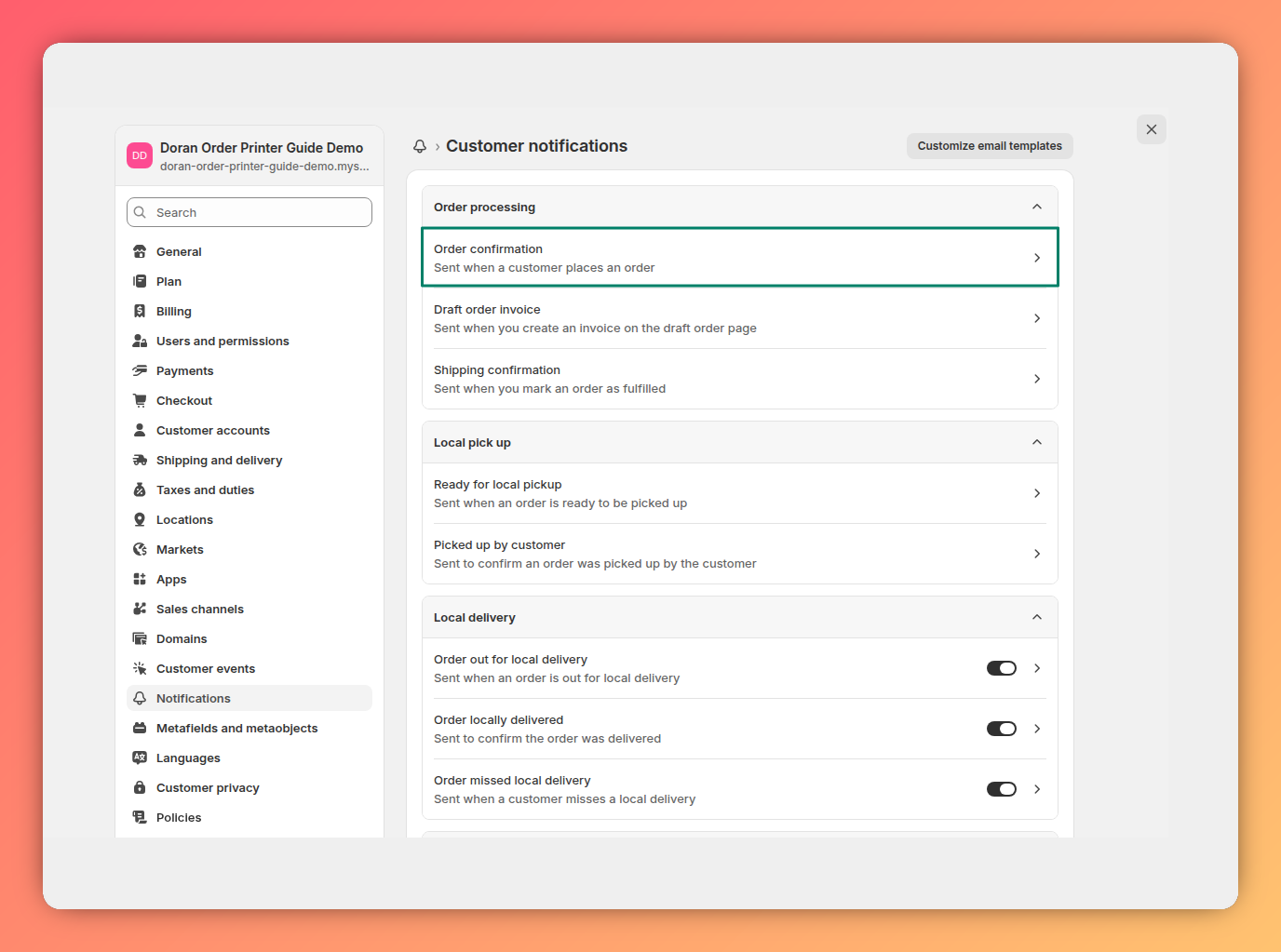
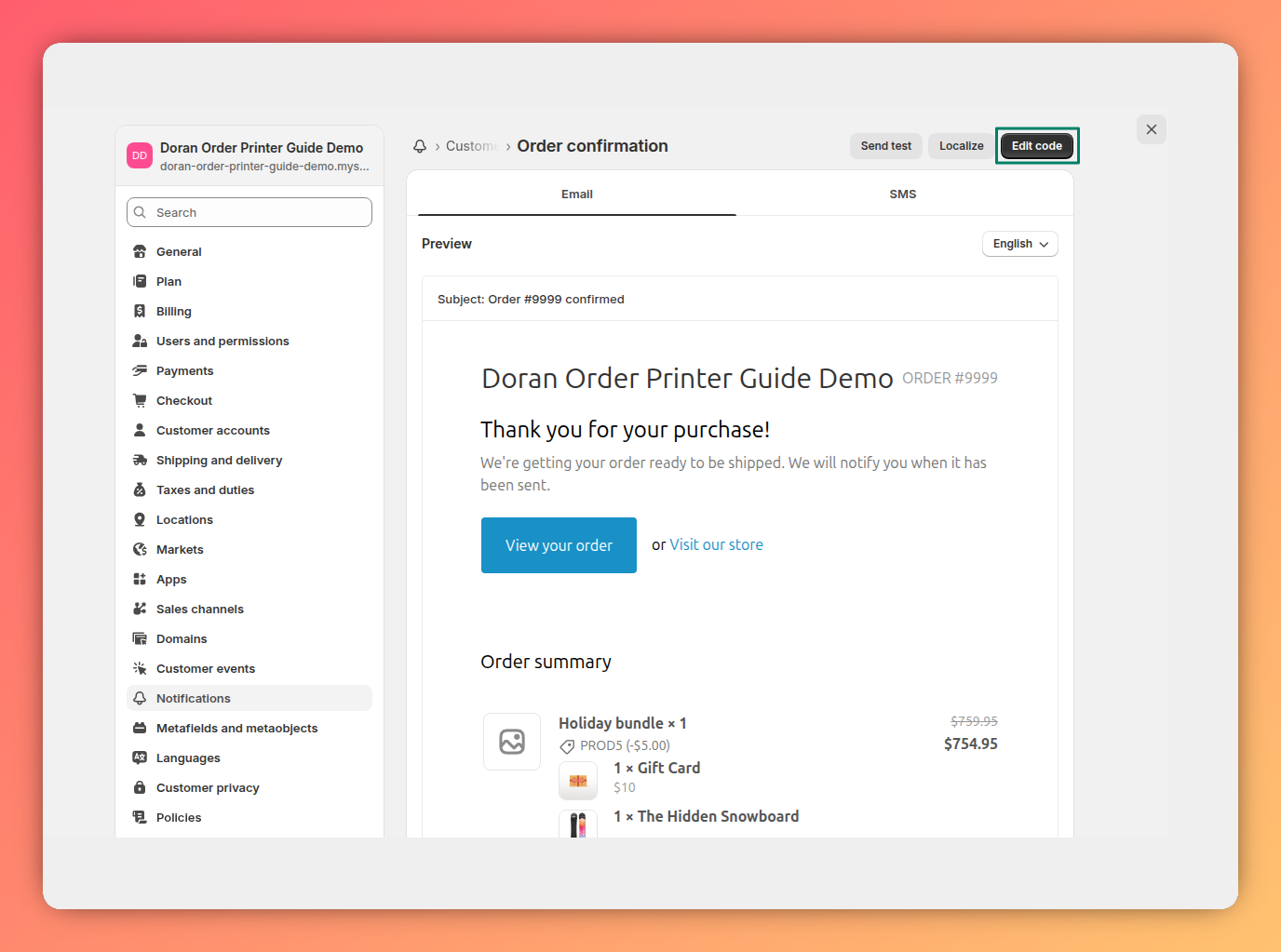
Step 3: Paste the PDF link into the email template
Paste the code snippet you copied from the app into the email notification's code. Place it where you want the download link to appear for your customers. The content of the PDF will correspond to the template type you selected in Step 1.
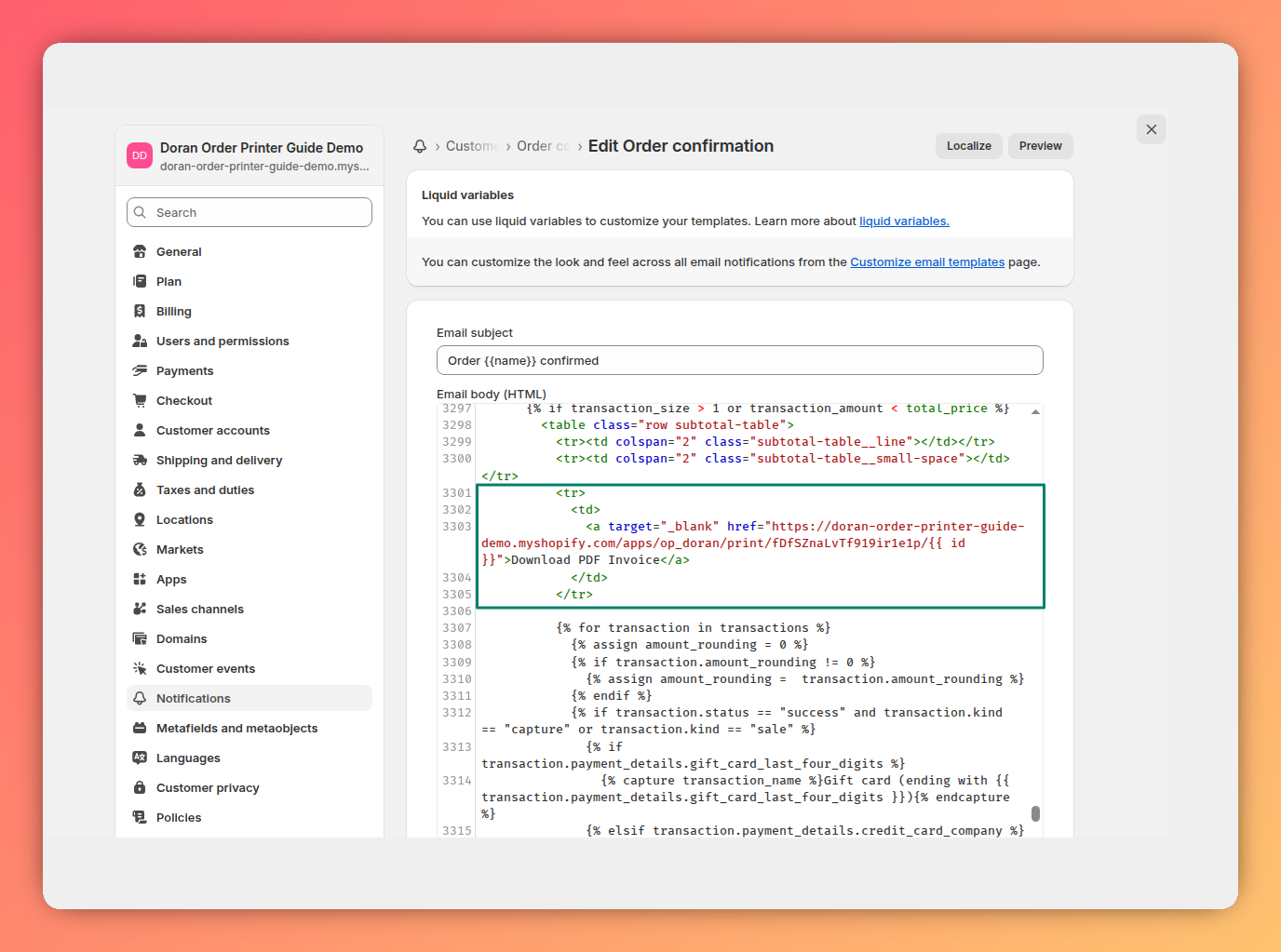
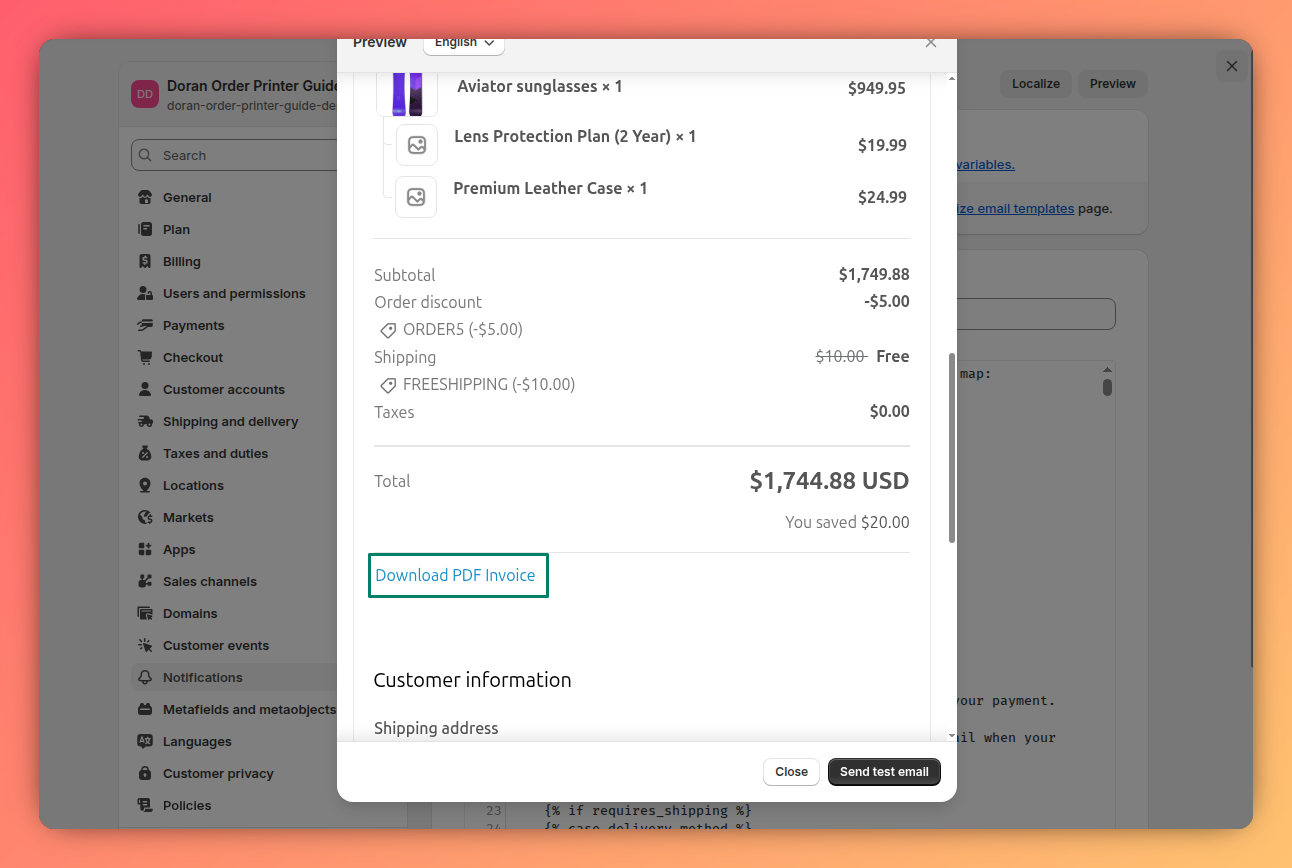
If you want to add the PDF link to a different or custom email notification not listed, please contact our support team. We can assist you with adding it to your specific template.
Sender email
Learn how to customize your sender name, set a reply-to address, and verify your branded domain. This allows you to send emails from your own address, improving brand trust and email deliverability.
App invoice numbers
Learn how to create custom invoice numbers for your orders. This guide covers how to enable the feature, set a reset date, define a starting number, and add custom prefixes and suffixes to match your business needs.