Print orders
Printing mode
The Print mode setting determines how your documents are organized and saved into PDF files. Choose the option that best fits your workflow.
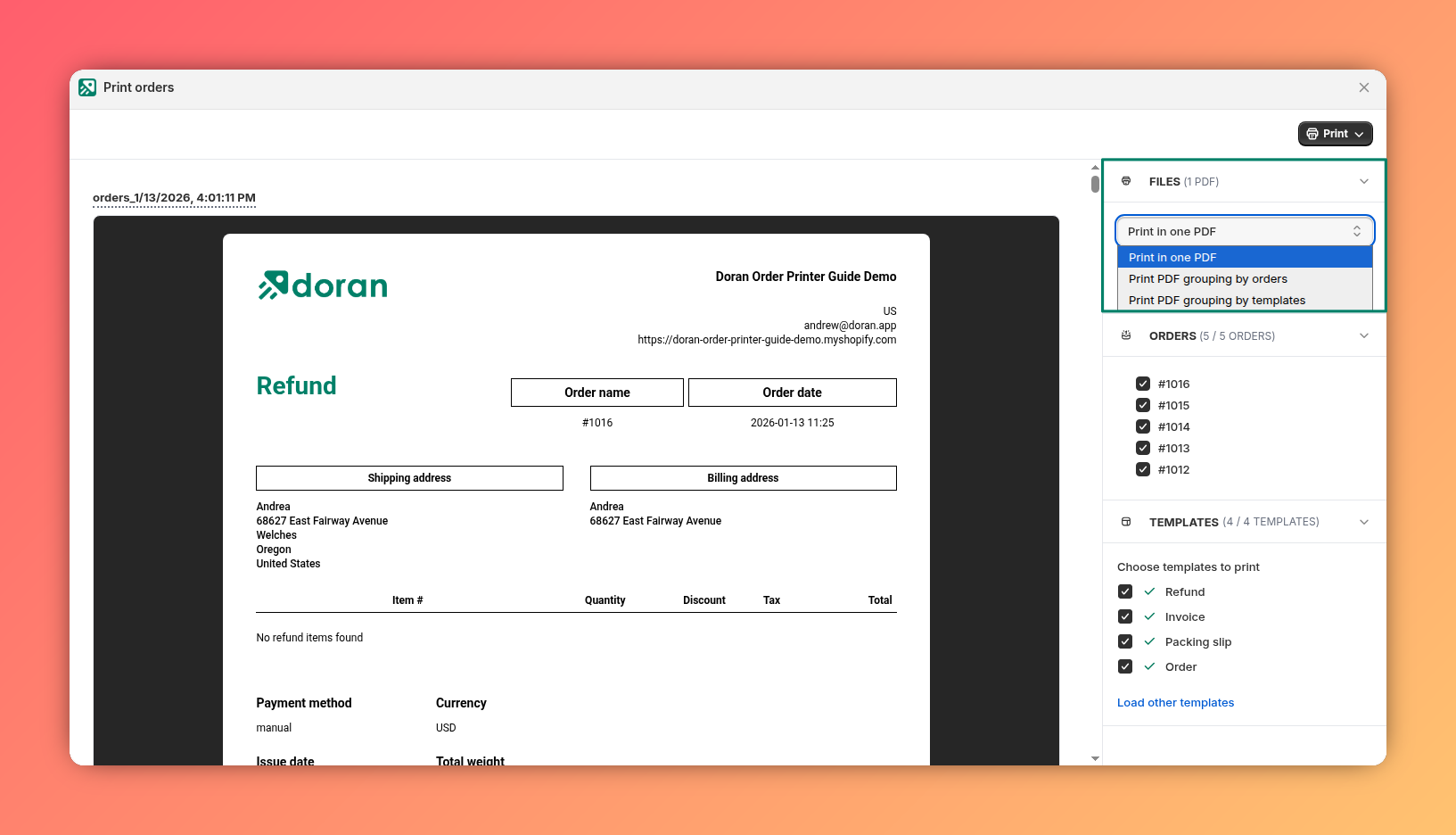
Print in one PDF
This option combines all selected orders and templates into a single, continuous PDF file. This is useful for printing a complete batch of documents at once.
Print PDF grouping by orders
This mode creates a separate PDF file for each order. Each file will contain all the selected templates for that specific order.
For example, if you print Invoices and Packing slips for 5 orders, the app will generate 5 separate PDF files.
Print PDF grouping by templates
This mode creates a separate PDF file for each template type. Each file will contain the documents for all selected orders.
For example, if you print Invoices and Packing slips for 5 orders, the app will generate 2 PDF files: one containing all 5 invoices and another containing all 5 packing slips.
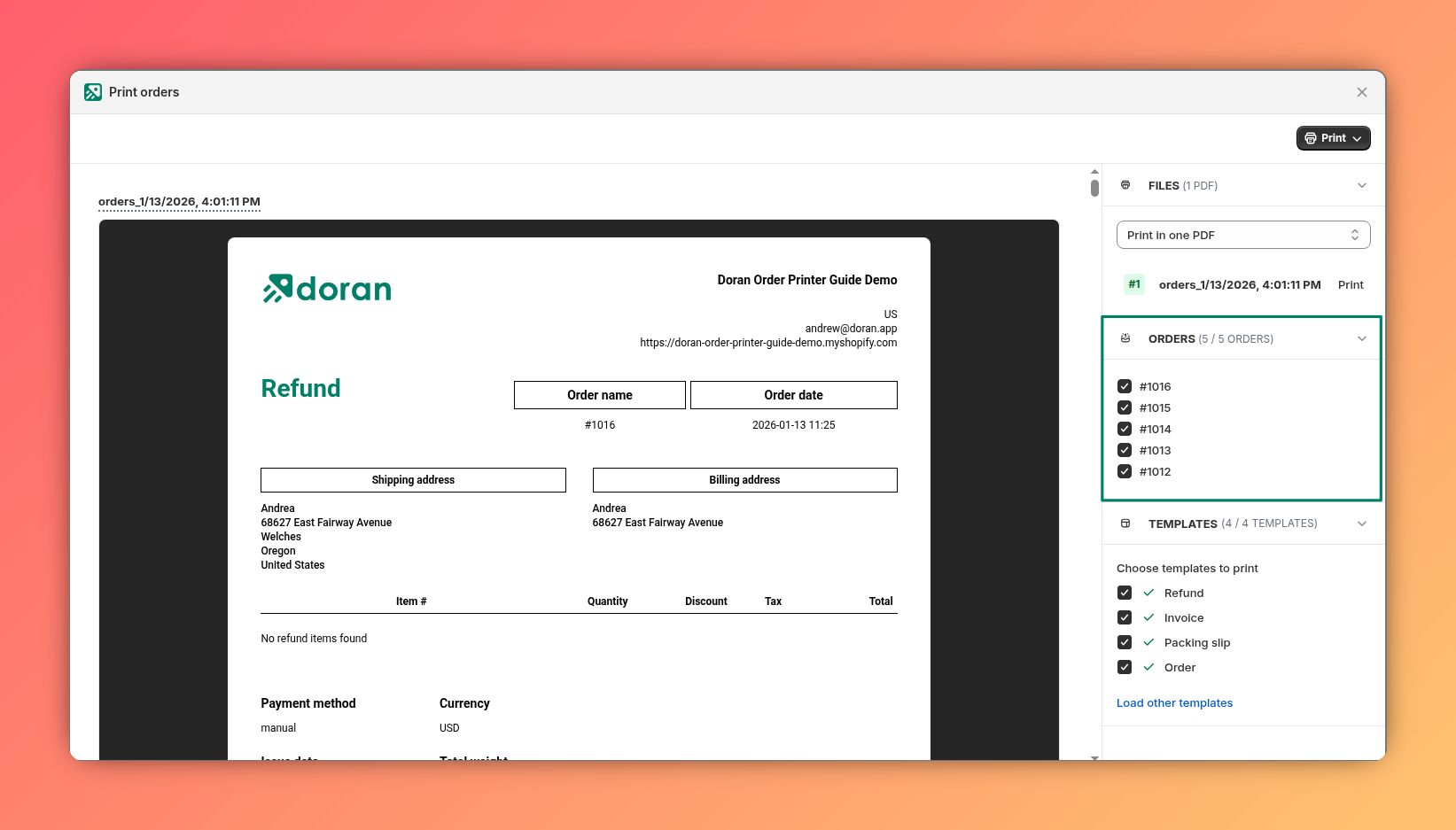
Orders
This section lists all the orders you selected for bulk printing. You can refine your selection here by checking or unchecking the box next to each order number. Only checked orders will be included in the final PDF.
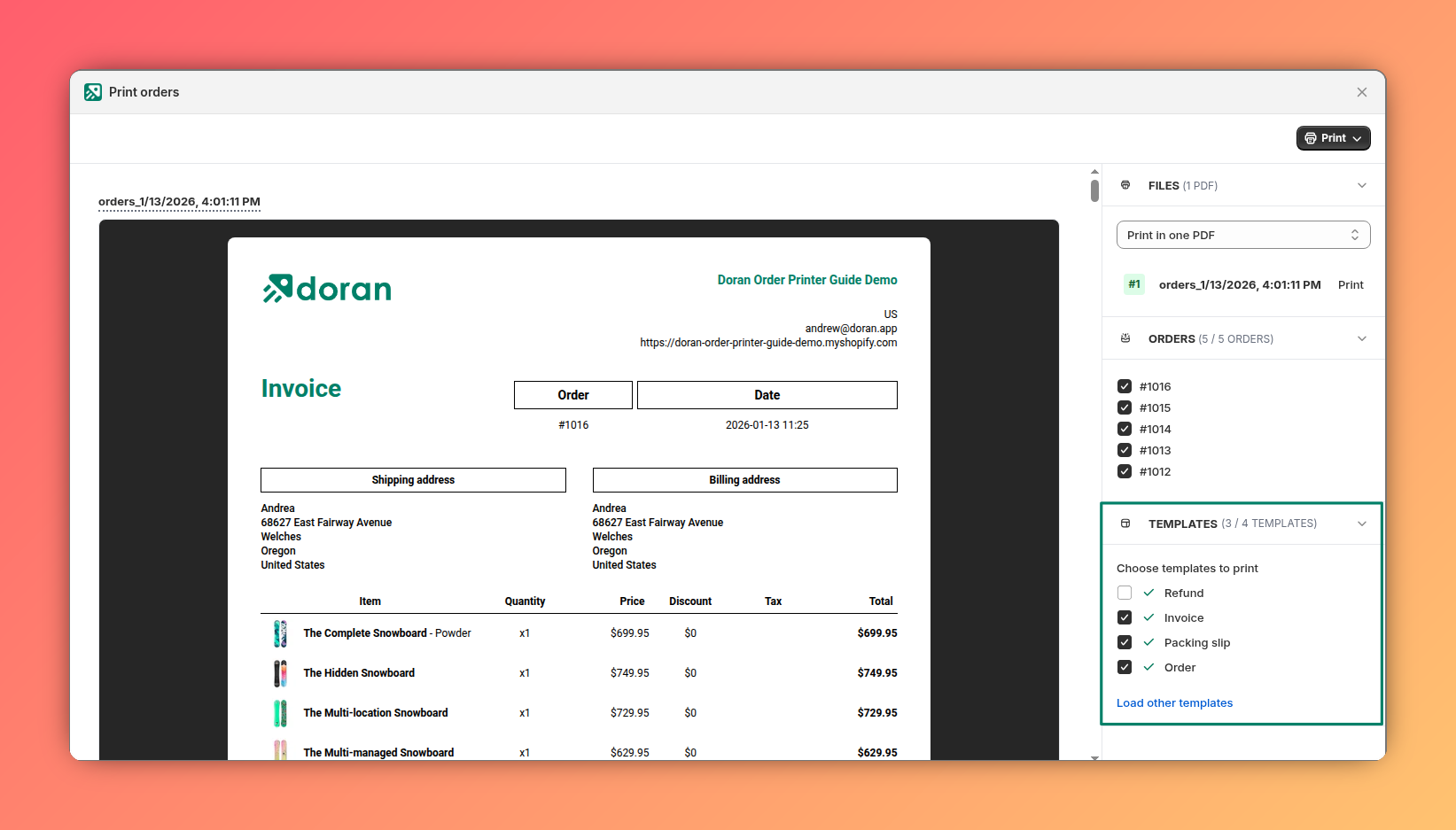
Templates
Here, you can choose which document templates you want to print for the selected orders. Check the box next to each template you wish to include, such as Invoices or Packing Slips.
Customize PDF filename
Before printing, you can set a custom name for your downloaded file(s). Simply type the desired name into the text field provided. This helps you keep your downloaded documents organized.
Customize current PDF content
This powerful feature allows you to make quick, temporary edits to your documents directly in the preview panel before printing. This is perfect for adding a personal note or correcting information for a specific order without changing your main template.
Please note: Edits made here are temporary and apply only to the current print job. They will not be saved to your master template.
Shopify POS
Learn how to activate the 'Print with Doran' app on your Shopify POS. This guide provides step-by-step instructions for printing both completed orders and draft orders directly from your POS device, including how to print multiple templates at once.
In app
Learn how to navigate the draft order table to efficiently find, filter, and manage your orders. This guide covers using filters like name, tags, and status, and performing bulk actions like printing multiple orders at once.