Shopify admin
You can print your orders directly from your Shopify admin, either one by one or in bulk, using Doran. The process starts in Shopify and finishes in our app, where you can select your preferred printing options.
Access the menu
To view all draft orders inside Doran app, go to Orders.
Printing orders in bulk
To save time, you can print multiple orders at once directly from the main orders list in Shopify.
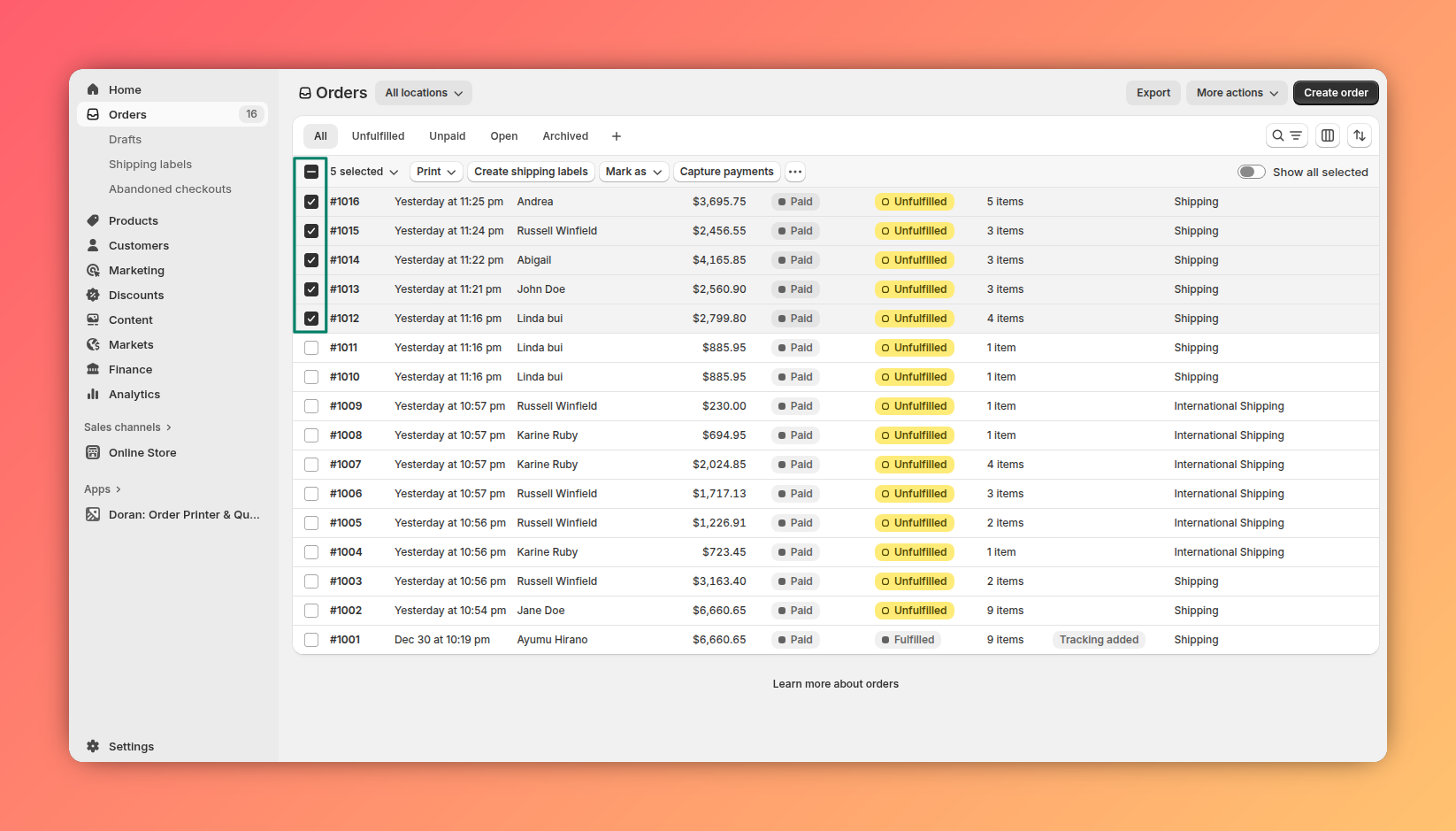
From your Shopify Orders admin, select the orders you want to print by checking the box next to each one.
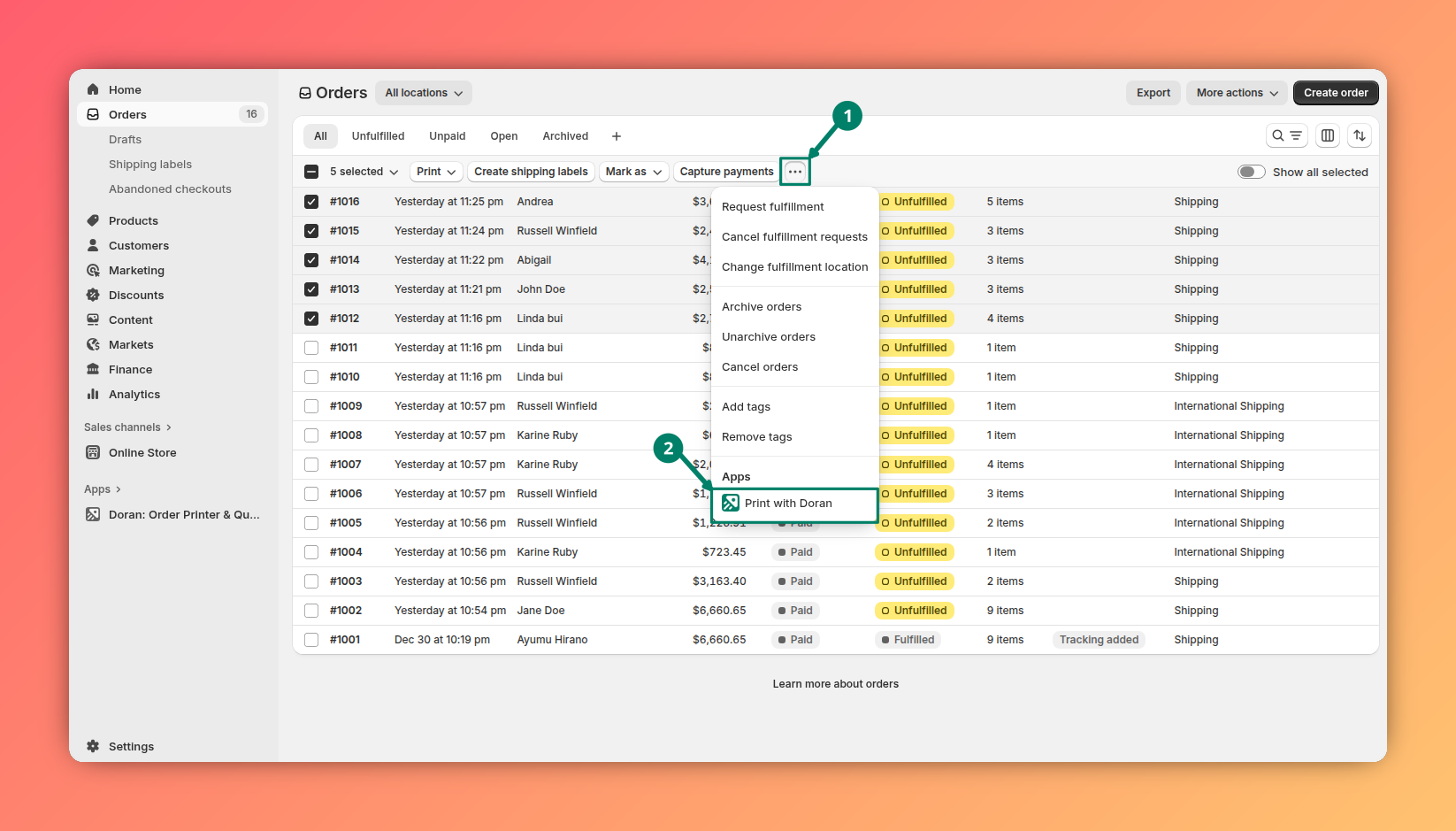
Click the ... (more actions) button and select Print with Doran from the dropdown menu. After clicking, you will be automatically redirected to the Doran app to configure your print settings.
To learn how to customize your print settings for invoices, please read our guide on printing orders.
Printing a single order
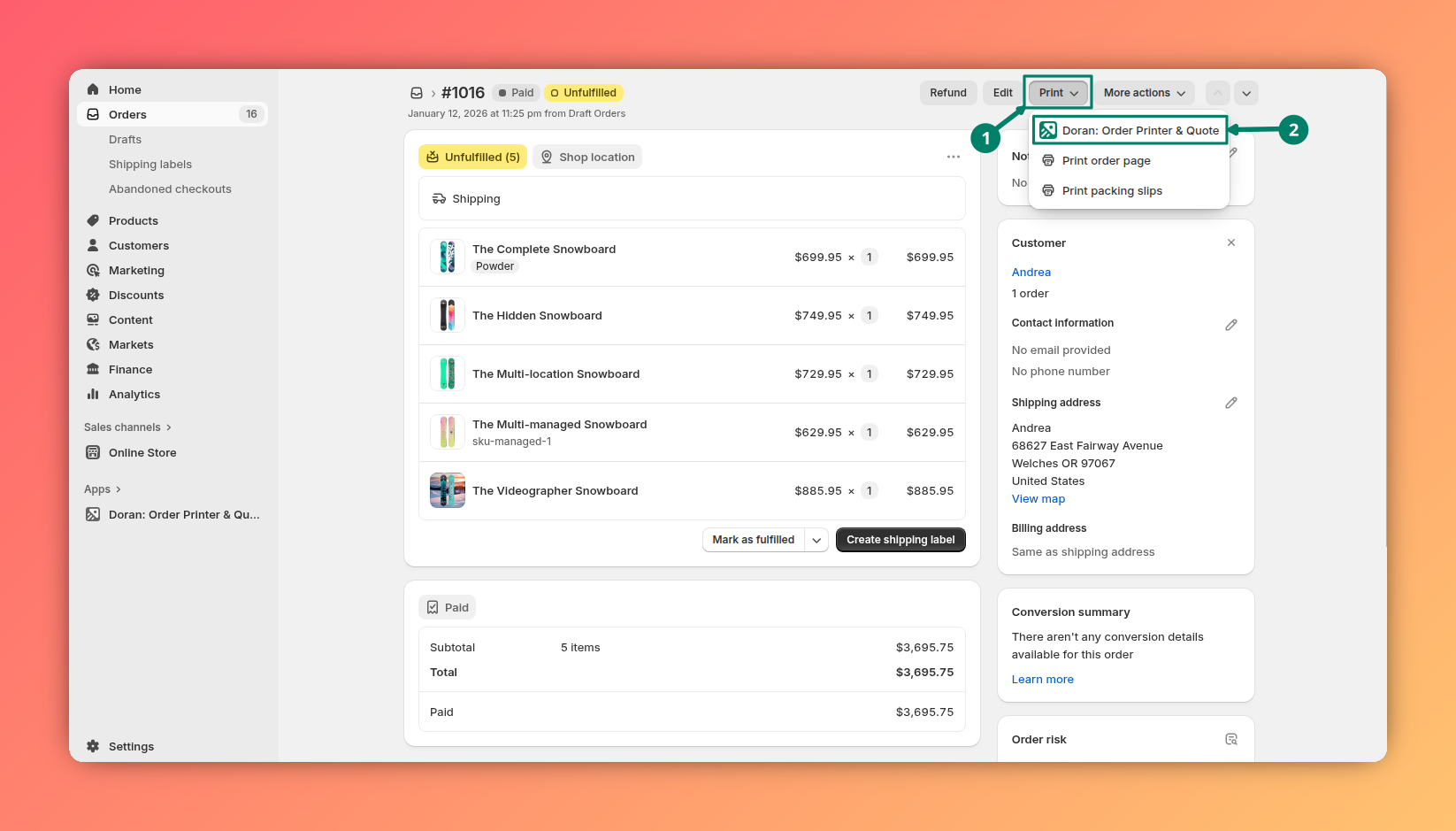
From your Shopify admin, open the specific order you wish to print. Click the Print action button and select Doran Order Printer to start.
Print options
After clicking the button, Shopify displays a popup to print. You will have two main options for printing:
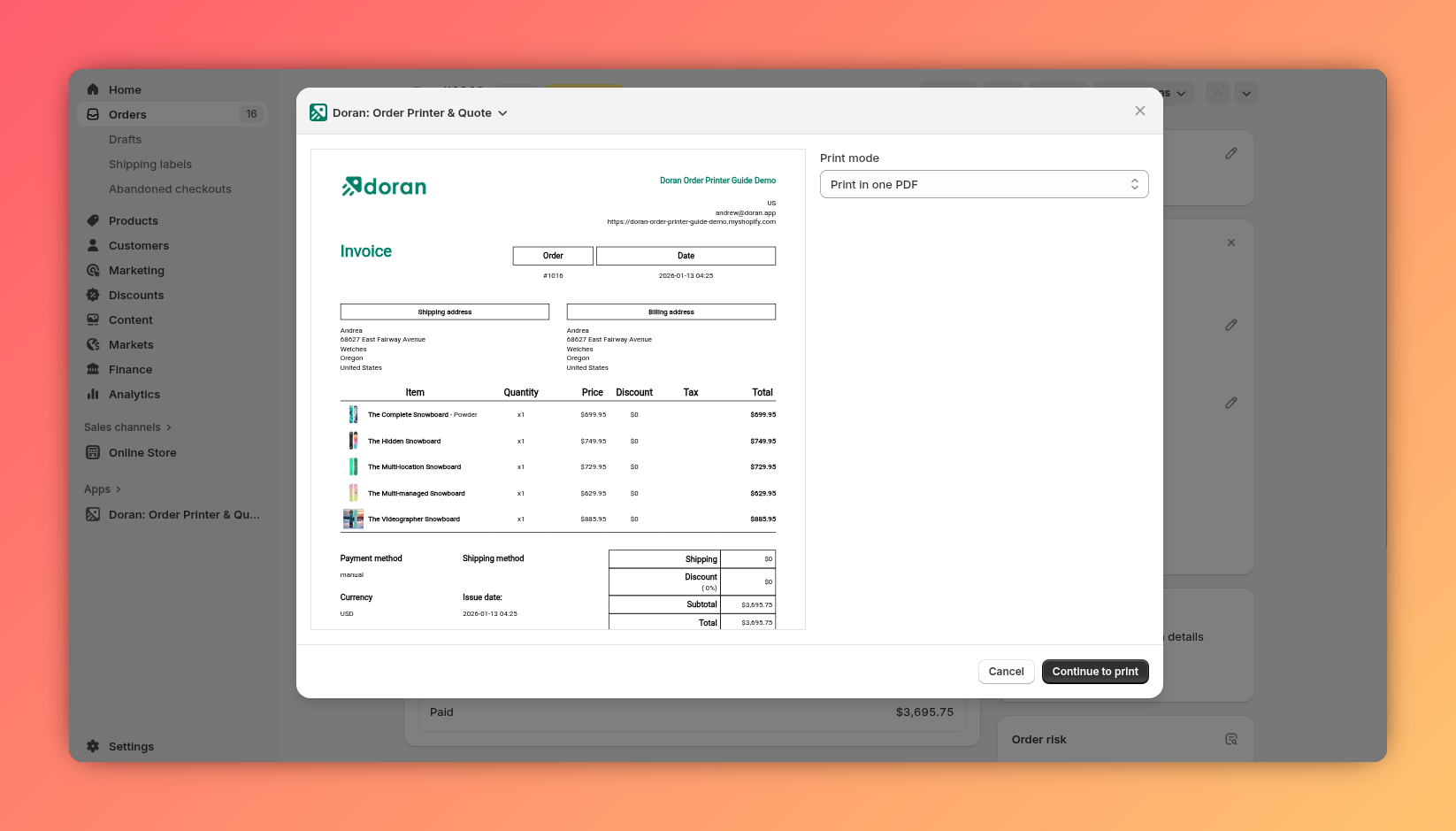
Print in one PDF
This option compiles all the selected templates into a single PDF file. It's a convenient way to print everything at once.
This option is only available if all the templates you are printing have the same page size.
Print by a template
This option allows you to print the order using specific, pre-existing templates.
In app
Learn how to effectively view, filter, and manage your orders using the Orders Table. This guide covers how to use filters to find specific orders and perform bulk actions like printing, exporting, and picking multiple orders at once to streamline your fulfillment process.
Shopify mobile app
Learn how to print single or multiple orders directly from the Shopify mobile app using Doran. This guide provides step-by-step instructions for a seamless mobile printing experience.