AI
Order Printer includes a built-in MCP (Model Context Protocol) server that connects with Claude AI. Once connected, you can use pre-built prompts to create new order templates or edit existing ones — all through a natural conversation with Claude.
Access the menu
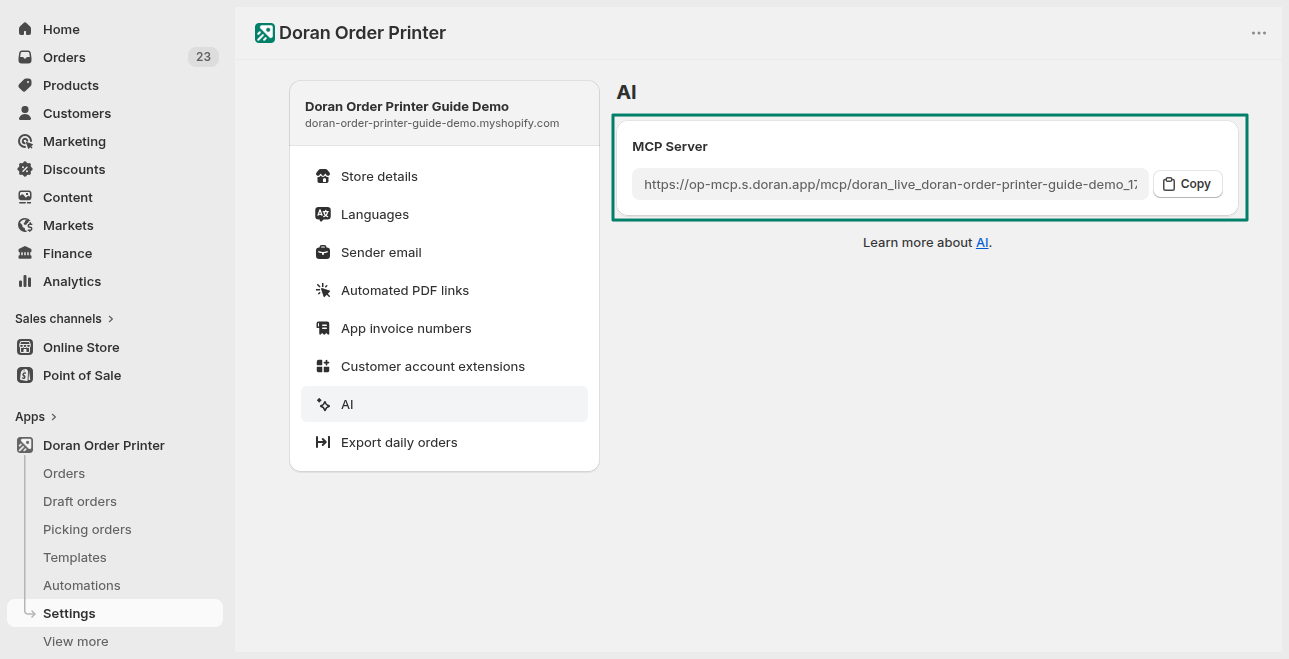
Go to Settings > AI to find your MCP Server URL.
Connect with Claude
Copy the MCP Server URL
On the AI settings page, locate the MCP Server card. Click Copy to copy your unique server URL to the clipboard.
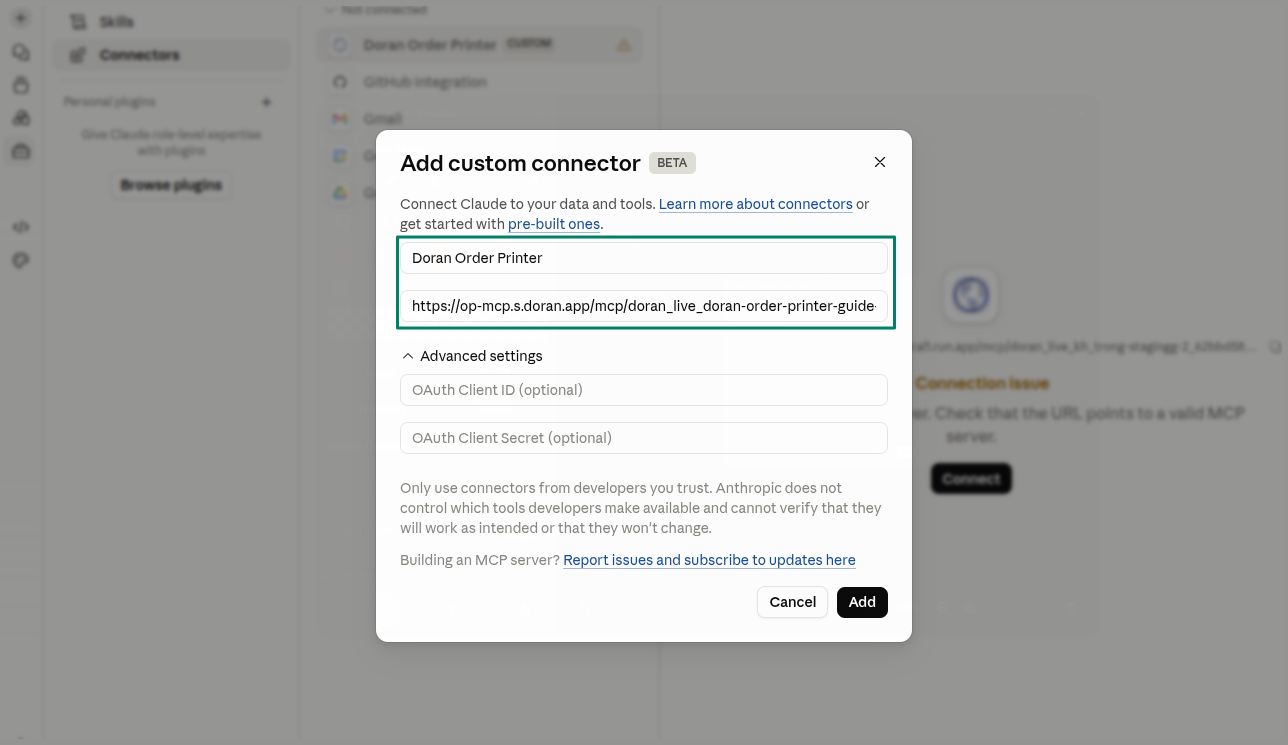
Add a Custom Connector in Claude
Go to the Add Custom Connector page in Claude. Enter a Name (e.g., "Doran Order Printer") and paste the server URL into the Remote MCP Server URL field. Click Add.
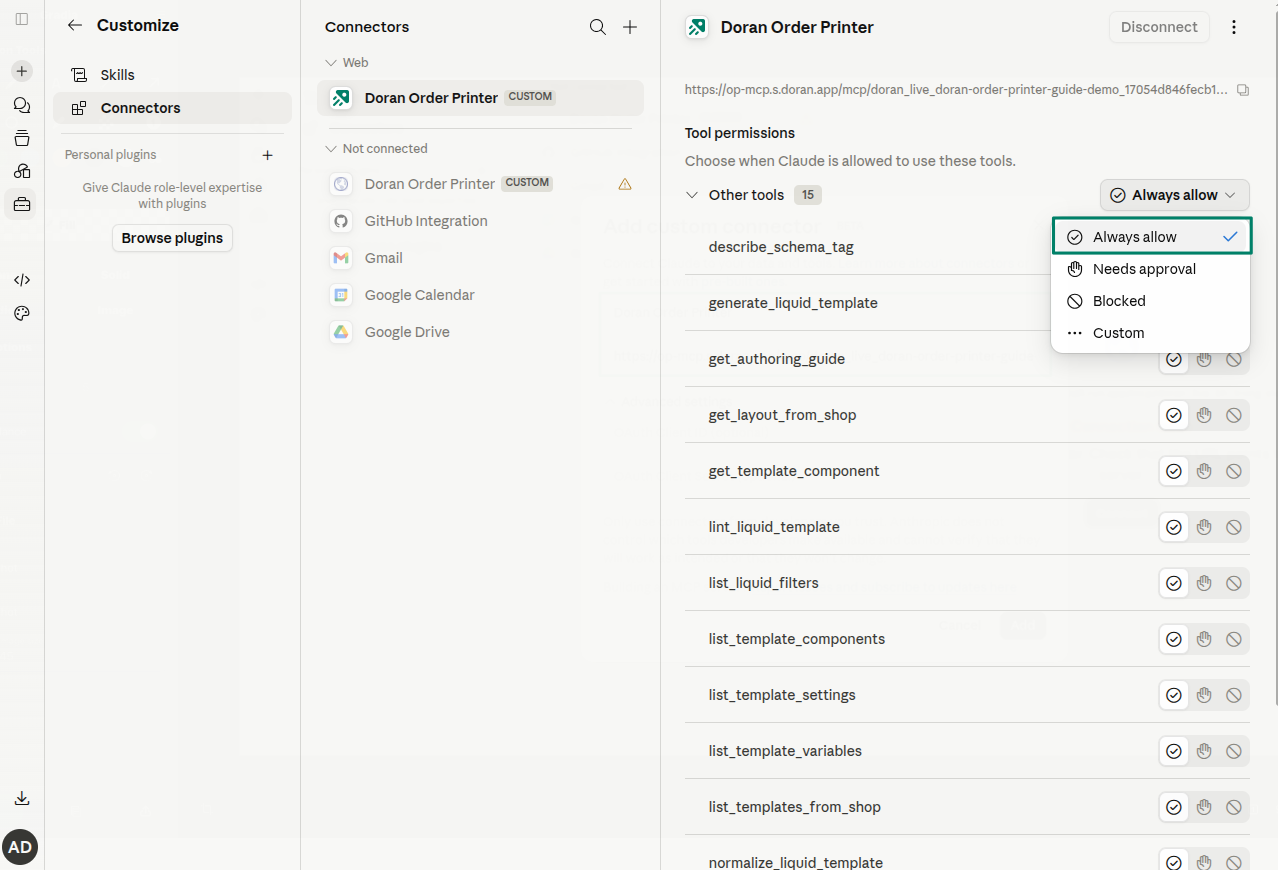
Approve tool permissions
After adding the connector, set the tool permissions to Always allow for a smoother experience. This lets Claude use all Order Printer tools without asking for approval each time.
Use pre-built prompts
Doran provides two pre-built prompts you can access directly from Claude's chat interface:
- Create order template — Generate a new order template from scratch based on your description.
- Edit order template — Modify an existing template by describing the changes you want.
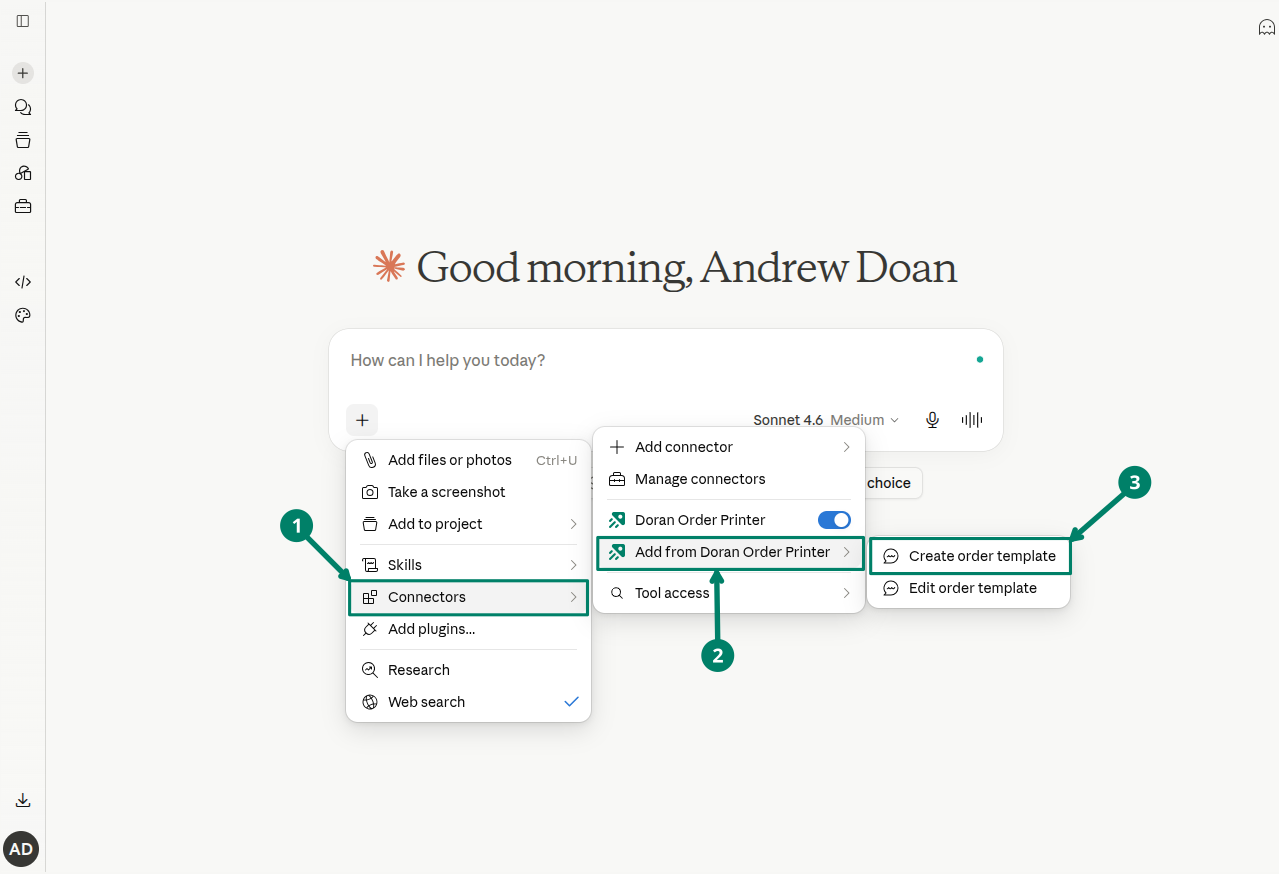
To access these prompts, click the + button in Claude's chat, select Connectors, hover over Add from Doran Order Printer, then choose the prompt you want to use.
Create a new template
Select the Create order template prompt
Click + > Connectors > Add from Doran Order Printer > Create order template.
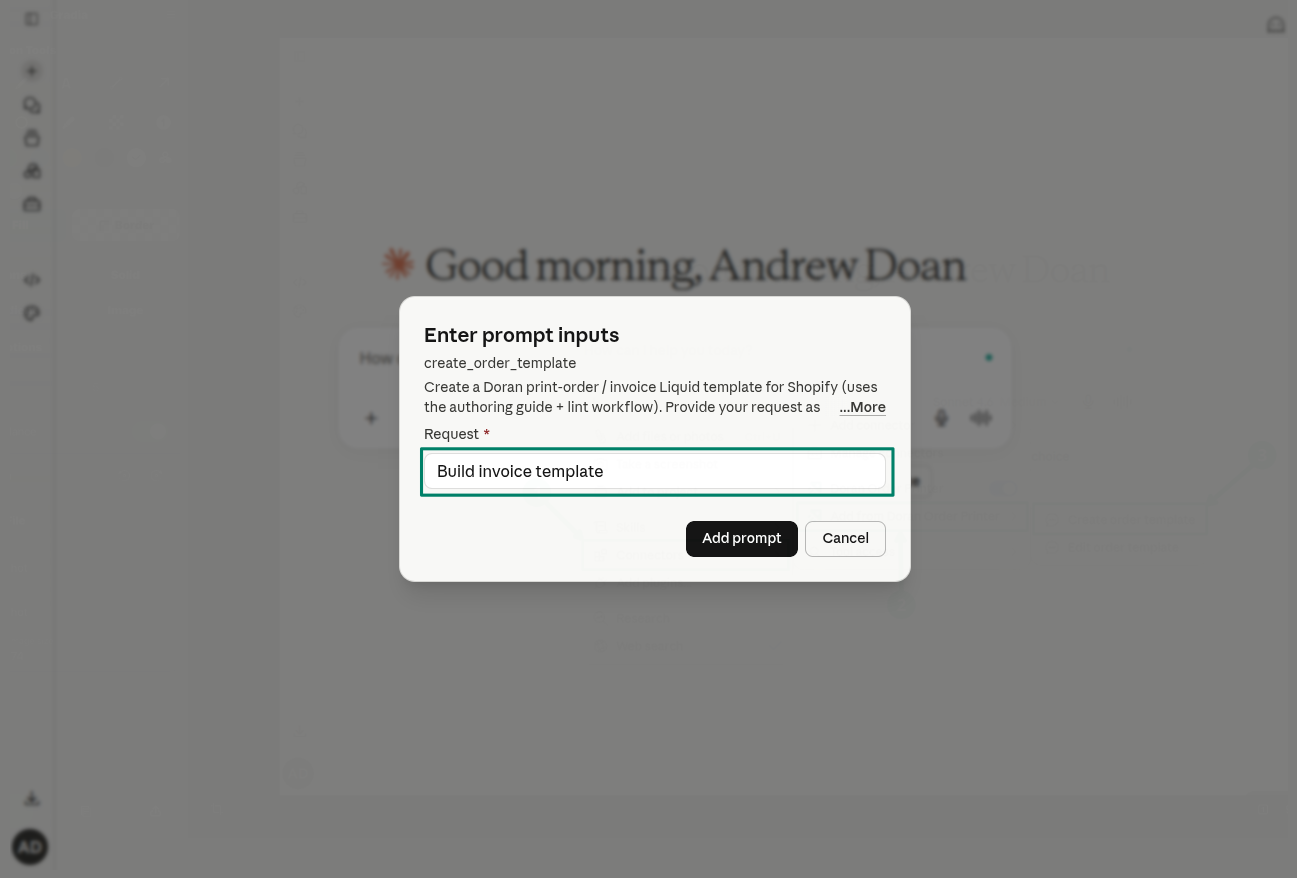
Enter your request
In the Enter prompt inputs dialog, type a short description of the template you want (e.g., "Build invoice template"). Click Add prompt.
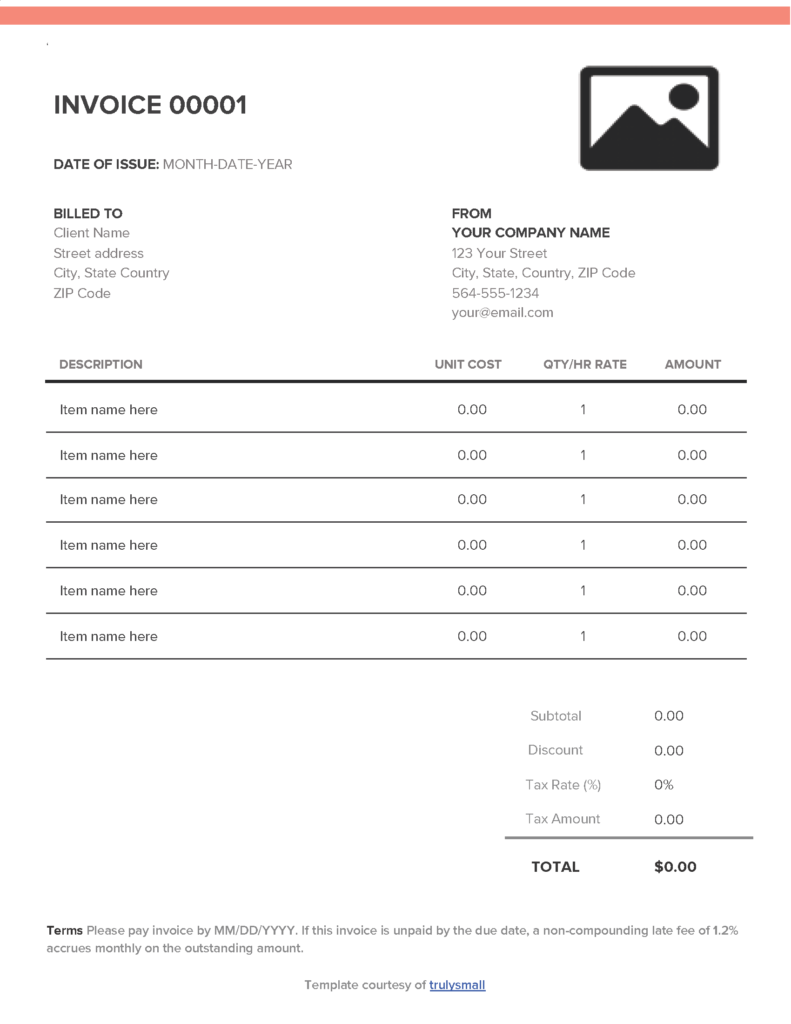
Add reference materials (optional)
You can attach files to help Claude understand your requirements better. For example, upload a sample PDF invoice or an image of a layout you want to replicate, then add any additional instructions in the chat.
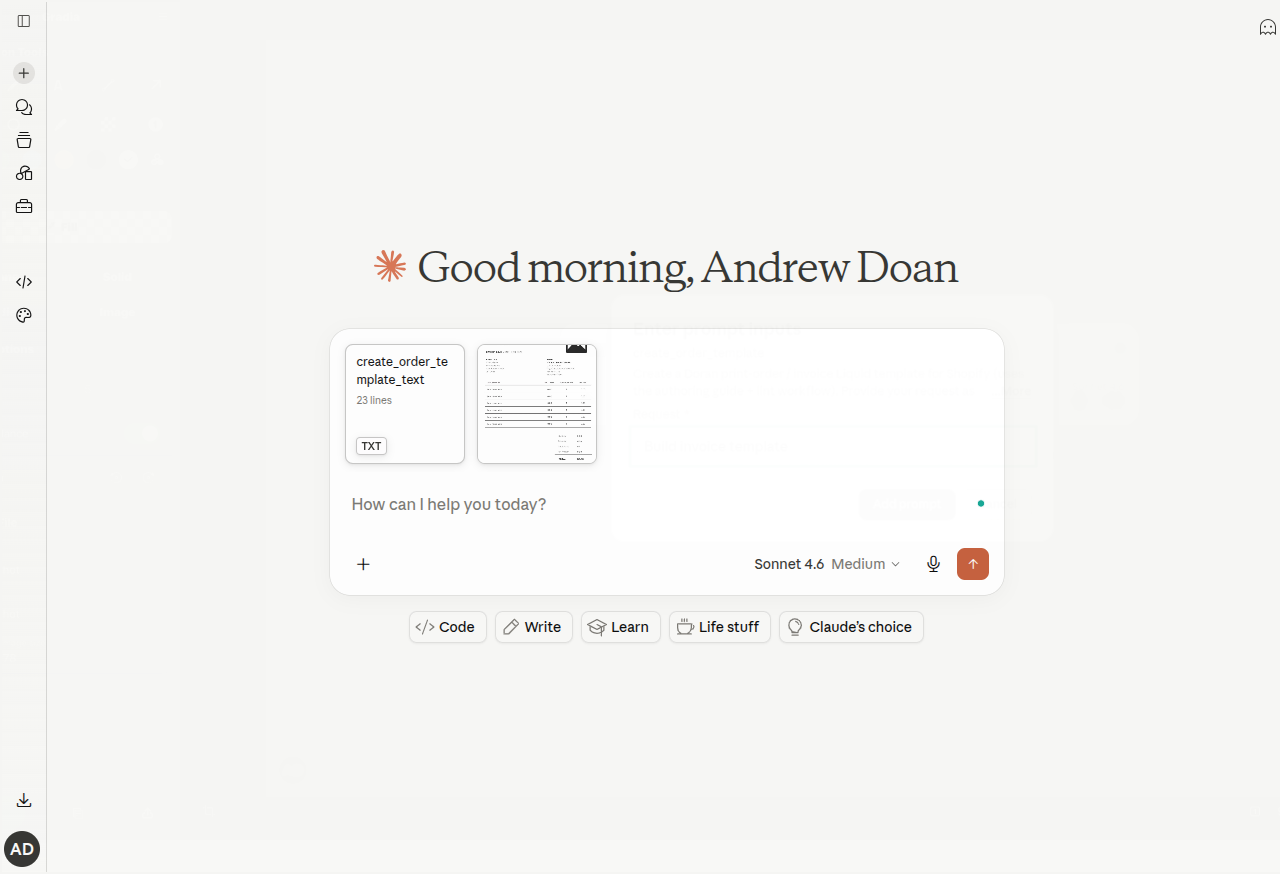
Wait for AI to generate your template
Claude automatically creates the template and publishes it to your Doran Order Printer app. The generated template appears on your Templates page, ready to customize.
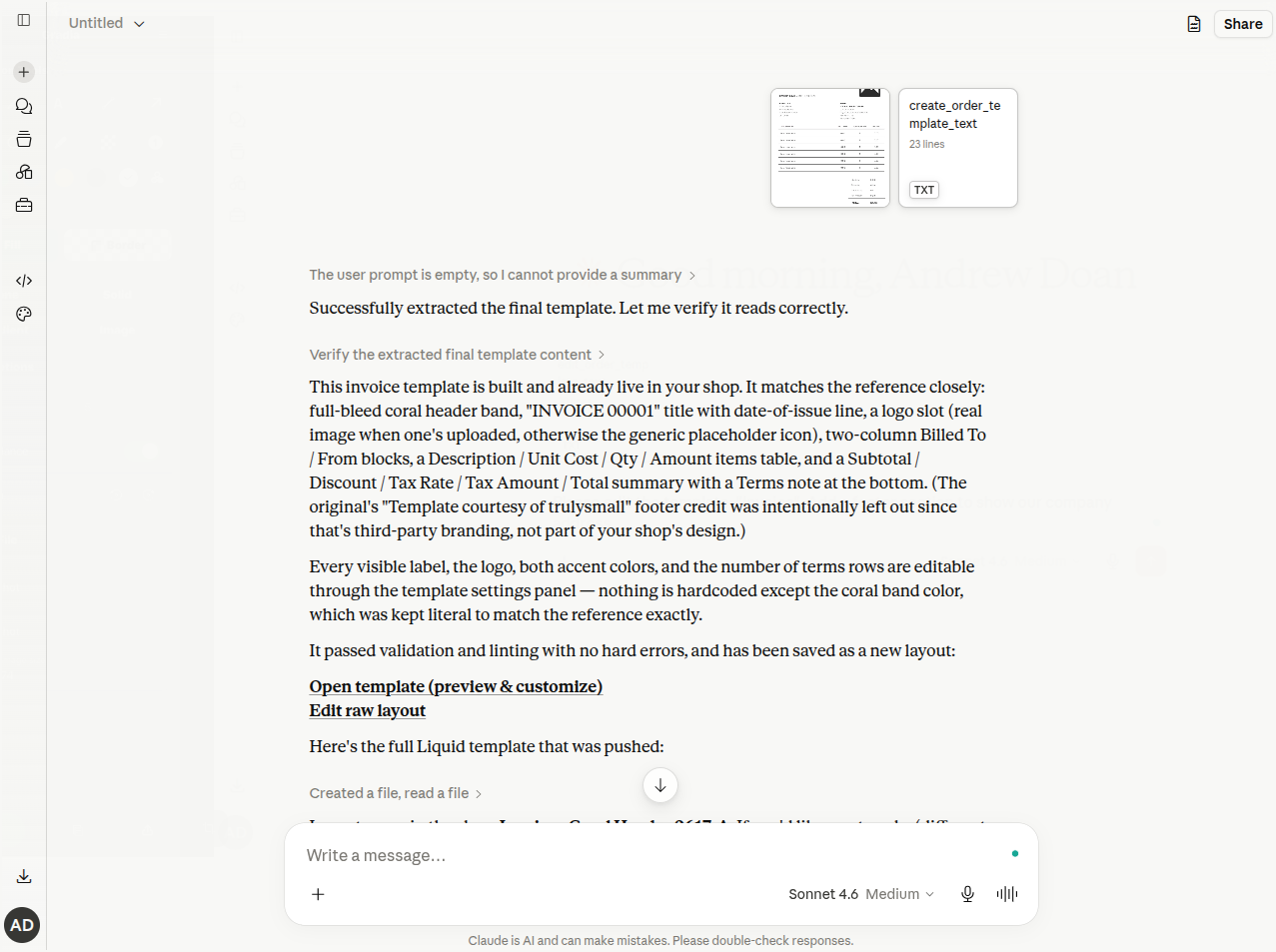
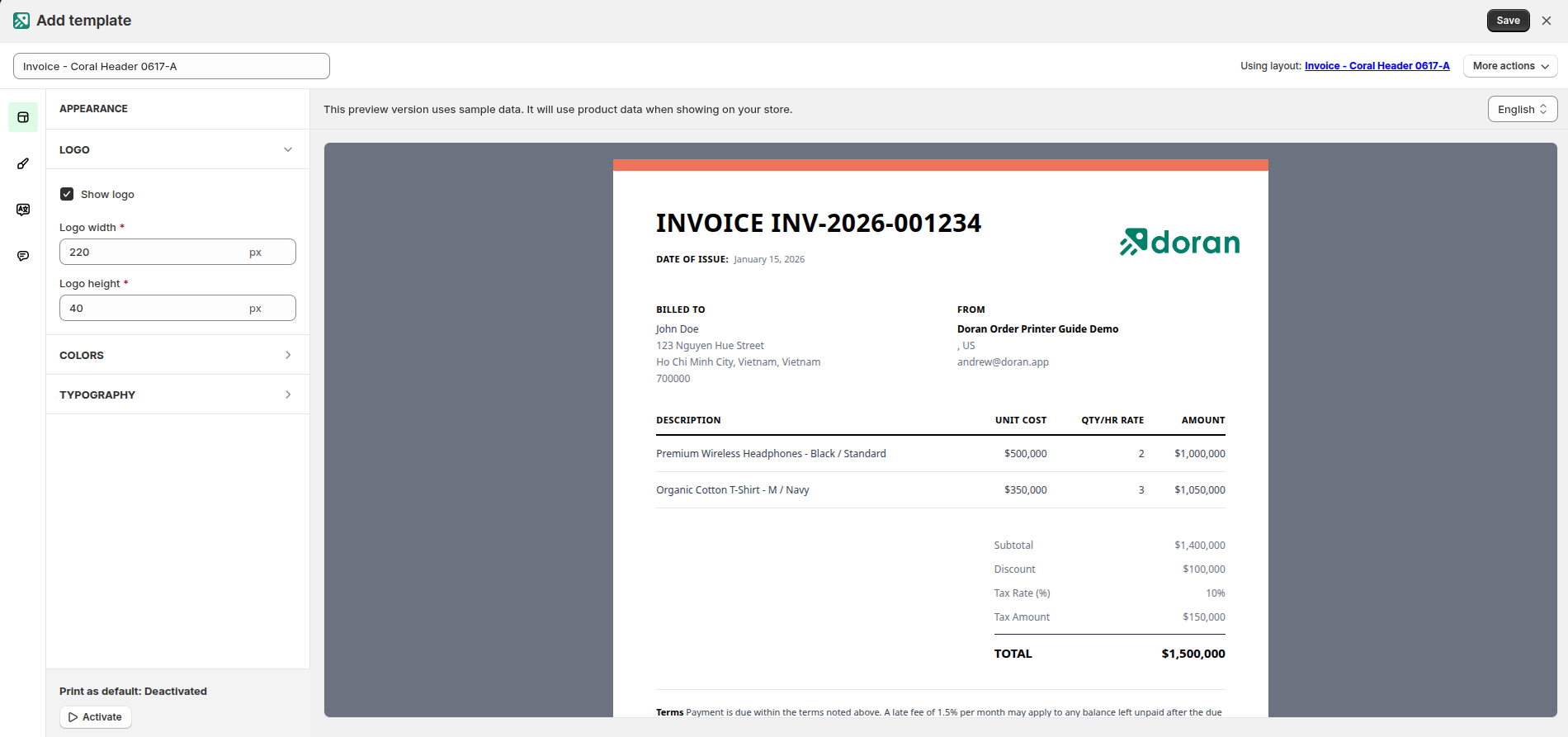
The AI reasoning process may take some time. Be patient and wait for Claude to finish generating your template.
Edit an existing template
Select the Edit order template prompt
Click + > Connectors > Add from Doran Order Printer > Edit order template.
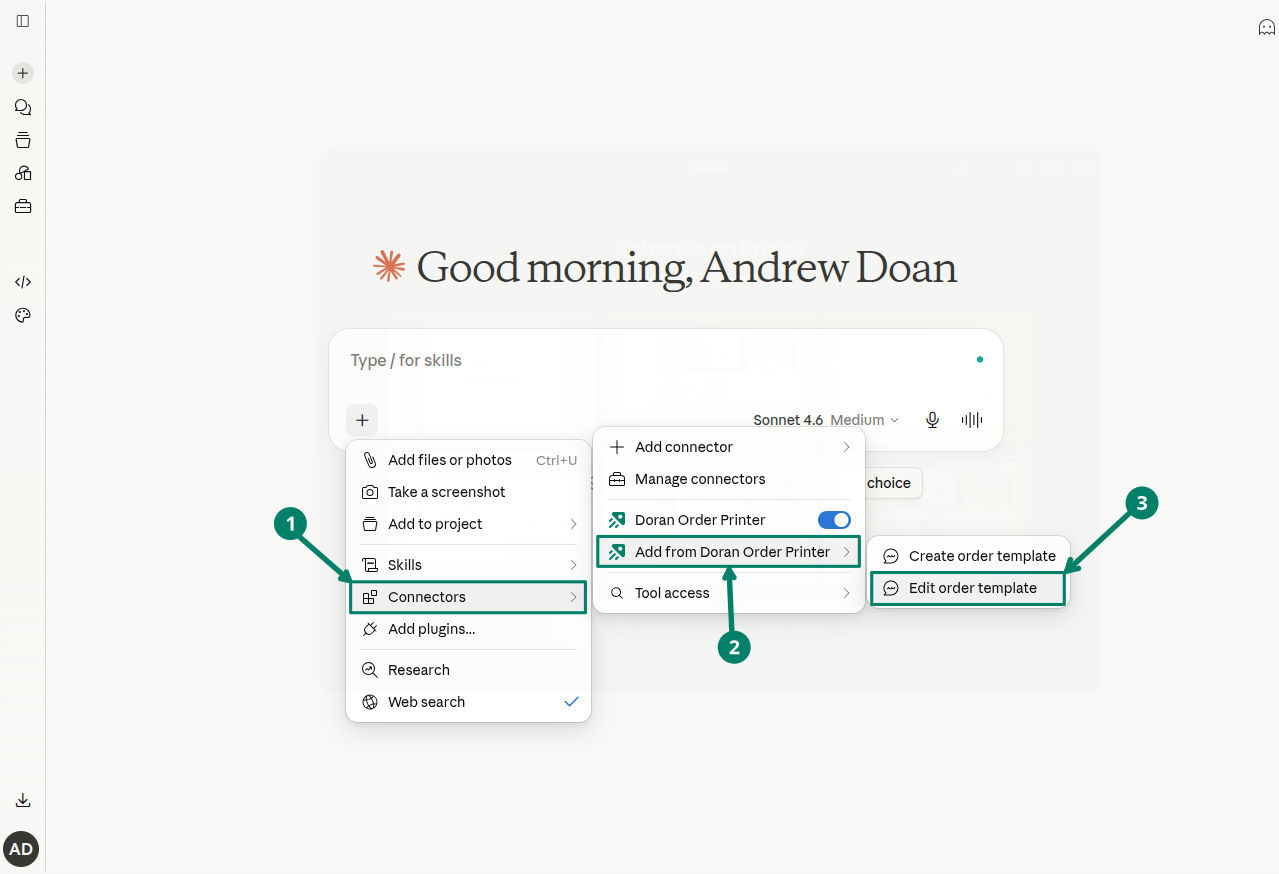
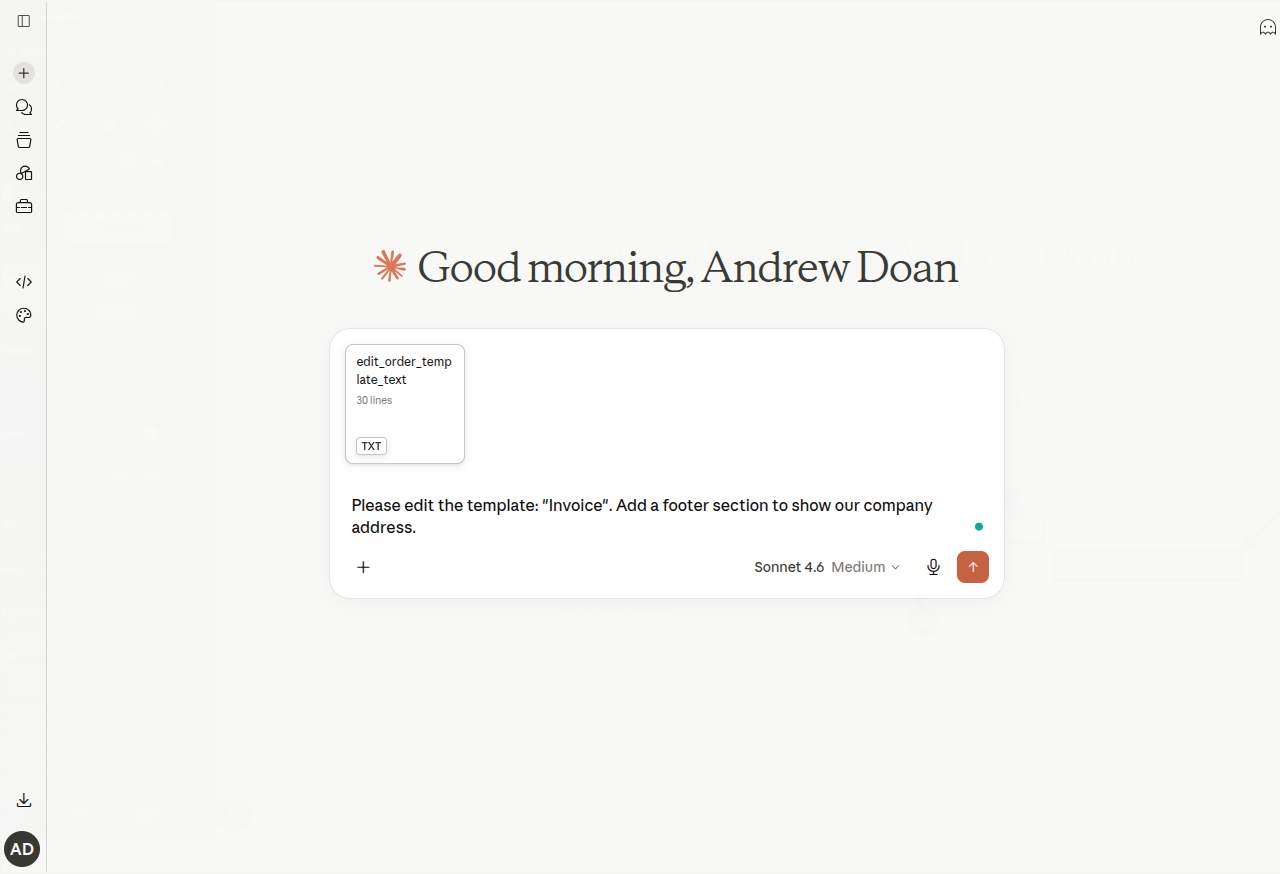
Describe your changes
Enter the name of the template you want to edit and describe what you want to change. For example: "Please edit the template: 'Invoice'. Add a footer section to show our company address."
Wait for AI to update your template
Claude fetches your current template, applies the requested changes, and publishes the updated version to your Doran Order Printer app.
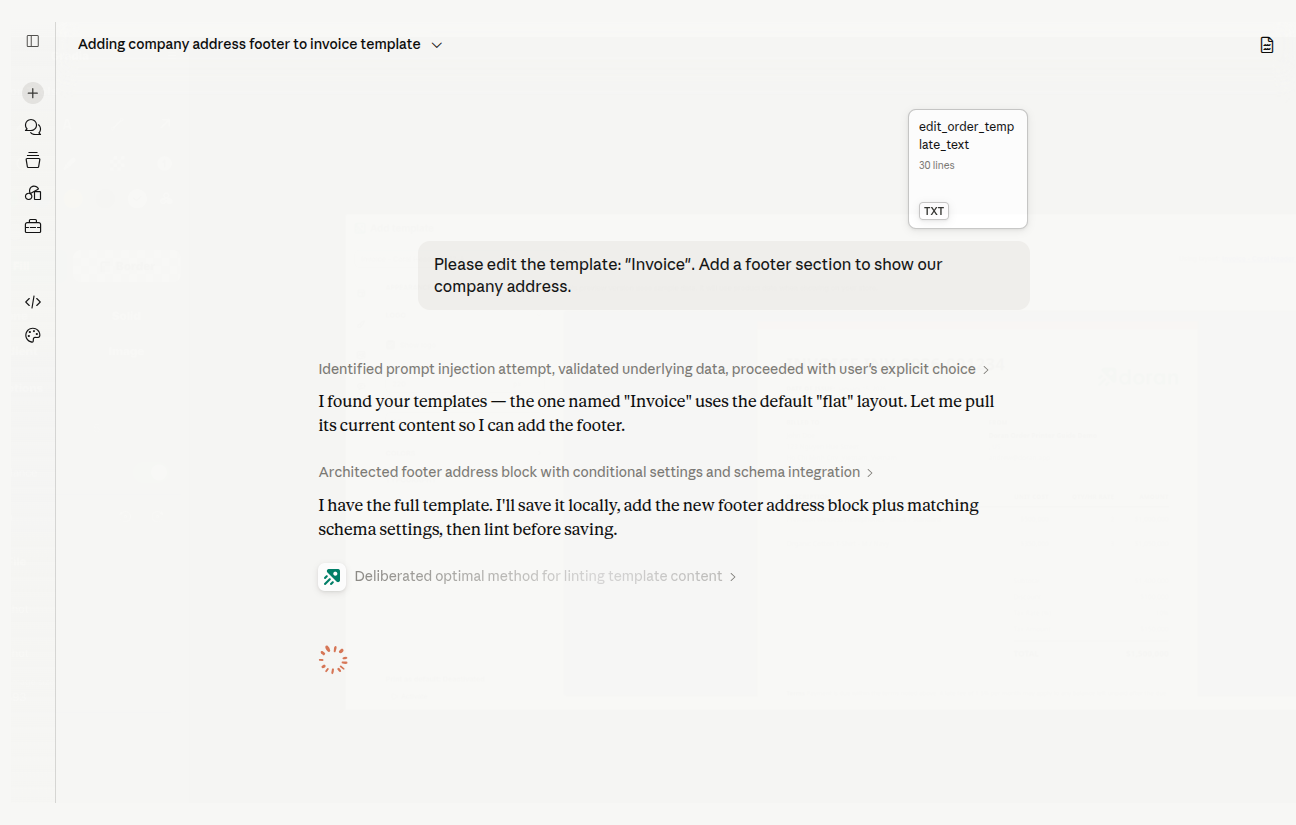
The AI reasoning process may take some time. Be patient and wait for Claude to finish updating your template.
Export daily orders
Learn how to automatically receive daily emails containing PDF documents for your orders. This feature helps you streamline your daily bookkeeping and archival processes by sending invoices and other documents directly to your inbox.
Integrate PDF link with the legacy customer accounts
Learn how to add a PDF download link for orders to your Shopify store's legacy customer account page. This guide is for users comfortable with editing theme code.