Print draft orders
The app provides flexible options for printing your draft orders. You can select which orders and templates to include, how to group the final PDF files, and even make last-minute edits to the content.
Printing mode
The Print mode setting determines how your documents are organized and saved into PDF files. Choose the option that best fits your workflow.
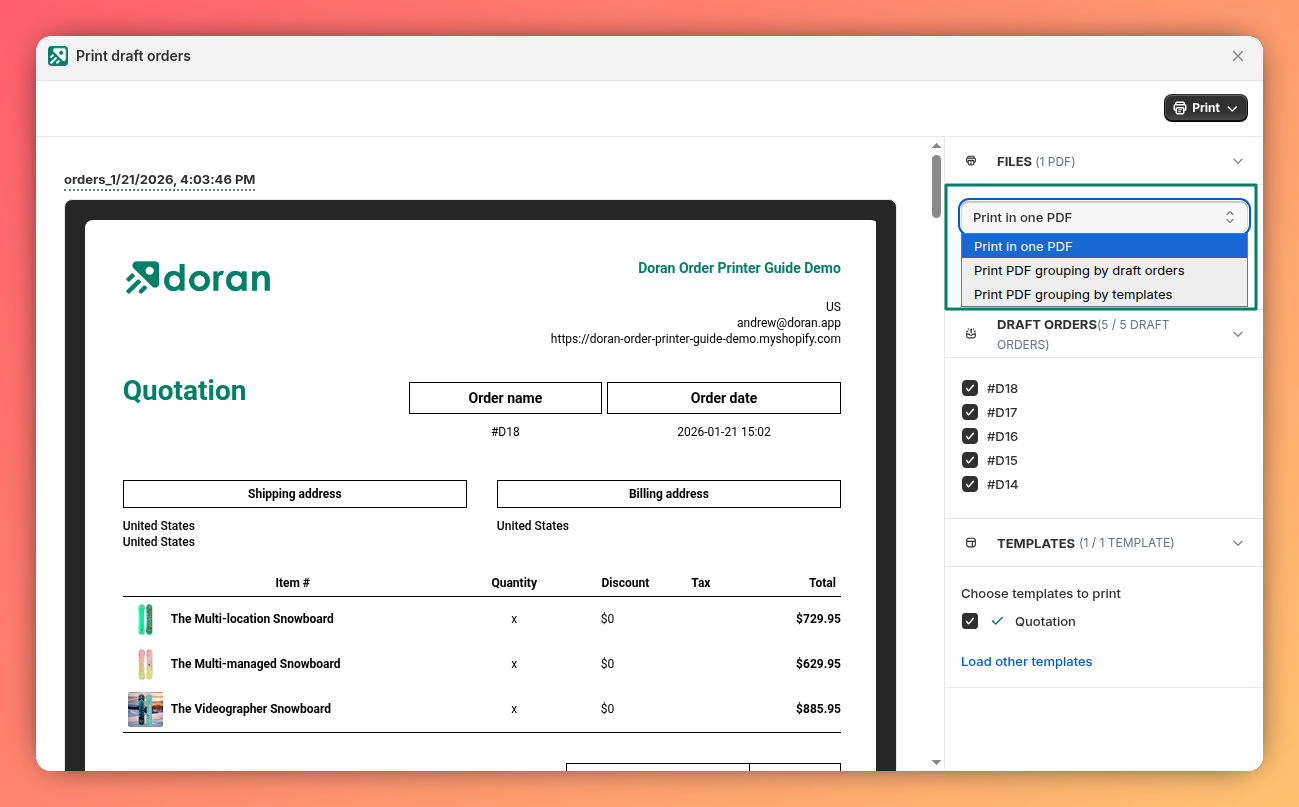
Print in one PDF
This mode combines all selected draft orders and templates into a single, continuous PDF file. This is useful for creating a comprehensive document for internal review or archiving.
Print PDF grouping by draft orders
This mode creates a separate PDF file for each draft order you select. Each file will contain all the templates you chose for that specific order.
Example: If you are printing 5 draft orders and have selected the "Quotation" and "Packing Slip" templates, the app will generate 5 separate PDF files. Each file will correspond to one draft order and contain both its quotation and packing slip.
Print PDF grouping by templates
This mode creates a separate PDF file for each template you select. Each file will contain the information for all the draft orders you chose.
Example: If you are printing 5 draft orders using the "Quotation" template, the app will generate one PDF file. This single file will contain the quotations for all 5 draft orders.
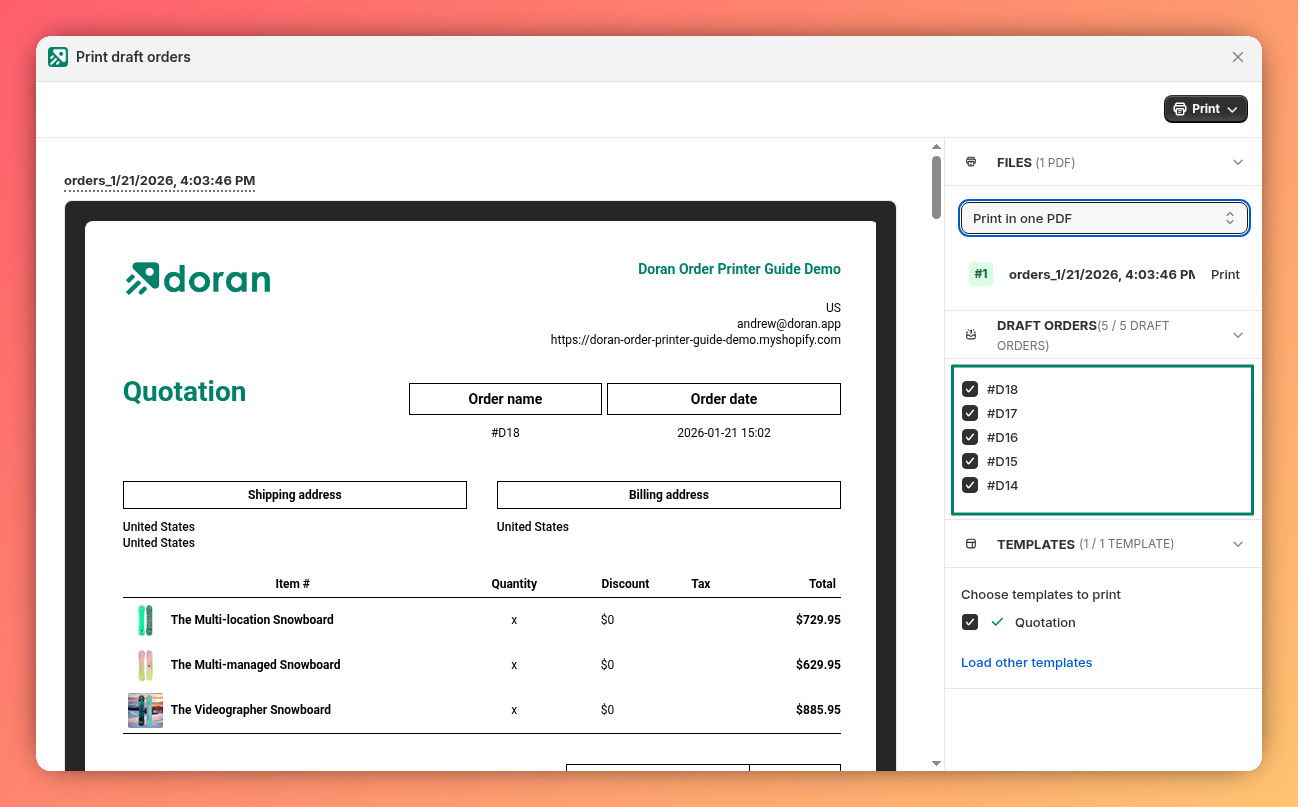
Select draft orders
In the Draft orders section, you can see a list of your available draft orders. Check the box next to each draft order you wish to include in your print job. Uncheck any you want to exclude.
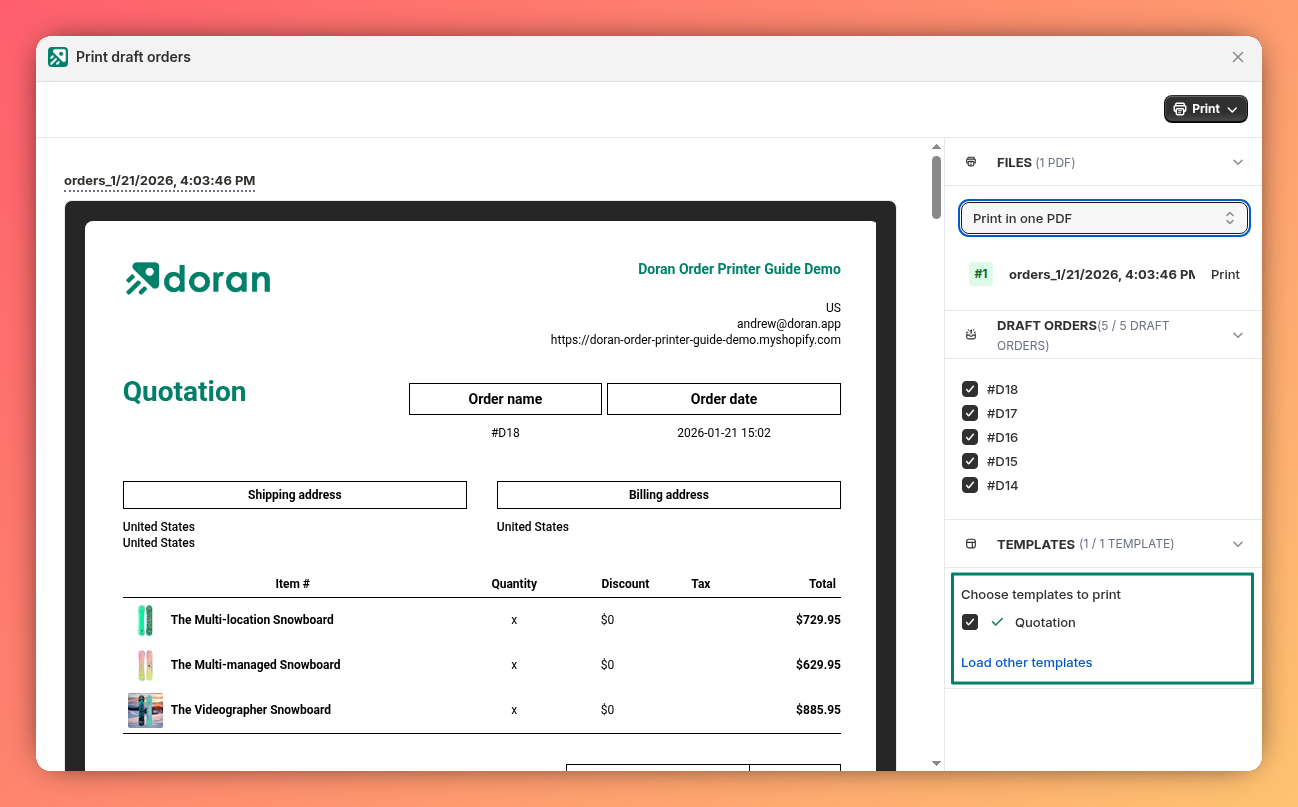
Select templates
In the Templates section, check the box next to each document template (e.g., Quotation, Packing Slip) that you want to generate for the selected draft orders.
Customize PDF name
Before printing or saving, you can edit the default filename. Locate the field for the PDF name and enter a custom name that suits your needs. This helps with organization and makes it easier to find the file later.
Customize current PDF content
The app displays a live preview of your document. You can make temporary changes directly on this preview before printing.
Note: These edits are temporary and only apply to the current print job. They will not be saved to your master template and will be discarded after you print or close the window.