Translations
This guide explains how translations work inside your automation, where to find the Translations tab, how to add new languages, customize existing text, and remove translations. It walks you through each step clearly so you can localize your automations and ensure your printed documents display the right wording in every language.
This feature is available on Lifetime Deals, Professional plans
Where can I customize the text or the translation?
To find a translation or customize texts on an automation, you need to open an existing automation or create a new automation.
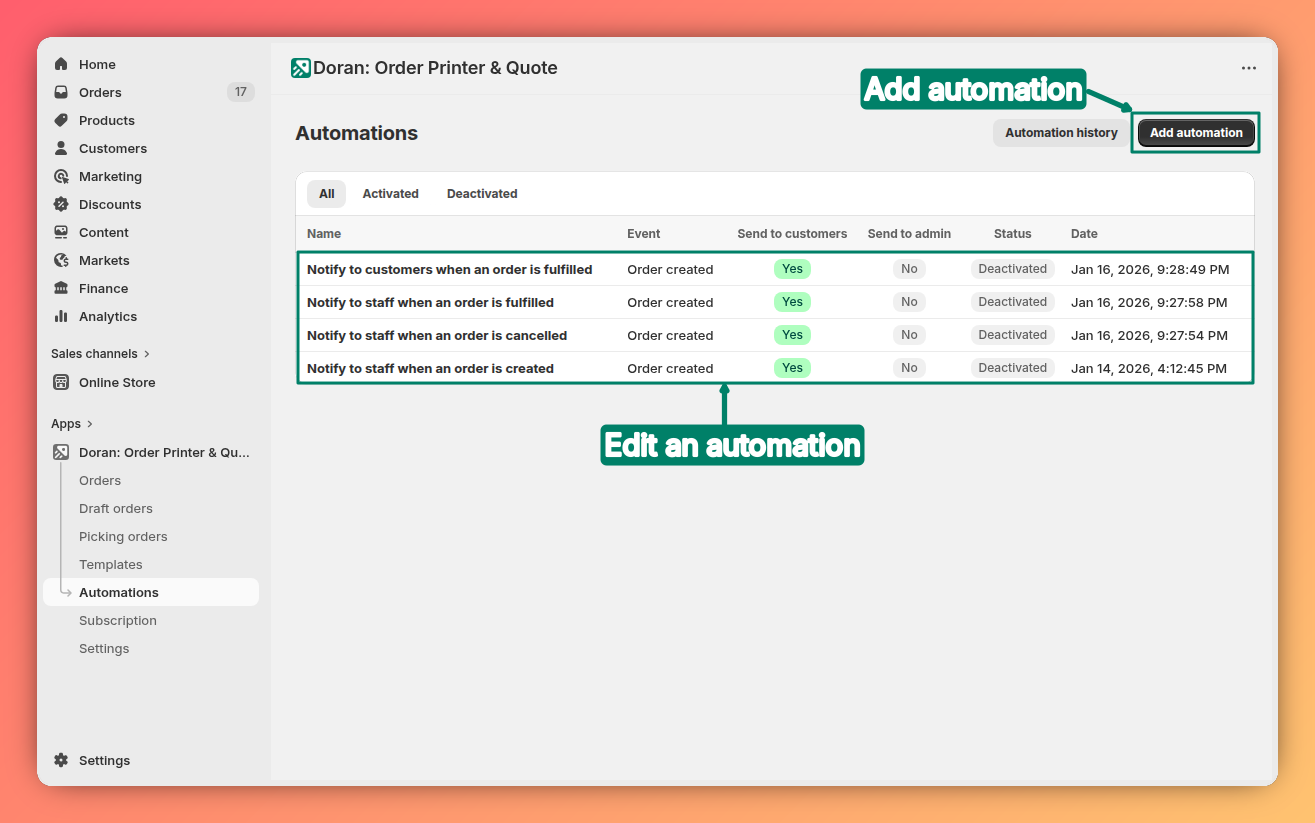

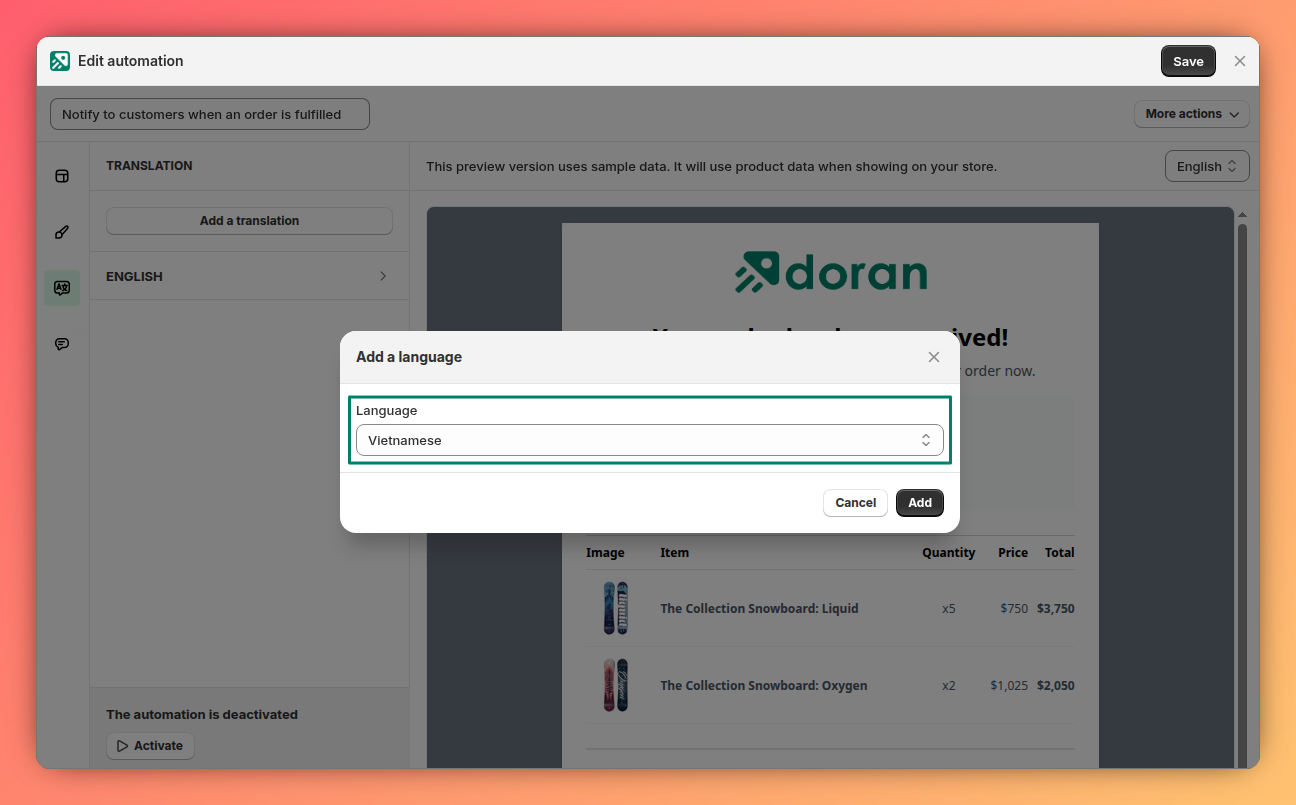
Add a new language

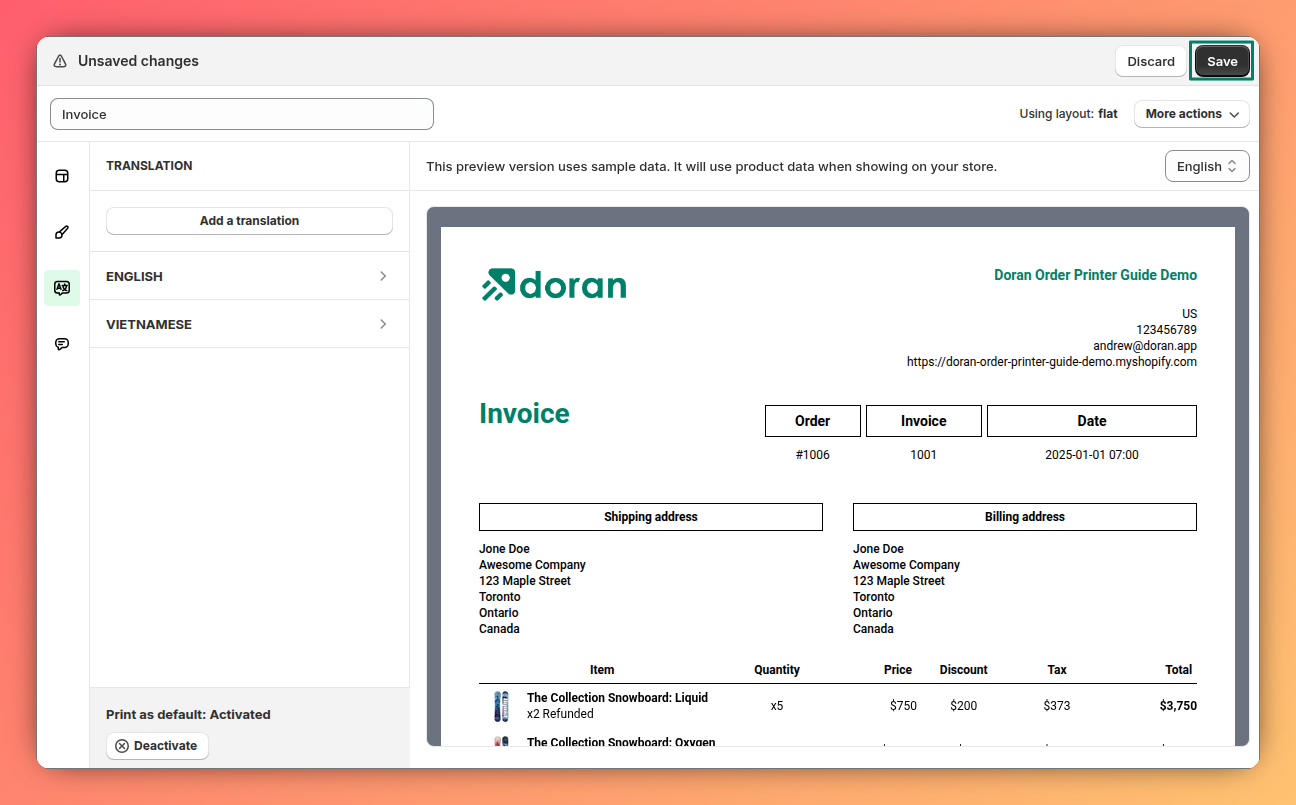
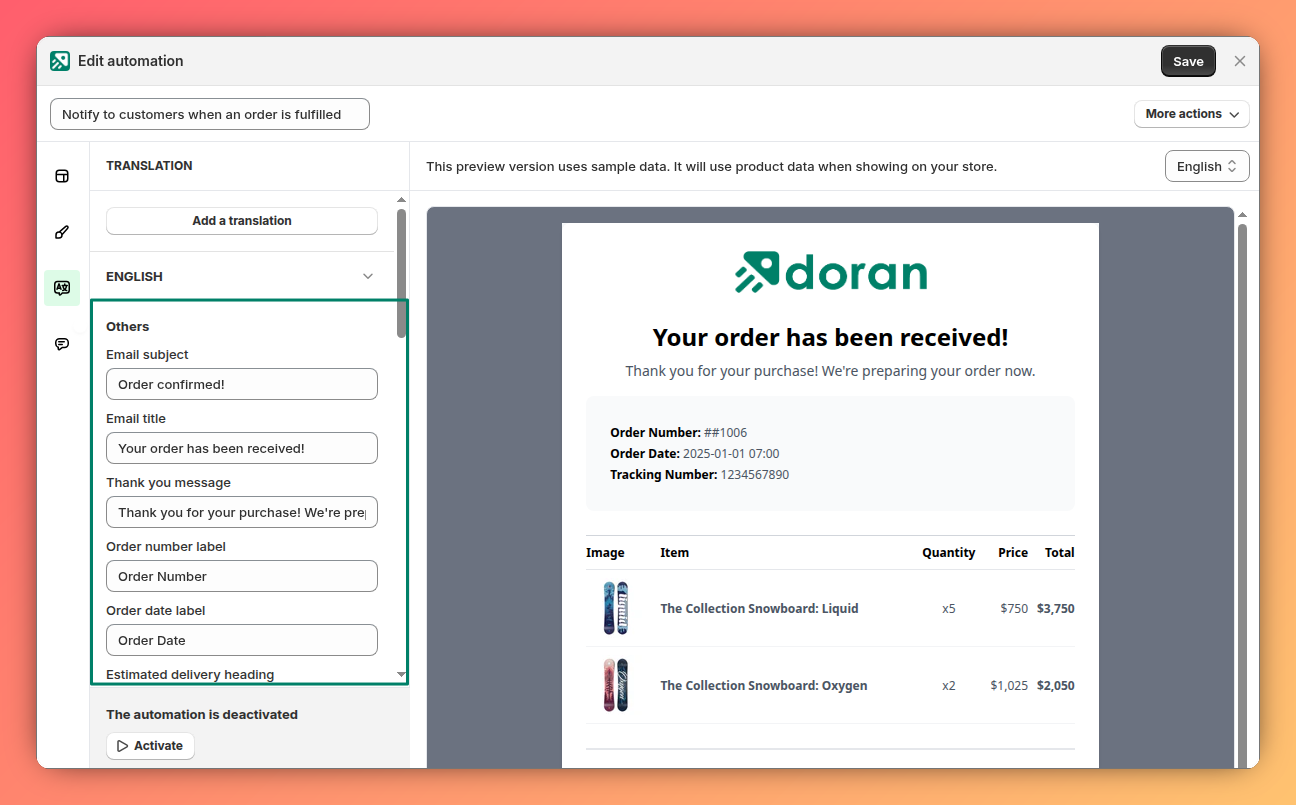
Customize a translation
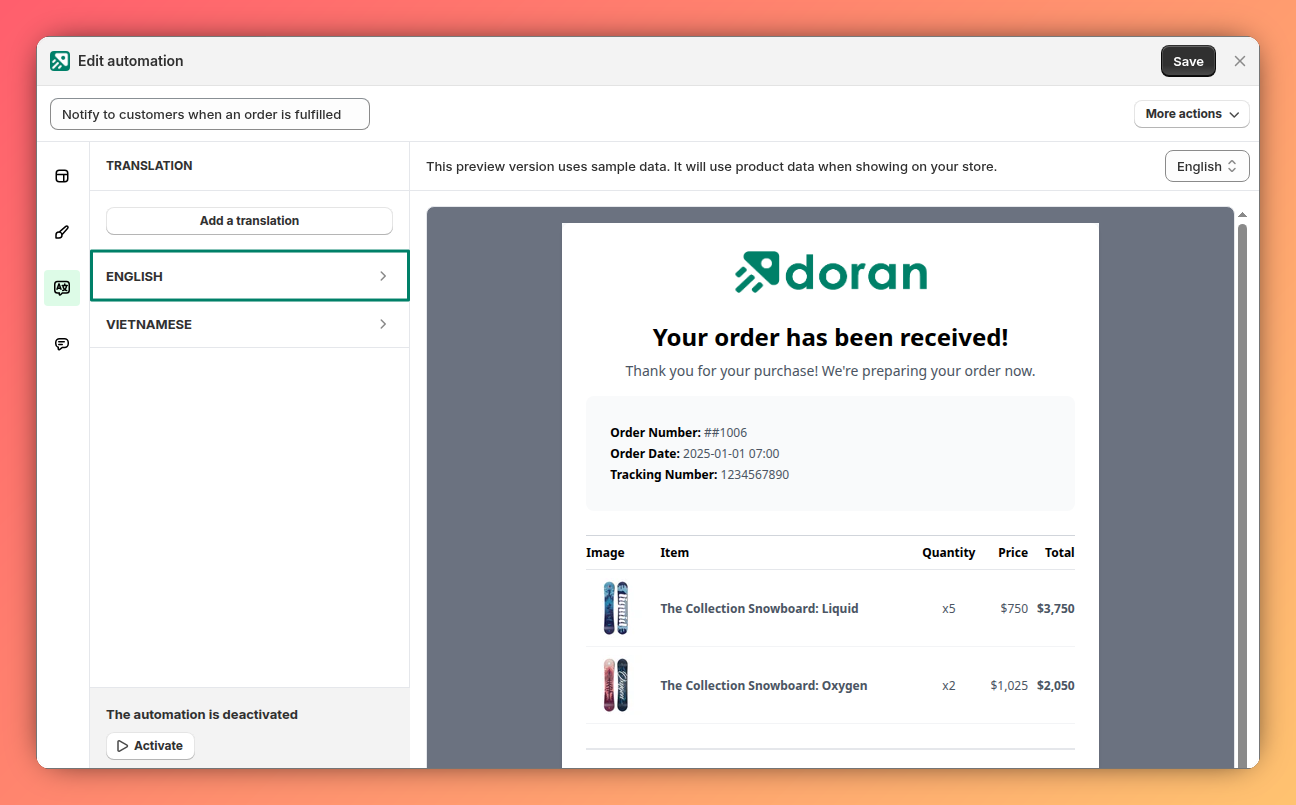

Delete a translation
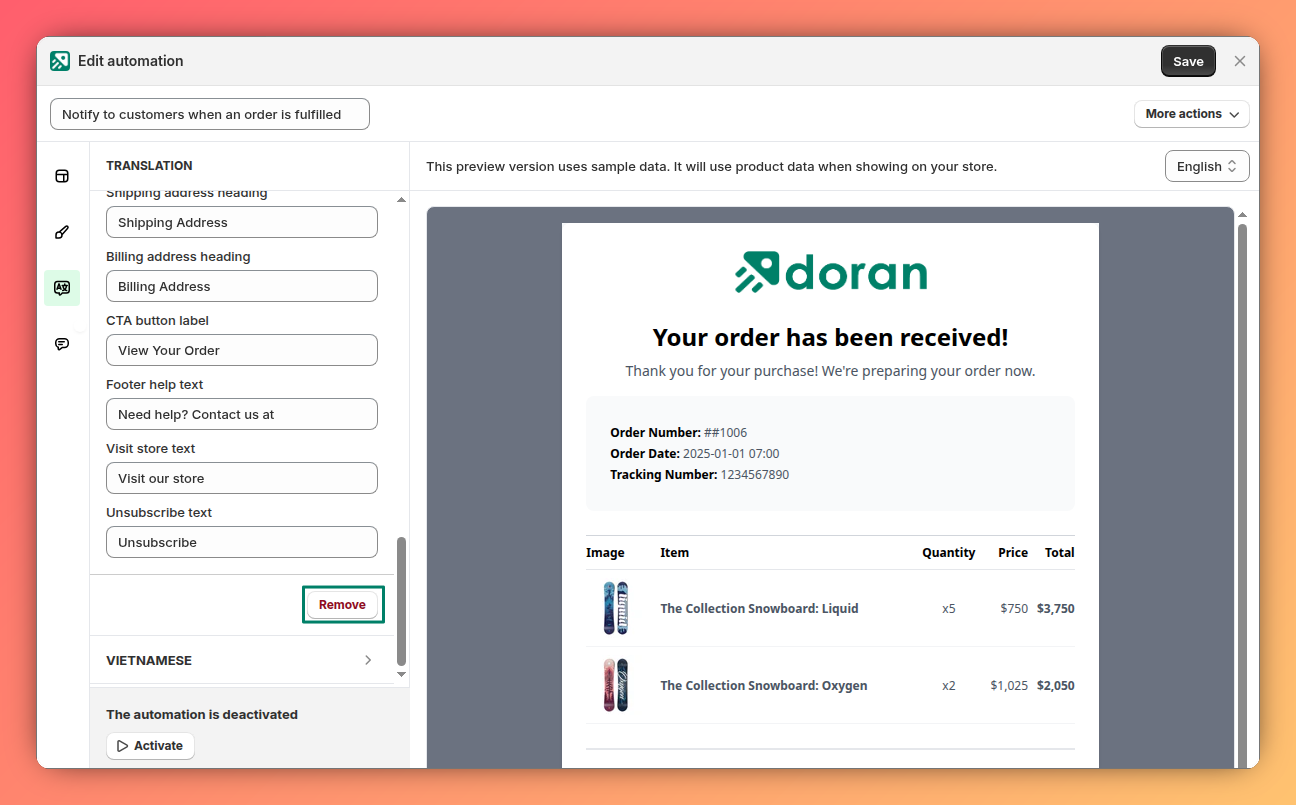
Delete a translation
When the translation is open, scroll down and click the Remove button to delete it.
If you have only 1 translation, you can't delete it.

Settings
Learn how to access and modify the settings for your automation templates. This guide covers how to preview your changes in real-time and quickly locate specific settings by clicking directly on the template preview.
Store details
Changing your store information makes it easier for us to contact you