Appearance
The Appearance settings allow you to control the visual style of your document templates. You can align the design with your brand by adjusting logos, colors, typography, and more.
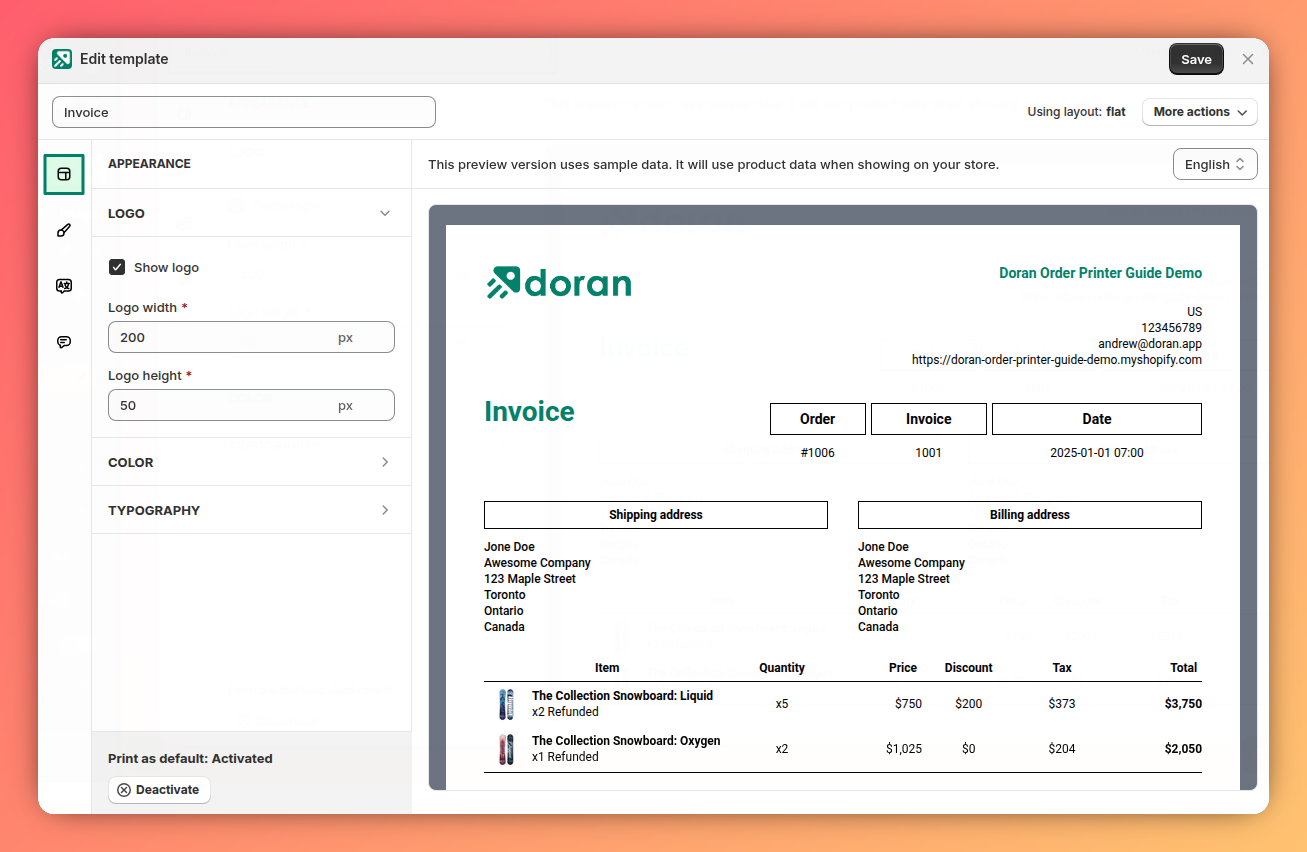
Logo
This setting controls whether your store's logo is displayed on the template. Toggle the switch to show or hide the logo.
Logo width
Adjust the width of your logo in pixels. When you first install the app, Doran automatically fetches your logo from Shopify and calculates an appropriate size, but you can override it here for a perfect fit.
Logo height
Adjust the height of your logo in pixels.
Primary color
Set the main color for your template. This is typically your brand's primary color and is used for major elements like headings.
Accent color
Set a secondary color for your template. This color is used for supplementary details. After installation, Doran automatically tries to import this color from your Shopify theme settings.
Font family
Choose the font for your template's text. We currently support the following fonts:
- Anton
- Arimo
- Arial
- Barlow
- Bitter
- Cabin
- Calibri
- Crimson Text
- Dosis
- Fira Sans
- Heebo
- Hind
- Inconsolata
- Josefin Sans
- Karla
- Lato
- Libre Baskerville
- Libre Franklin
- Lora
- Merriweather
- Montserrat
- Muli
- Nanum Gothic
- Noto Sans
- Noto Sans JP
- Noto Sans KR
- Noto Sans TC
- Noto Serif
- Nunito
- Nunito Sans
- Open Sans
- Oswald
- Oxygen
- Playfair Display
- Poppins
- PT Sans
- PT Sans Narrow
- PT Serif
- Quicksand
- Raleway
- Roboto
- Roboto Condensed
- Roboto Mono
- Roboto Slab
- Rubik
- Slabo 27px
- Source Sans Pro
- Titillium Web
- Ubuntu
- Varela Round
- Work Sans
If you need to use a custom font not listed above, please contact our support team, and we will assist you in adding it.
Font size
Adjust the base font size for the content in your template.
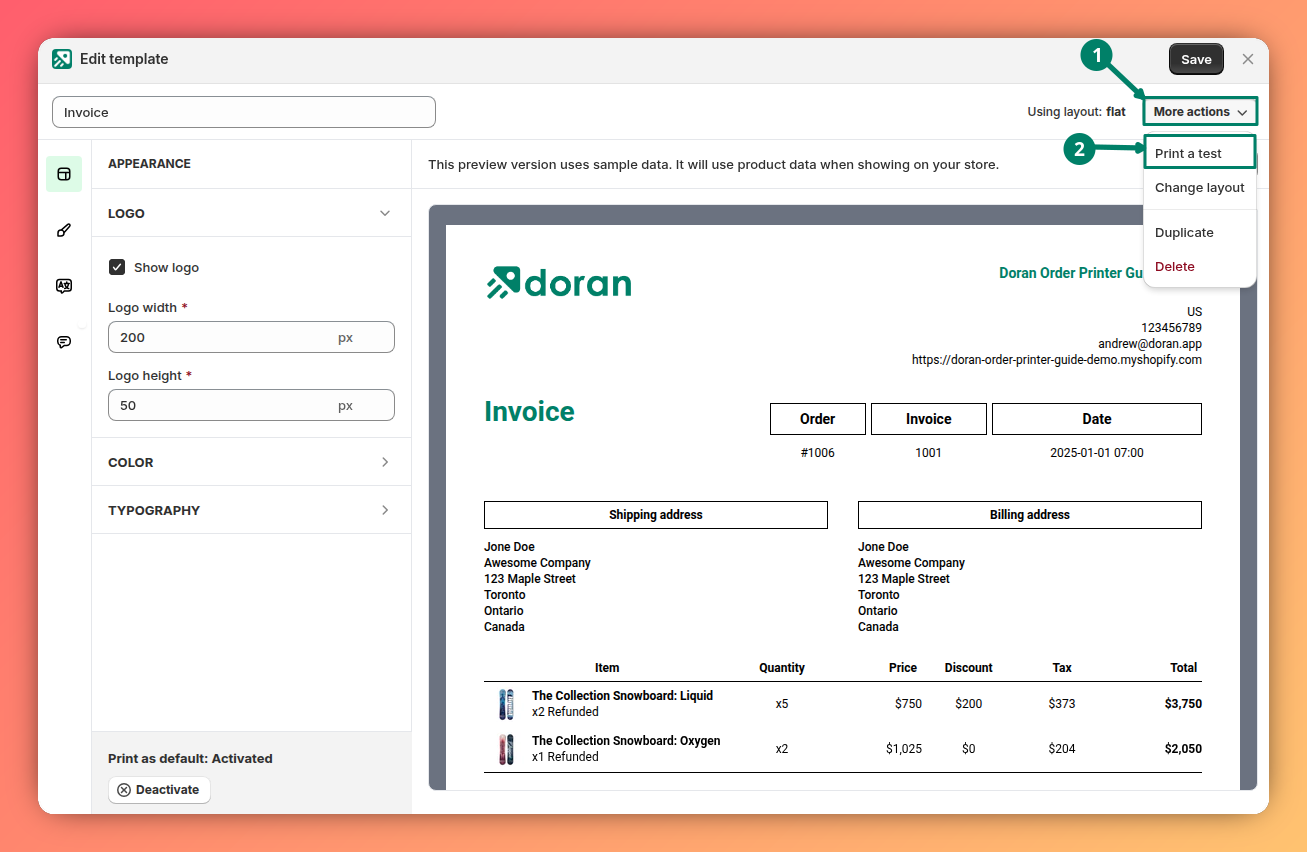
Change layout
This option allows you to switch between different pre-designed layouts for your template. You can select one of the app's default layouts or apply a custom layout you have created.
Print test
Click this button to generate and print a sample document. This is highly recommended to ensure all your appearance settings look correct before you use the template for actual orders.
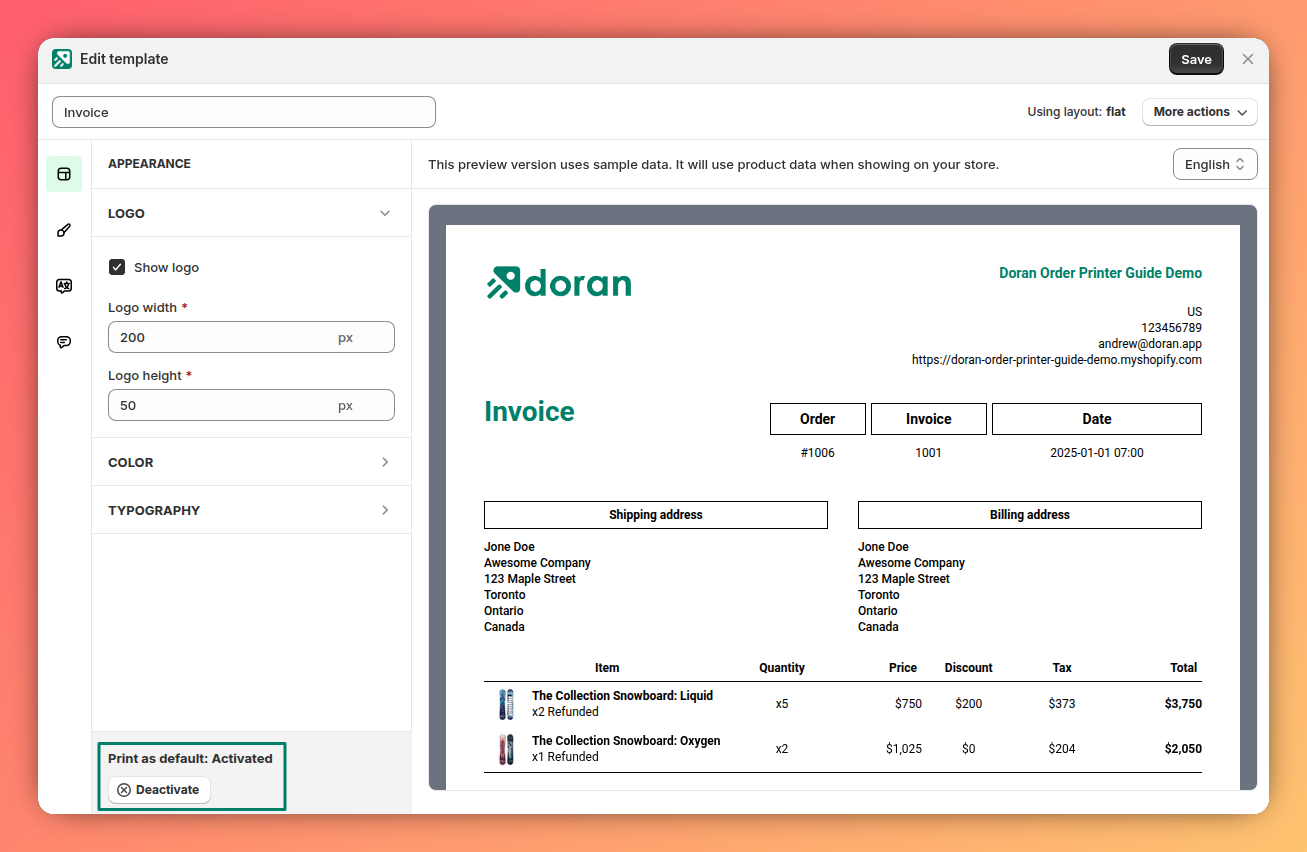
Print by default
If you enable this option, this specific template will be automatically selected whenever you print orders from the app. This is useful for setting your most-used design as the default.
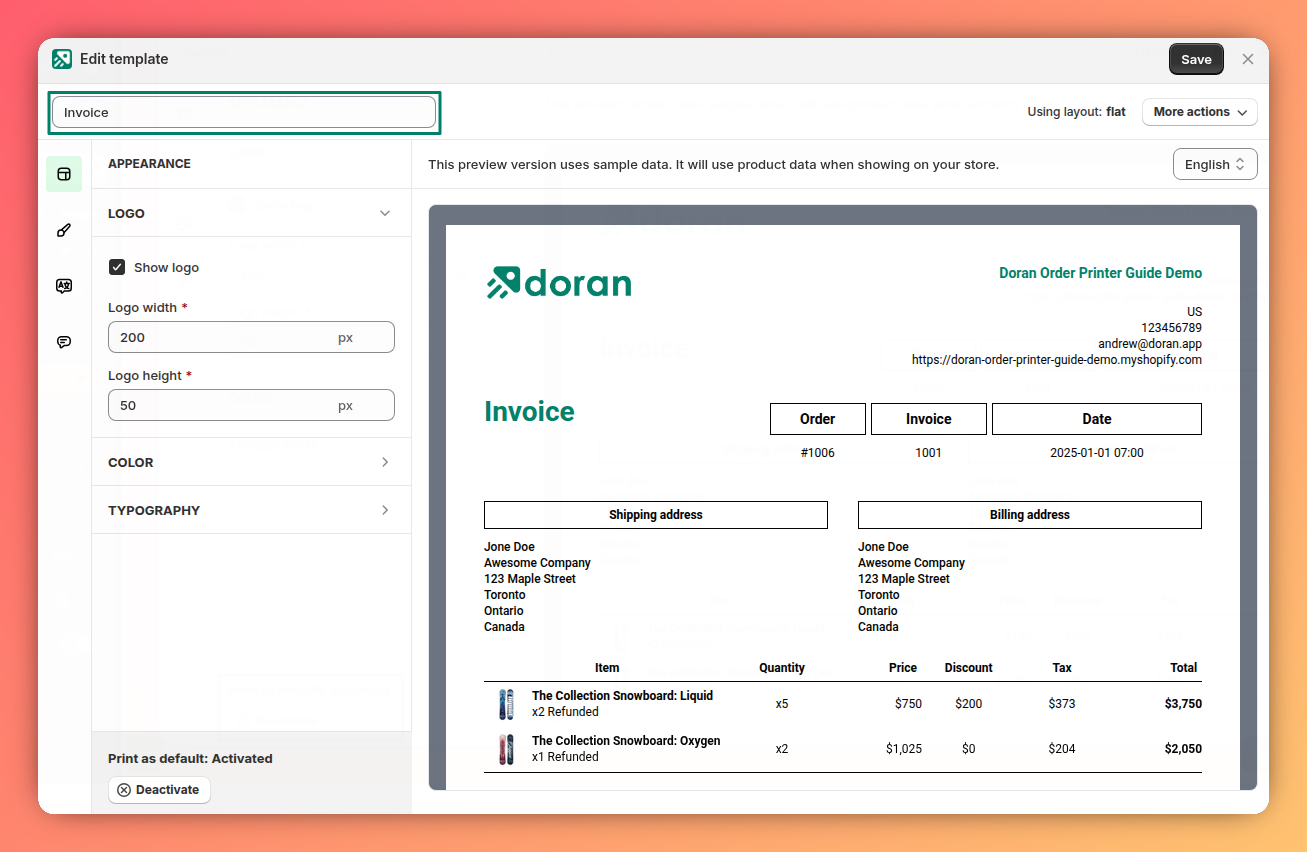
Template name
Change the name of your template here. This name is for internal use only and helps you easily identify and manage your different templates within the app.
Templates
Learn how to manage your print documents effectively. This guide covers how to filter, duplicate, delete, and set default templates for invoices, packing slips, and more.
Settings
A guide to the template settings panel. Understand how to customize your templates, see live previews of your edits, and use the interactive preview to instantly locate any setting.