QR Code
When customers use and enjoy your products, they can leave product and store reviews through video. These videos help build trust and encourage other customers to make purchases.
With this feature, you do not need to manually collect customer videos. The process becomes automated, helping you create a continuous review loop that can increase conversions and sales with minimal effort.

Use cases
Add QR Code to review request emails
Include a QR code inside your follow-up emails so customers can quickly open the review page on their phone.

Add printed QR Code tags to product packages
Print a QR code and include it inside the package when shipping products. Customers can scan the code and submit a review after receiving their order.

Add a review menu to your store header/footer
Create a navigation menu item that links directly to the review page, making it easy for customers to access at any time.

How to create a QR Code image
Before creating the QR code, copy the review URL generated inside Doran.
Copy the URL from Doran
Inside Doran, locate and copy the review request URL that you want customers to open.

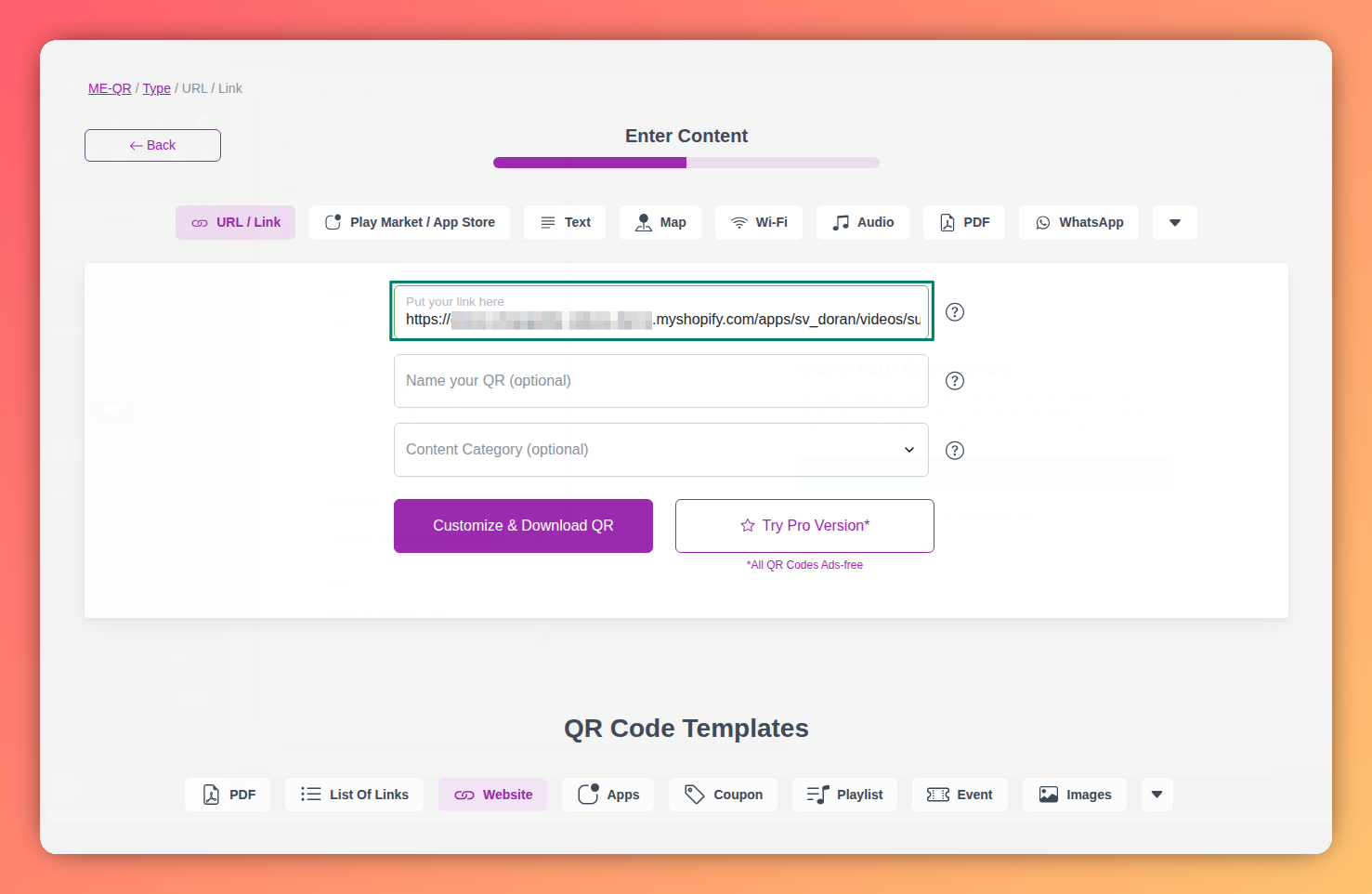
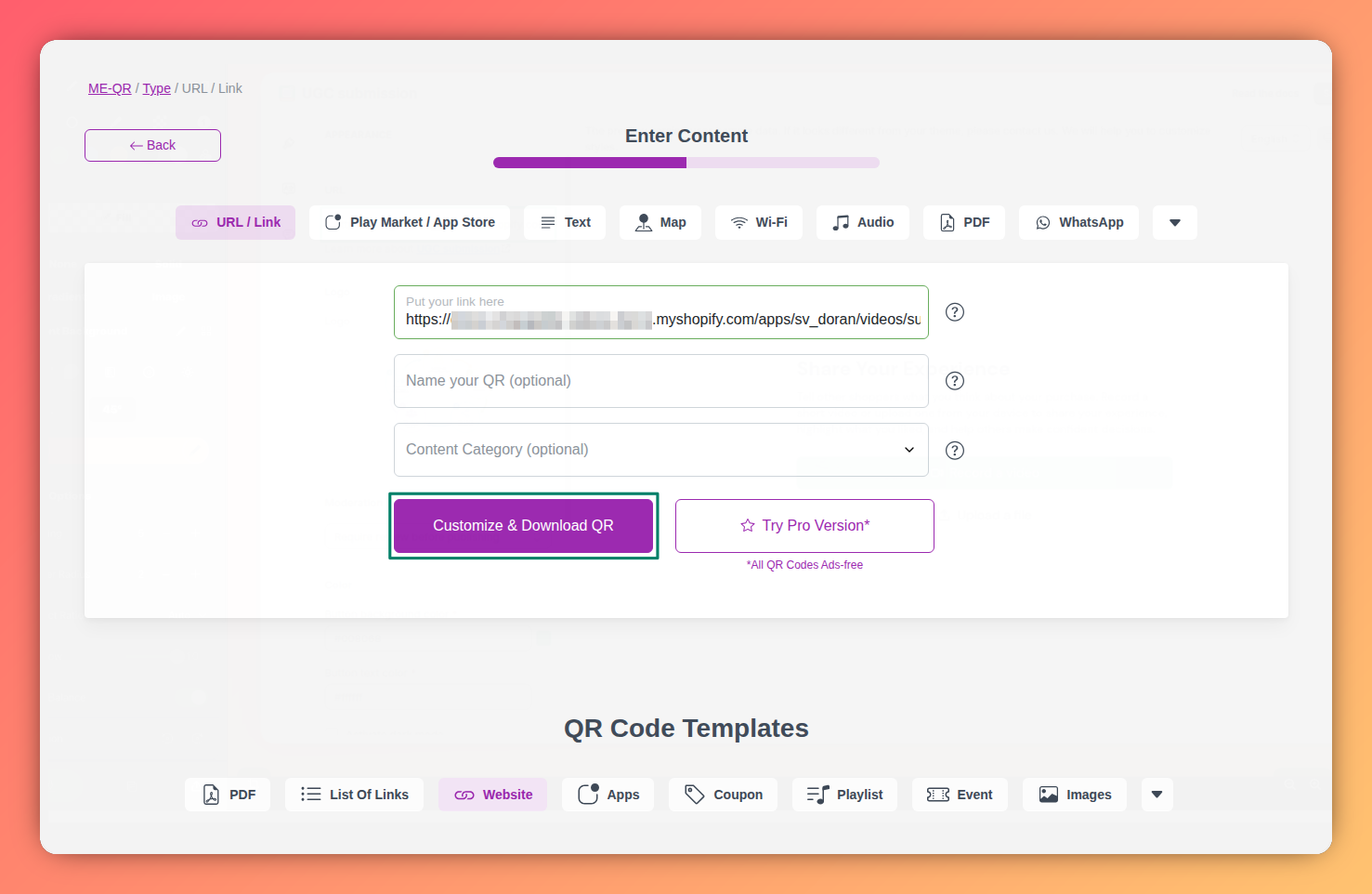
Customize the QR Code design
Adjust the QR code style, colors, frame, or template to match your brand identity.
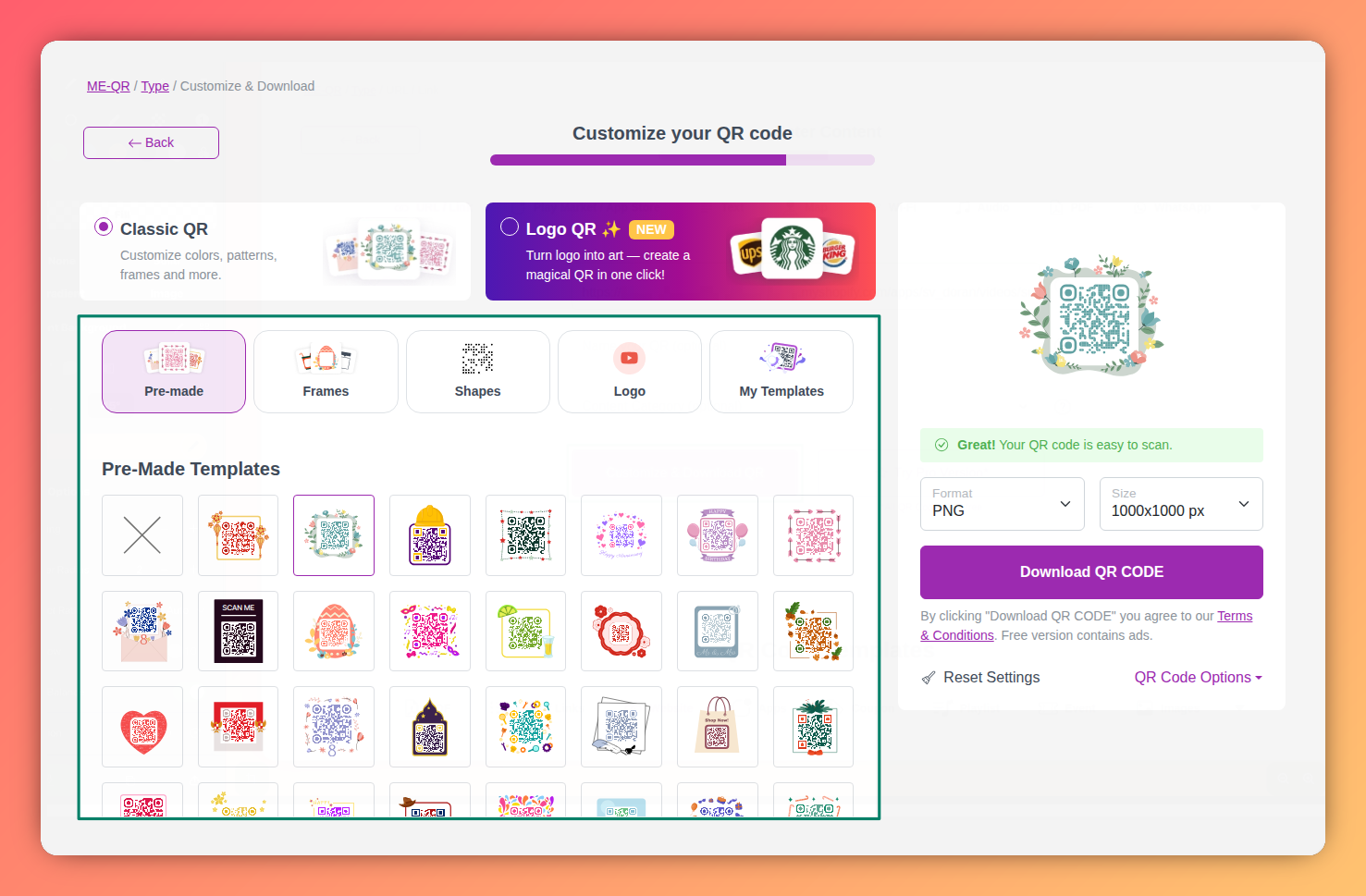
Download the QR Code
Download the final QR code image and use it in emails, printed materials, or your store.

How to add a review menu to your store
You can create a menu item in Shopify that links directly to your review page.


Copy the URL from Doran
Inside Doran, locate and copy the review request URL that you want customers to open.
Configure the menu label and link
Enter a menu title such as Submit a video and paste the Doran URL into the link field.

Save the Menu
Save your changes to publish the new menu item on your store.
Appearance
Learn how to customize the appearance and publishing behavior of your UGC submission experience. This guide explains how to upload your logo, manage moderation settings, customize button colors, enable dark mode, and apply custom CSS styling.
Translations
Supporting multiple languages on your Shopify store is a great way to reach more customers and create a localized shopping experience.