Manage videos
Access the menu
To manage videos, go to Videos.
Tag products to videos
Linking videos to relevant products increases engagement and improves the shopping experience.
Tag products to a single video
Tick the checkbox next to the video you want to edit and click Tag Products.

A popup or sidebar will appear, search and select one or multiple product names. Click Add to apply.

Tag products to multiple videos
Tick the checkboxes for multiple videos then click Tag Products.

Select one or more products you want to associate with all selected videos.
Click Add.

Tip: You can use this function to connect promotional or review videos directly with product pages.
Delete videos
If you no longer need a video, you can delete it from your video library:
You can select one or multiple videos by ticking the checkbox next to each one. Once selected, click the Delete button. A confirmation prompt may appear, click Delete to confirm.


Note: Deleted videos cannot be recovered, so make sure to double-check before deleting.
Change video status
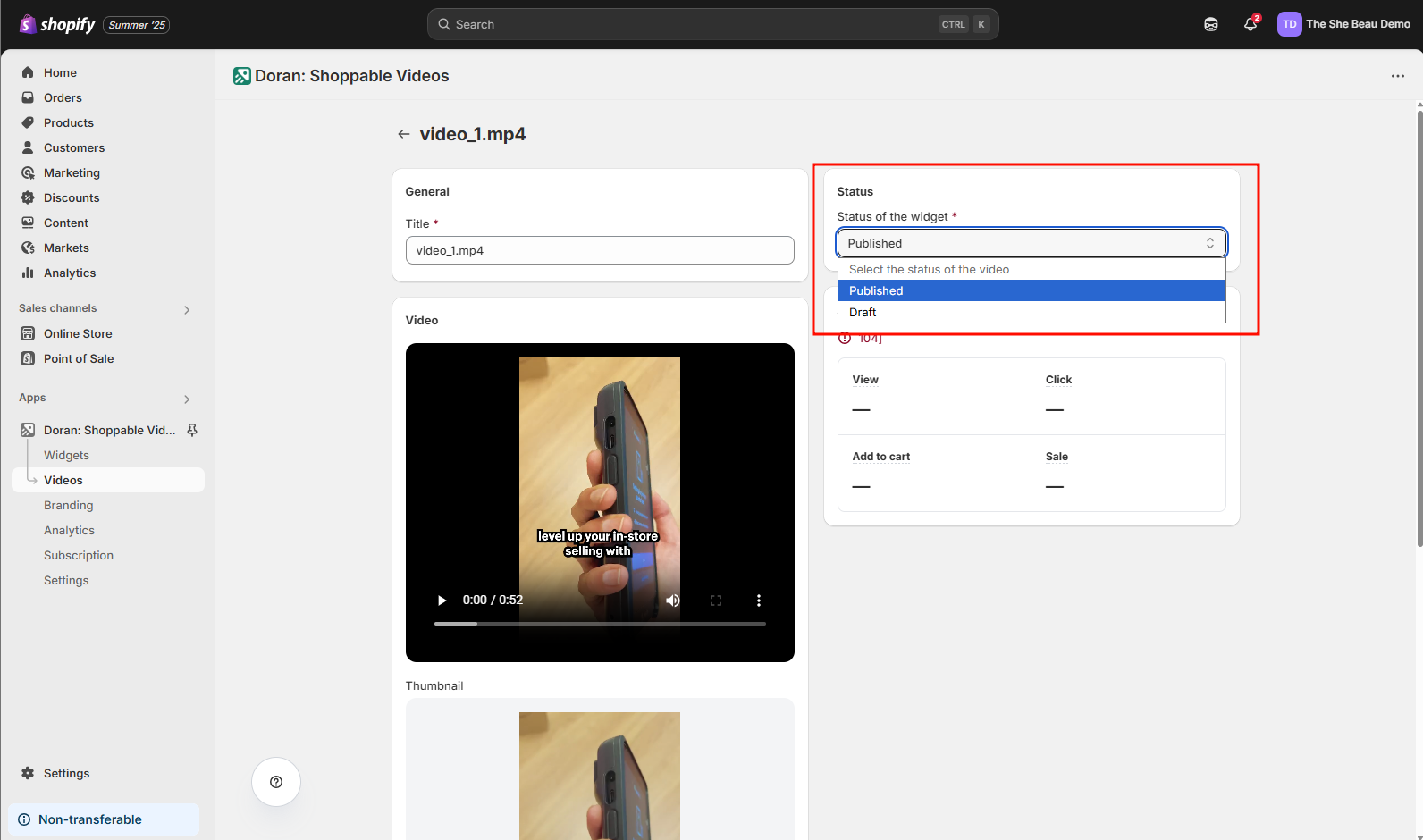
Each video can be set to one of two statuses:
-
Published: The video is live and visible to your audience.
-
Draft: The video is hidden from public view but saved for later editing or future campaigns.
Select the video you want to update. In the Status column, choose between Published or Draft depending on your needs.
This feature is helpful for planning product launches, seasonal campaigns, or editing content without showing it publicly.
Video tags
Video tags help you organize and manage your videos more efficiently. For example, you can group videos related to customer reviews under a tag like “Customer Reviews” to make them easier to find and manage later.
Additionally, video tags can be used to configure and display your Video sales page.
Add video tags
In the video list, select the videos you want to tag. Then click Add tags.

A modal will appear prompting you to enter the tags you want to add. You can add multiple tags at once.

Click Save to apply the tags.
Remove video tags
In the video list, select the videos you want to remove tags from. Then click Remove tags

A modal will appear prompting you to enter the tags you want to remove. You can enter multiple tags, and all of them will be removed from the selected videos.

Click Save to confirm.
Publish videos to Shop.app
Prerequisites
Before publishing videos to Shop.app, your videos need to meet the following prerequisites.
- Videos need to be tagged with at least 1 product and a maximum of 20 products.
- The video needs to be hosted on Shopify.
- Videos are unique and have never existed on Shop.app before.
How to publish videos to Shop.app
From the video detail page, you will see a section: Shop

Turn on the option Publish on Shop

Click Save to confirm.
After some minutes, our app will publish the Shop.app automatically.

Publish videos automatically
If you would like to publish videos automatically when you or your customers upload, please follow this article.
Social share
Turn your shoppable videos into a powerful word-of-mouth engine. Social Share lets you instantly share widget content across social platforms and email — helping you build trust through real customer videos.
Video sync tasks
Video sync tasks let your store automatically fetch new videos from social media on a recurring basis, so your video library always stays up to date without manual imports.